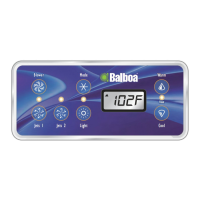
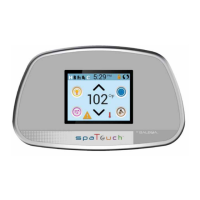
RESTRICTING OPERATION
Main Screen
SEQUENCE
Flashing characters
Progressive message
Press TEMP button for “action”
Press LIGHT button to “select”
Pause / back to Main Screen / setting not saved
Pause / back to Main Screen / setting saved
Menu Items may or may not appear
SEQUENCE KEY
( View page 2 for full description )
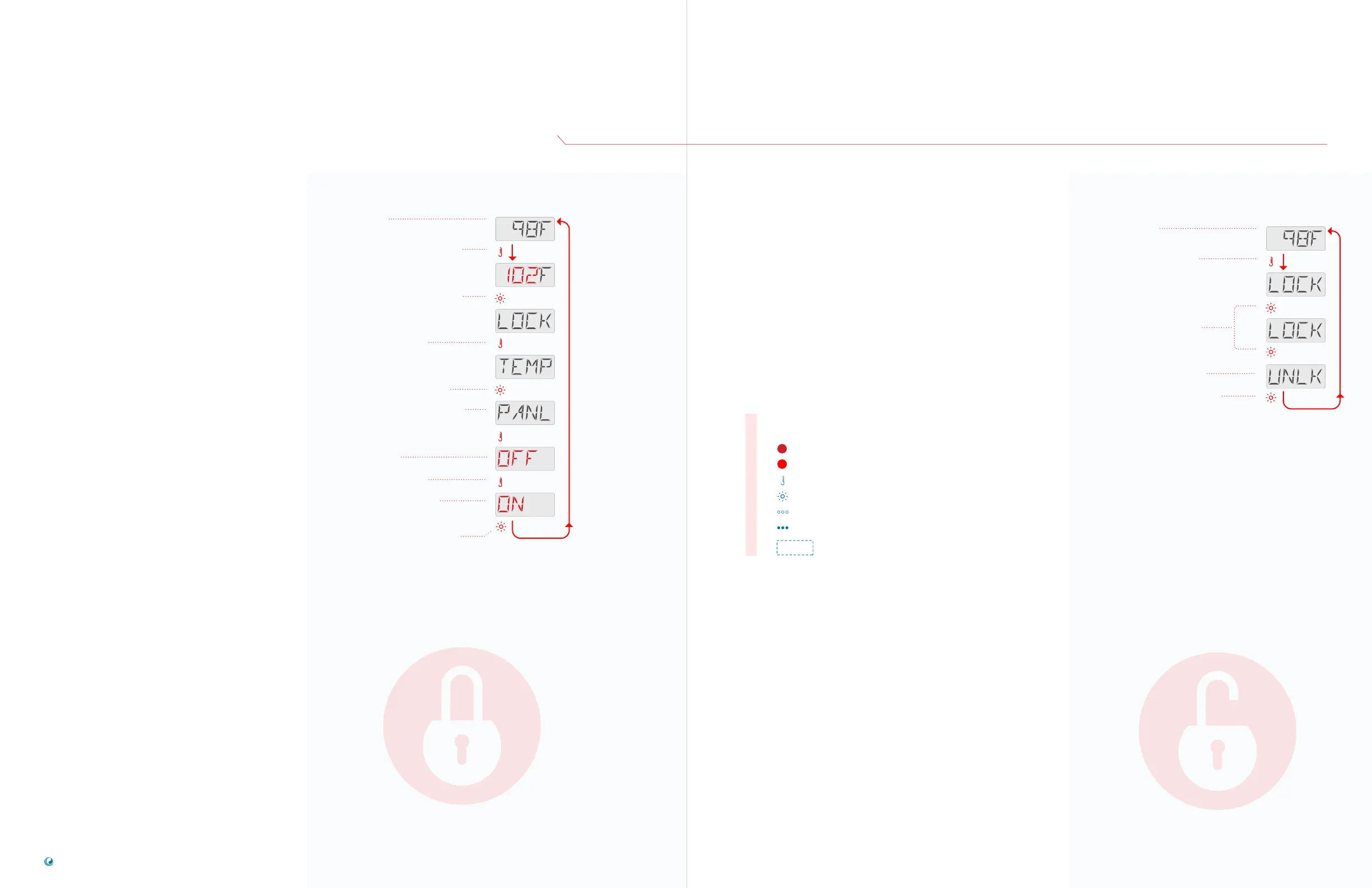
Unlock Panel
Follow this sequence to unlock the panel.
This unlock sequence may be used from any
screen that may be displayed on a
restricted panel.
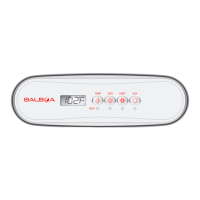
NOTE: If the panel has a WARM and a COOL
temperature button (view page 3), only the WARM
button will work in the Unlock Sequence.
Press the TEMP button.
LOCK will appear.
While holding down the TEMP
button, press the LIGHT
button two times slowly.
UNLK indicates that the Panel
and settings are unlocked.
Press the LIGHT button, and
the Main Screen will appear.
Or, pause a moment, and
the Main Screen will appear
automatically.
Main Screen
SEQUENCE
• • •
TP200 USER GUIDE 42369 Rev A2
10
9
Balboa Water Group | Your Single Source Solution
Press the TEMP button. The Set
Temperature will appear and flash.
While the Temperature is flashing,
press LIGHT until LOCK appears.
Press the TEMP button.
Press the LIGHT button to select Panel
Lock (not Temperature Lock).
This indicates that you will lock the
panel in the following screens.
OFF indicates that the panel
will be unlocked.
Press TEMP to view ON.
ON indicates that the panel
will be locked.
Press LIGHT to save your setting.
The Main Screen will
appear automatically.
If you do not press LIGHT, your setting
will not be saved, and the Main Screen
will appear momentarily.
The panel can be
restricted to prevent
unwanted use.
Lock Panel
Locking the panel prevents the panel from
being used, but all automatic functions are
still active. Follow this sequence to Lock
the panel.


 To Next Page