29
REV 0.9.5
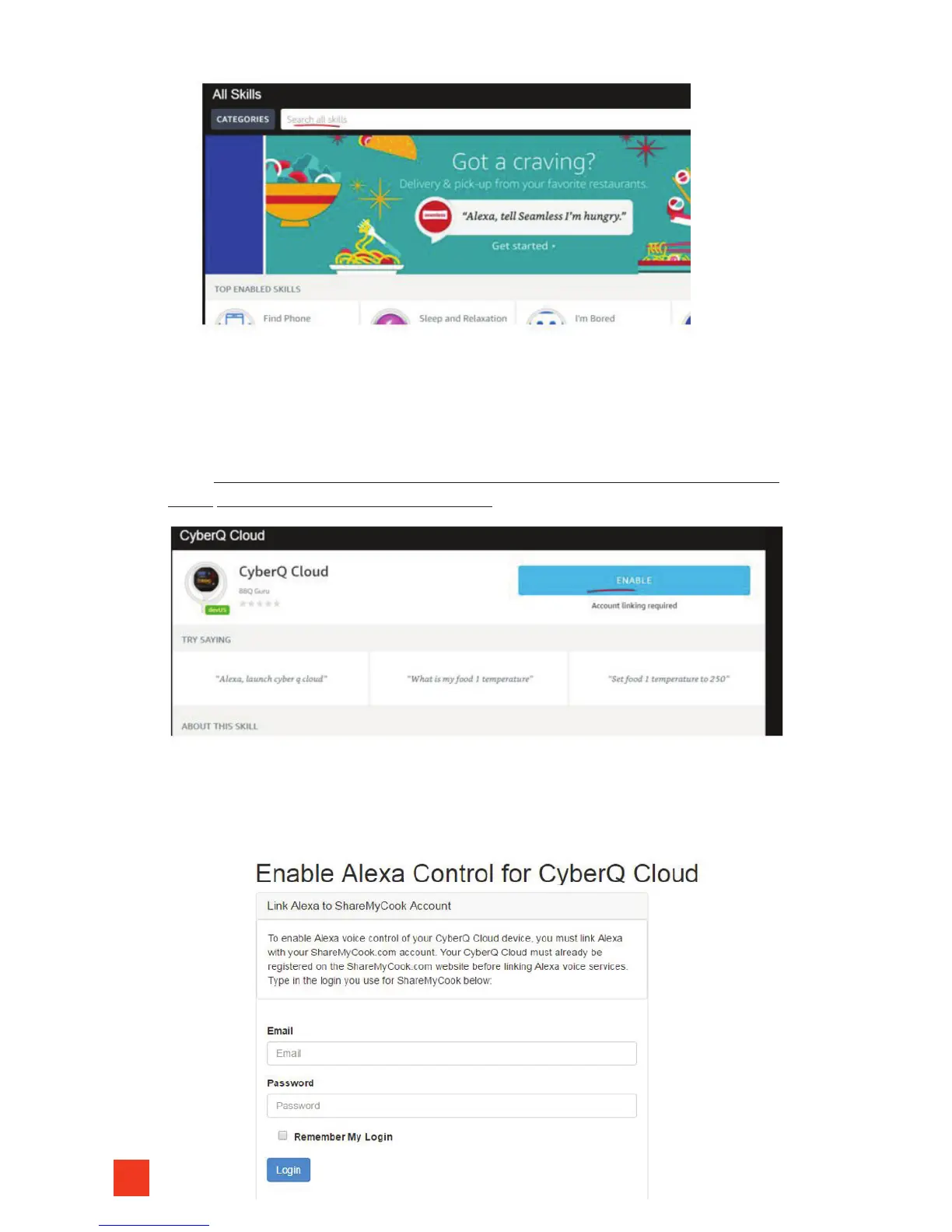
5. You will see CyberQ Cloud appear, click on it and install it by adding it
to your account.
6. Once added, you will need to link it to your ShareMyCook account. Click on
the blue ‘Enable’ button. After you click on ‘Enable’, it will open a new win-
dow (make sure you don’t have pop-up blocker on or disable it temporarily.
Many browsers will block this by default).
7. You now need to LINK the CyberQ Cloud skill to your ShareMyCook account.
By doing this, you grant the CyberQ Cloud skill access to your default CyberQ
Cloud. You will be asked to login and link the accounts. Login with your Share-
MyCook account information:


 To Next Page