16
REV 0.9.5
internet. There are several ways to do this. Start Guide will demonstrate the easi-
est and fastest way to do so. (Our online manual provides additional options.)
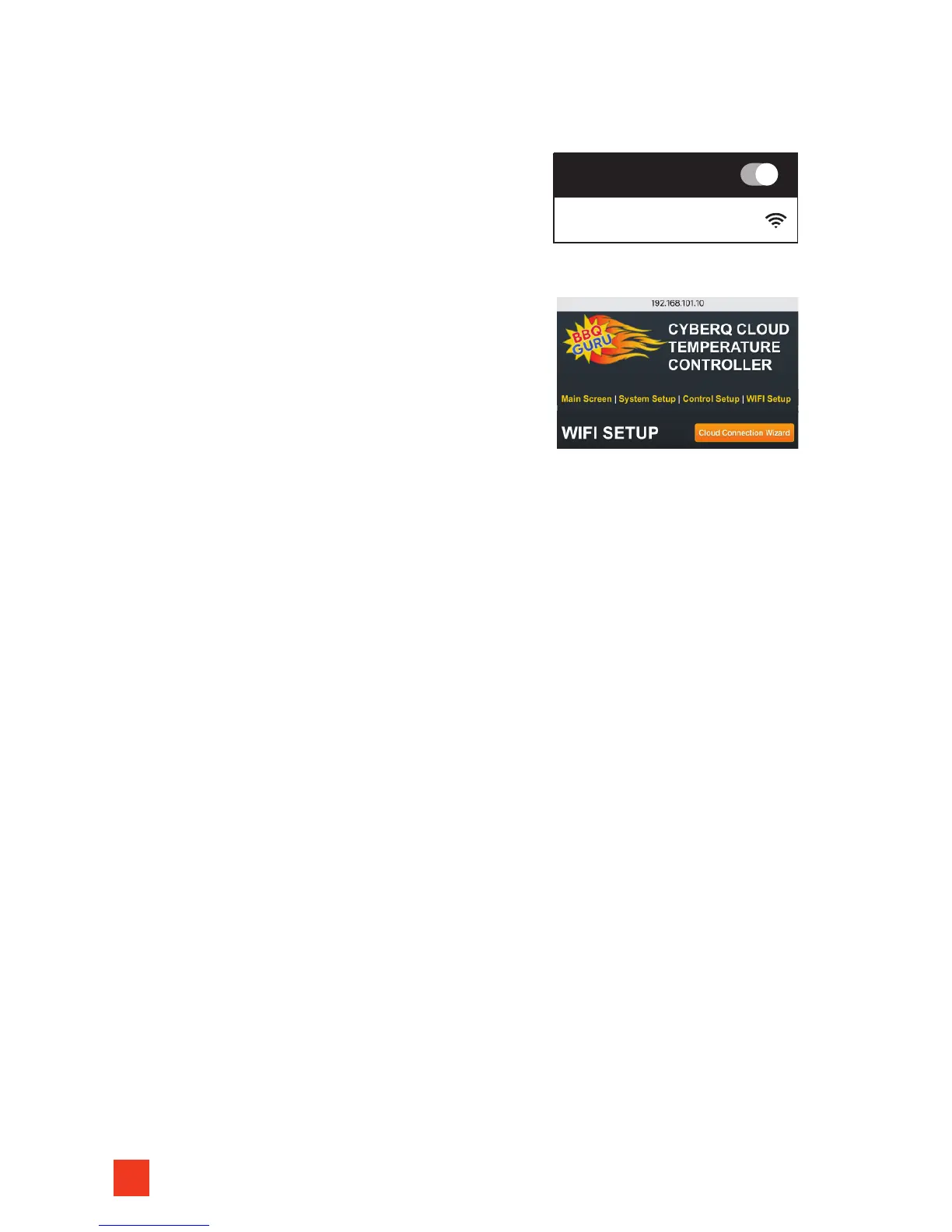
1. Using a WIFI enabled phone, tablet or desktop,
go to its WIFI settings and search for available
networks. Your CyberQ Cloud will appear on
the list with a default name that will look like
HS-MY_CYBERQ_####. Choose this from the
list of available options.
2. Once connected, open a web browser and
type in 192.168.101.10
3. You will then see the built-in CyberQ Cloud
pages. Click on the link at the top that says
WIFI SETUP.
4. Click on the yellow button that says Cloud
Connection Wizard.
5. The CyberQ Cloud will then scan for your home WIFI router.
This generally takes up to 60 seconds.
6. Scroll down to see the available networks. Find your home network
and click Join.
7. If your WIFI router requires a password, type in the password and
hit Submit.
10. CONNECTING CYBERQ CLOUD TO SHARE MY COOK
The CyberQ Cloud easily syncs up with ShareMyCook. The fun and easy-to-use
website is a community for outdoor cooks to interact and learn from each other.
Before you register the CyberQ Cloud to ShareMyCook, your device must be
setup to your wireless network. Ensure your device is in Infrastructure (INFRA)
mode and the Cloud Enabled option is turned on (it should turn on by default).
1. To connect your CyberQ Cloud to ShareMyCook, go to www.sharemycook.com
2. Click on ‘Register Device’.
3. Create an account by filling out the form with your name, email, and password.
4. Click ‘Create Account’.
5. Once your account is created, you will need to sync your CyberQ
Cloud to ShareMyCook.
6. Click ‘Generate Pin’. This will create a unique 4-digit number.
(Note: This number will expire in 60 minutes.)
7. Unplug your CyberQ Cloud and plug it back in.
8. Once your device powers up, the CyberQ Cloud LCD panel will display
REG PIN 0000.
9. Use the arrow keys on your device to enter the pin from ShareMyCook.
HS-MY_CYBERQ_####
ON
Wi-Fi


 To Next Page