EN | UltraQ | Operating instructions EN | UltraQ | Operating instructions
The appl has a countdown timer and there are three
different options to choose from when the timer has
run out.
1. On the main screen of the app, touch the timer to
set hours, minutes and seconds. On the same page
in the app, also select the desired timeout action.
2. No action (default): When the timer has gone off,
nothing changes in how the control regulates your
grill.
3. Hold: When the timer has expired, the controller
will hold the temperature at a specic set point you
have set. The default value is 93°C. The control
maintains the hold temperature until you either
change it or stop cooking.
4. Alarm: When the timer has expired, the app sends
you an alert to notify you.
STEP 6
Countdown Timer
Once congured with Wi-Fi, the UltraQ can be
monitored and changed from any device with an
internet connection.
This activates the following additional functions:
• Email and text alerts
• Live graphic of the grill in progress
• Share recipes & photos via social media
• Stored data from previous applications
• Integration with Amazon Alexa
10 WI-FI REMOTE CONTROLSETUP
1. CONNECTING THE ULTRAQ TO WI-FI
Log in with an existing Share My Cook account or
click on the option to create an account. If you create
a new account, the user must verify the account
before they can use it through the app.
Follow the instructions to select your desired Wi-Fi
network and enter your password. If the Wi-Fi
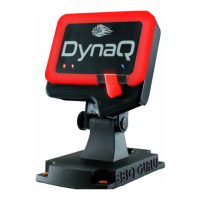
connection is successful, the LED indicator in the
lower right side of the control unit lights up purple.
NOTE: If the controller is connected to another device
via Bluetooth and Wi-Fi, the led indicator lights up
purple. If the controller is connected to Wi-Fi but not
Bluetooth, the indicator light ashes between red and
purple.
If an error occurs during the pairing process, the app
will prompt you to try again.
2. REMOTE CONTROL OPTIONS
Once the UltraQ is successfully connected to a Wi-Fi
network, it can be monitored and controlled from any
device that allows the use of apps from the Apple or
Google Play stores.
The UltraQ can be monitored, controlled and individu-
al „cooks“ can be recorded for review. Social sharing
functions enable easy „posting capabilities“ via plat-
forms such as Facebook and Twitter.
STEP 8
More options
There are many other settings that are customisable
or can be turned on or off in the controller settings in
the menu. The operating instructions are also in the
BBQ Guru app menu.
1. When the unit connects to Bluetooth for the rst
time, you will be asked to name your controller. The
name can be changed later in this section. From
here you can also turn off the LEDs, turn off the
audible alarms or enter scan mode.
STEP 7
More options
2. There are additional options to customise the au-
dible alarm on the control unit, which is especially
important if you are in a situation where several
controllers are being used at the same time, so that
they can be separated from each other.
3. There are two settings that differentiate your audi-
ble alarms from the default tone: the alarm signal
and the signal tone duration. The beep duration
is the number of tweets the control beeps in a
10-second window, which can be set from 0 to 9.
which can be set from 0 to 9. The default value is
5. Alarm beep duration is how long that each beep
lasts, which can be set from 0 to 3. The default
value is 1.
NOTE: If any of the values are set to 0, no audible
alarms will sound on the control unit..
There are advanced options for the UltraQ in the
app menu. The control can be disconnected,
restarted and updated. Follow the instructions in
the app to complete these tasks.


 To Next Page
 Loading...