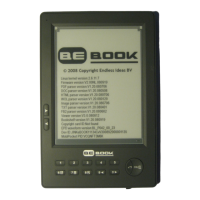
−Connect the USB (power) cable to your BeBook. Press the small reset
button on the back and/or press the on/off button on top of the device.
(Keep the USB cable connected)
−To restart the update: Hold the next page at the left side of the
BeBook and press the power on/off button twice, to shut down and
power on again. Keep the next page button pressed during this step.
−Once the update progress bar is shown, wait for the update to finish,
it will ask you to press a button when the update is finished. (There is
no need to keep the next page button pressed during the update).
−If this still fails: check the downloaded update for the correct file size.
Instructions can be found here: http://mybebook.com/p9/FREE-
BEBOOK-SOFTWARE-UPDATE/pages.html
−Download the update again and check its file size, if it’s correct and
the update won’t start, your SD card is not compatible, please try a
different make or size of card.
Q: The BeBook shows 2 battery bars but the page will not turn
A: This happens sometimes when turning a page if the battery has run
down. The BeBook gives an electronic pulse to bring up the new page,
but as there’s no (or very little) power consumption while reading a
page, the battery may run empty and the last page is still displayed
included the old power status.
Solution:
- Charge the battery.



 To Next Page