20 WING RACK Quick Start Guide
Quick Start Guide 21
Sources
When clicking on the Sources button, specic customization options for the sources will show up. All the source groups are accessible via the dropdown menu at the
top of the screen.
It is possible to rename the source, congure it as a mono, stereo or mid-side source, activate phantom power (by holding down the 48V button), invert the polarity,
add an icon, change the source color, and add mute group tags so that the source is muted when the corresponding mute group is active. Signalsgrouped into stereo
or mid-side congurations can be fed into a single channel on the console.
If the signals are not adjacent (for example, LOCAL IN 1 and 3) or belong to dierent source groups (for example, Local IN 1 and AUX 1), they can be grouped using
USERPATCHES.
The USER PATCHES are found in the USER SIGNAL source group and labeled USR25through 48. After clicking on a user patch, the signal fed into it is assigned on the
right of the screen. User patches can be congured as mono, stereo or mid-side and used as Sources for channels on the console.
Outputs
When clicking on the Outputs button, routing options for the outputs will show up. Any source can be routed to any output.
The left side of the screen will show the available digital and analog outputs. Alloutput groups are accessible via the dropdown menu at the top of the screen.
The signal that will be fed into the selected output can be chosen on the right side of the screen. All the source groups are accessible via the dropdown menu at the top
of the screen.
The output groups WLIVE REC and RECORDER control the routing for recording on two SD cards or on a USB ash drive connected to the front panel. Up to 64channels can be
recorded on the SD cards (32 on each card) or 4 channels on aUSB ash drive. Up to 48 channels can be recorded on a computer connected viaUSB to the rear panel.
SETUP
General
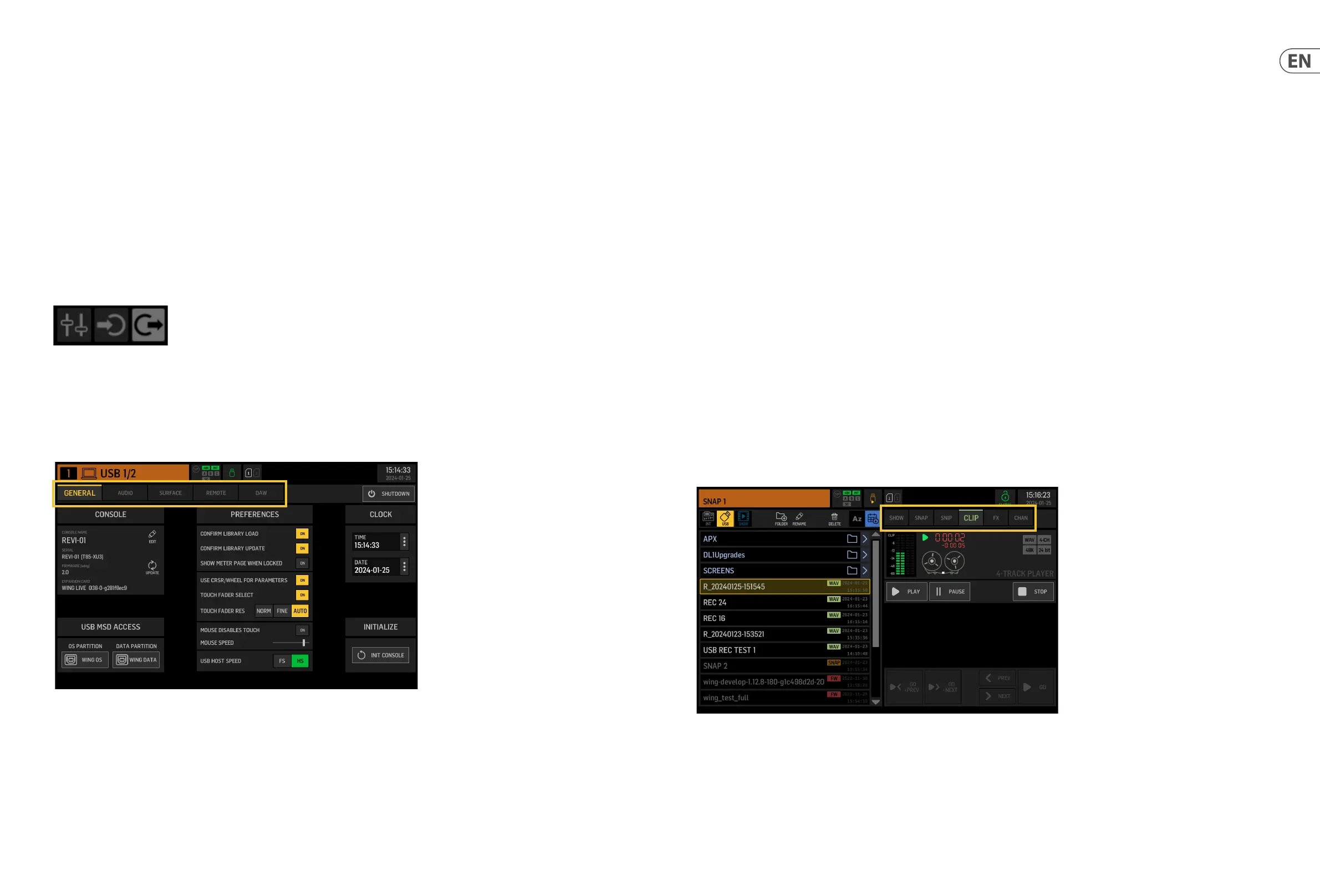
The left side of the screen shows the console name which can be edited, its serial number, rmware version and the installed expansion card.
USB MSD ACCESS controls the content that will show up when connected to a computer via USB. Select WING OS to load software updates on the console. Select WING
DATA to manage saved console show data (shows, snips, snaps, presets, clips). To disconnect the console from the computer or to return to audio playback via USB from
the computer, eject the console as regularly done with a normal USB ash drive.
The time and date can be set on the CLOCK menu.
INIT CONSOLE is used to reset the console’s channels, aux, buses, main buses, matrix buses, sources, outputs, DCAs, mute groups and eects settings. All items can be
selected by clicking on ALL. Specic items can be selected by clicking on them. To clear the selection, click on NONE. The selected items’ settings will be reset upon
clicking INIT.
Alternatively, the console can be reset by pressing and holding the CLR SOLO button on the Main Display while powering the console up.
WING RACK Overview
Audio
The AUDIO CLOCK section controls the console’s sample rate (CLOCK RATE) and word clock source (SYNC SOURCE) settings.
By clicking on the channel and aux bus grid below INPUT SELECT, it is possible to easily toggle between the MAIN and ALT input for all 40 channels and 8 aux buses.
PREFERENCES contains multiple muting and solo options.
Dierent solos can be set up as pre (PFL) or post fader (AFL).
USB AUDIO selects the number of channels available via the type-B USB connection on the rear panel from 2 to 48 channels.
AUTOMIX automatically regulates the level of multiple sources so that the output level stays uniform. This is useful in situations where dierent speakers will be
talking on stage at the same time, for example. Up to 16 channels can use automix (in the post-insert slot) in two groups (A/B).
Surface
This screen contains multiple options regarding the console surface’s lights, metering and scribbles.
Remote
Multiple console settings can be controlled via MIDI, either via a DIN-5 or a USB connection. The MIDI REMOTE CONTROL section determines which parameter will be
controlled via which connection.
The HA REMOTE section controls the console’s remote control via the AES50 A, Band C ports.
The IP mode and address can be set up on the NETWORK section.
DAW
The WING console can be used as a DAW controller. The respective setup is available on the DAW screen. Presets for dierent DAWs can be loaded automatically via the
dropdown menu.
For the console to function as a DAW controller, the REMOTE CONTROL button to the left of the custom controls must be pressed.
LIBRARY
The LIBRARY screen is the le manager for dierent types of media including .wav audio les, snapshots, snippets, and eect and channel presets saved on the
console’s internal storage or on a USB ash drive connected to the front panel.
SNAP
The SNAP tab is used to manage snapshots that save the console’s channels, aux, buses, main buses, matrix buses, sources, outputs, DCAs, mute groups and
eectssettings.
The content that can be saved includes channel customization, tags, patching, lters, time delay, channel strip settings, EQ, panning, sends, fader, mute and order of
the processing in the channel.





 To Next Page