26 WING RACK Quick Start Guide
Quick Start Guide 27
WING RACK Overview
7. Firmware updates
The WING console rmware can be easily updated via USB. Download the rmware le from the product page on behringer.com and follow these steps:
1. Open the SETUP/GENERAL page and enable OS ACCESS.
2. Connect a USB cable to the rear panel port and to your computer.
3. A virtual drive will appear on your computer, similar to connecting a ash drive or external hard drive. Double click the drive to open.
4. Drag the new rmware le into the drive. Note, although WING will always boot using the most recent rmware in that drive, it is recommended to delete older
rmware les or move them to a subfolder.
If the console does not boot up normally, you can still update the rmware using this procedure:
1. With console powered o, connect a USB cable to the rear panel port and to your computer.
2. Press and hold SETUP, then power the console on
3. An OS and DATA drive will appear on your computer, similar to connecting a ash drive or external hard drive. Double click a drive to open.
4. Drag the new rmware le into the OS drive.
NOTE: WING will always boot using the most recent rmware in that drive.
5. After the le has transferred, eject the virtual drive. The console should reboot automatically with the new rmware installed. If it doesn’t, power cycle the
console manually.
8. Shortcuts
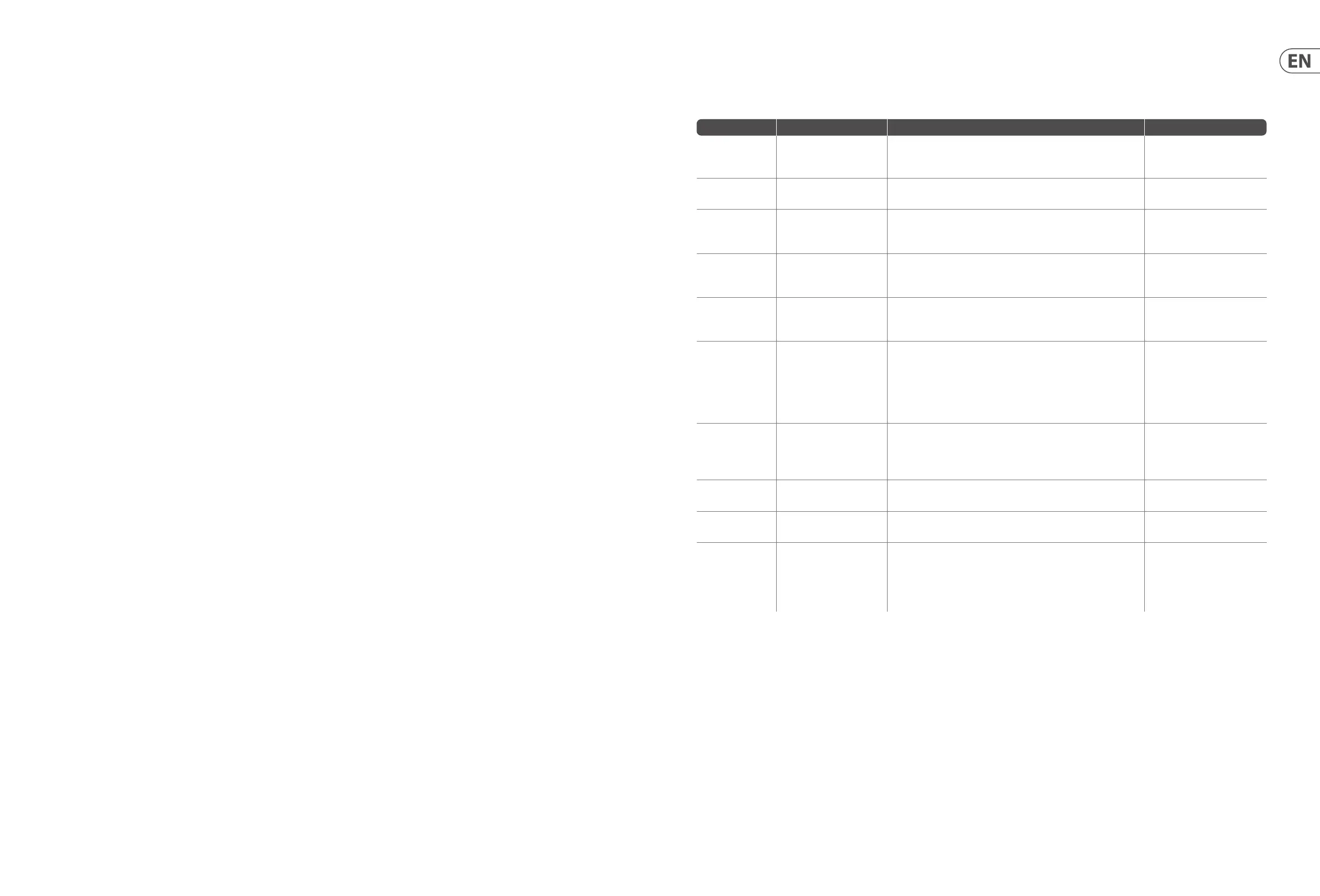
PURPOSE ENTER MODE EFFECT EXIT
Disable the Main
Display touch
control
Hold CLR SOLO, SETUP,
UTILITY
A small X is shown and touch operation of the main screen is disabled.
A USB mouse can be used for GUI control. The display will be calibrated
upon leaving the mode.
Hold UTILITY and CLR SOLO until
the X disappears
Hold SETUP and
CLR SOLO for > 1.5s
Resets the touch panel (might help to temporarily x ghost touch issues
for some time)
Touch UI >
Ghost Click Test
Hold METERS and HOME
for 5s while powering the
console up
Enable OS DRIVE and
surface test mode
Hold SETUP while powering
on
The console appears as two drives on the computer it is connected to, i.e.
WING OS for mixer operating rmware, and WING DATA for snapshot and
clip les, etc. The correct operation of all surface controls can be tested.
Reboot console
Shutdown and
Restart
Hold EFFECT and press HOME
after initiating Shutdown
from Setup screen
Console will shut down safely and restart automatically
Surface Lock Hold the HOME button down
for ~1.5s
Locks the console surface, while audio and remote control keep working
unaected.
Any combination of buttons (only those around the touch screen) that
was held down while engaging the lock will be stored as "pass code"
for unlocking. You will need to press the same combination of buttons
when disengaging the Lock.
Hold HOME button for ~1.5s
again together with the "pass
code" of buttons that were
pressed while locking,
OR
power-cycle the console
Initialize console
(only temp storage,
no snapshots etc.
will be erased)
Hold CLR SOLO while
powering the console up
Same as using INITIALIZE (from the SETUP page) but before the console
loads any saved state (in case the last loaded snapshot somehow crashes
the console leading to a boot loop)
Take screenshot
Hold CLR SOLO then press
UTILITY
Stores a bmp of the current screen on your USB drive. A folder called
‘screens’ needs to be created in the root of the USB drive rst.
Bypass automatic
load of startup les
Hold LIBRARY while powering
the console up
Does not load STARTUP*.snap, STARTUP*.snip and STARTUP*.show les
in the STARTUP directory during boot
Conguring
optional hardware,
i.e. internal AoIP
modules for Dante
or WSG
Hold UTILITY for 5s while
powering on
Conguration dialog allows to specify the hardware options





 To Next Page