11
1.4 IMPORTANT NOTE ON
TELEMATICS WIRING
Where a vehicle does not have an On Board Computer/
Telematics (OBC/T) system – in order to prevent
interference to the SafetyDirect
®
by Bendix CVS Web
Portal Processor – disconnect the OBC/T harness (any
wiring harness provisionally installed in the vehicle for
potential use for Telematics) from the main vehicle harness.
Re-connect the harness only when an OBC/T system is
installed.
2.0 TROUBLESHOOTING/
DIAGNOSTICS SECTION
IMPORTANT
All vehicle Diagnostic Trouble Codes (DTCs) related
to the engine, transmission, instrument cluster,
engine cruise control, and Bendix
®
ABS, ATC, or
ESP
®
systems must rst be resolved – with no trouble
codes present during the vehicle operation while in
cruise control – before attempting to diagnose Bendix
®
Fusion
™
system DTCs.
Important examples are VDC2 and EBC DTCs which are
typically related to the brake controller. The hierarchy
of Electronic Control Units (ECUs) determines that any
DTCs on the brake controller must be resolved before
attempting to troubleshoot the Fusion system.
2.1 BENDIX
®
ACOM
®
PRO
™
DIAGNOSTIC SOFTWARE
Bendix
®
ACom
®
PRO
™
Diagnostic Software is a PC-based
software program available to purchase from bendix.com.
This software provides the technician with access to all
the available Electronic Control Unit (ECU) diagnostic
information and conguration capability. For controller-
specicsystemdiagnostics,useacurrentversionofthe
ACom PRO Diagnostic Software.
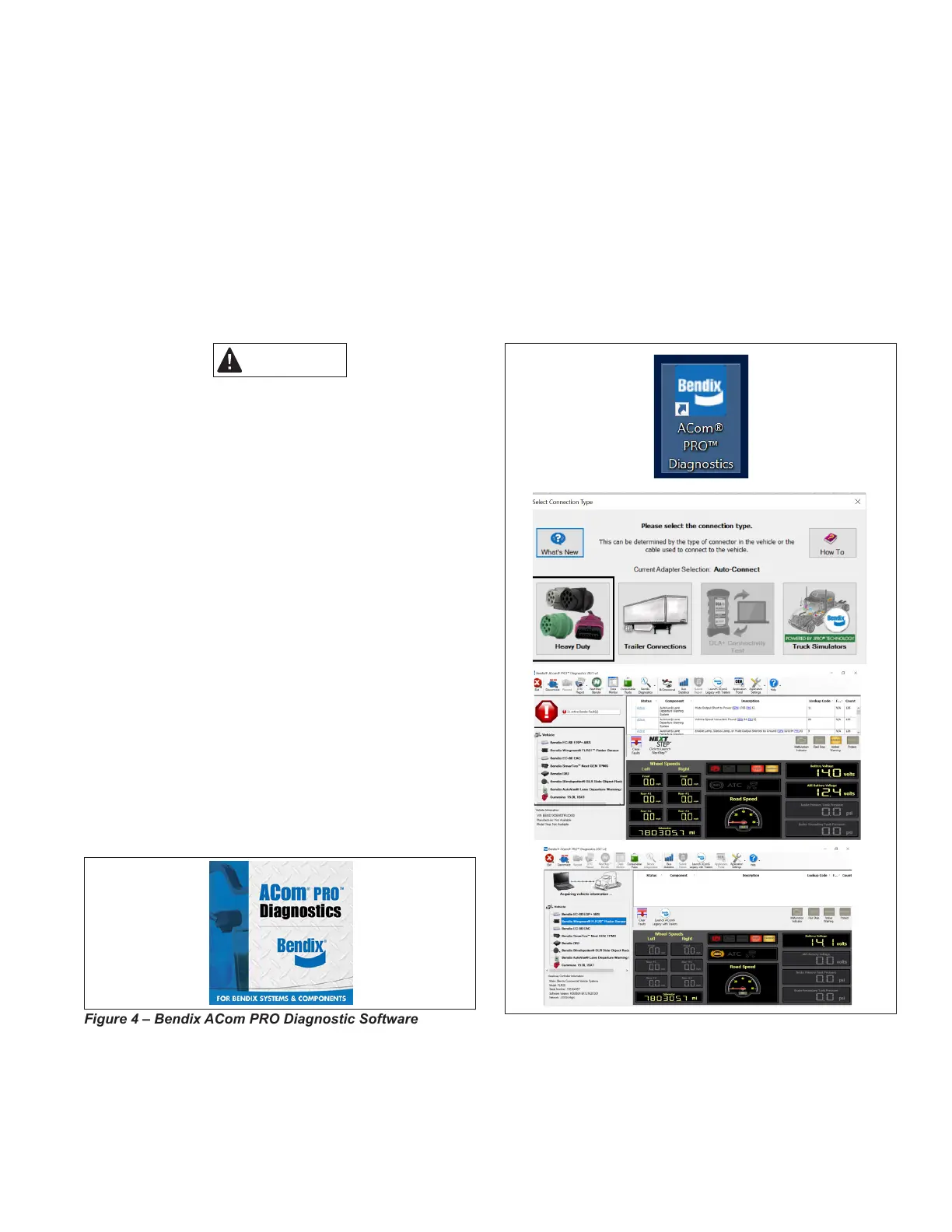
Figure 4 – Bendix ACom PRO Diagnostic Software
STARTING BENDIX ACOM PRO
DIAGNOSTIC SOFTWARE
The ACom PRO Diagnostic Software can be started from
the desktop shortcut. To begin, the technician should
select “Connect” from the main toolbar, then “Heavy Duty”
connection type. The “Heavy Duty” button connects to the
vehicle BUS using all vehicle protocols. This process could
take approximately two (2) minutes. After the connection is
complete, the roll call will show the ECU and its active and
inactive DTCs. The connection depends on a compatible
RP1210C adapter. For assistance with the ACom PRO
Diagnostic Software, contact the Bendix Tech Team at
1-800-AIR-BRAKE (1-800-247-2725, option 2, option 2).
Figure 5 - Starting Bendix ACom PRO Diagnostic Software


 To Next Page