12
2.2 READING DIAGNOSTIC
TROUBLE CODES (DTCS)
1. Connect a current version of the Bendix
®
ACom
®
PRO
™
Diagnostic Software to the vehicle.
2. Once the roll call is complete, you can view active
and inactive DTCs and clear DTCs from all vehicle
components or solely from a selected Bendix
controller.
3. To read and clear DTCs from all vehicle components
at the same time, select the vehicle on the roll call and
clear the DTCs by selecting “Clear Faults.”
4. To read and clear DTCs from a specific Bendix
Electronic Control Unit (ECU), select the Bendix ECU
on the roll call select “Clear Faults.”
For assistance with ACom PRO Diagnostic Software,
contact the Bendix Tech Team at 1-800-AIR-BRAKE
(1-800-247-2725, option 2, option 2).
2.3 READING THE SYSTEM
SOFTWARE VERSION
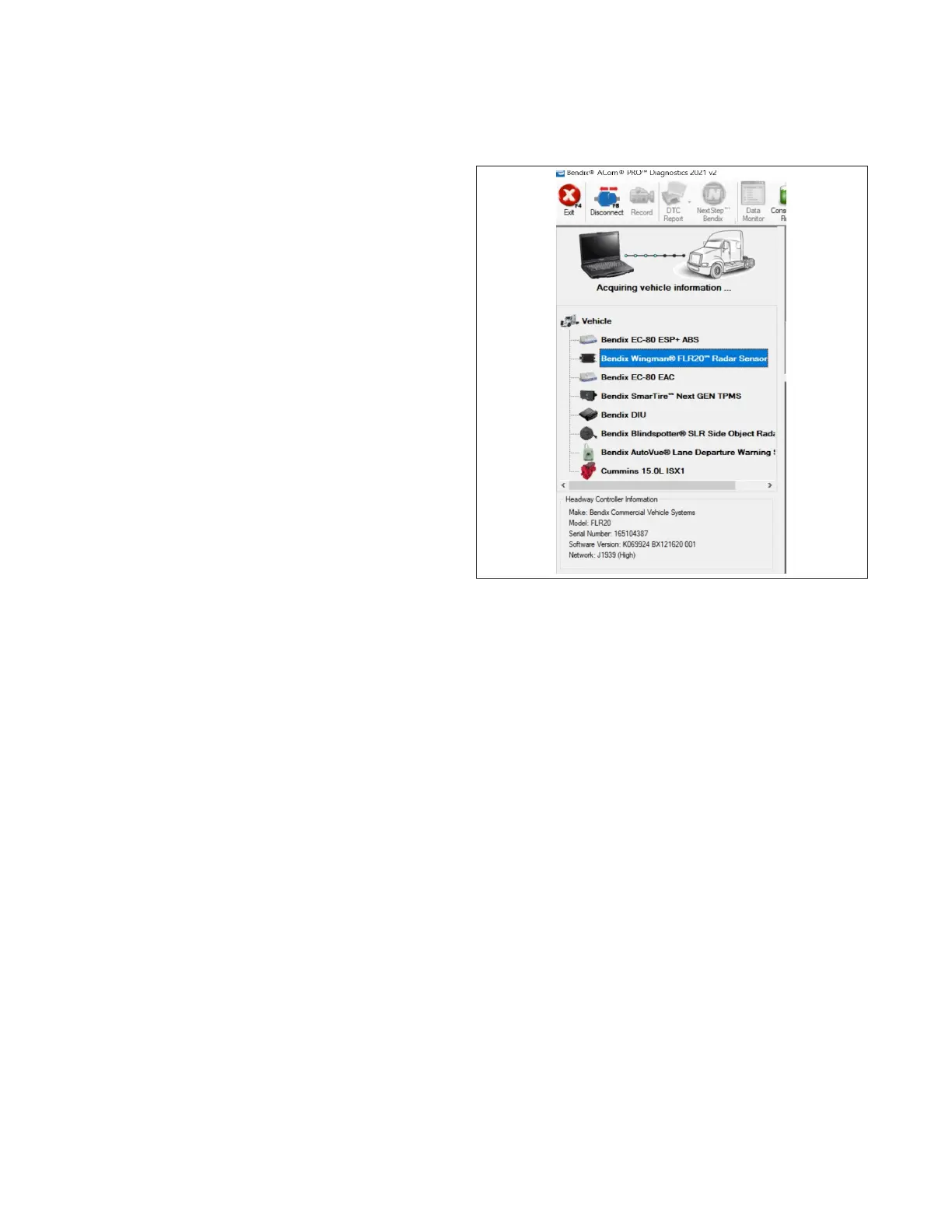
Connect a current version of Bendix
®
ACom
®
PRO
™
Diagnostic Software to the vehicle. View the software
version by selecting the appropriate vehicle.
Figure 5 – Starting Bendix ACom
PRO Diagnostic Software
Figure 6 – Bendix
®
ACom
®
PRO
™
Diagnostic Software
Starter Screen Showing Software Version


 To Next Page