Operation
59
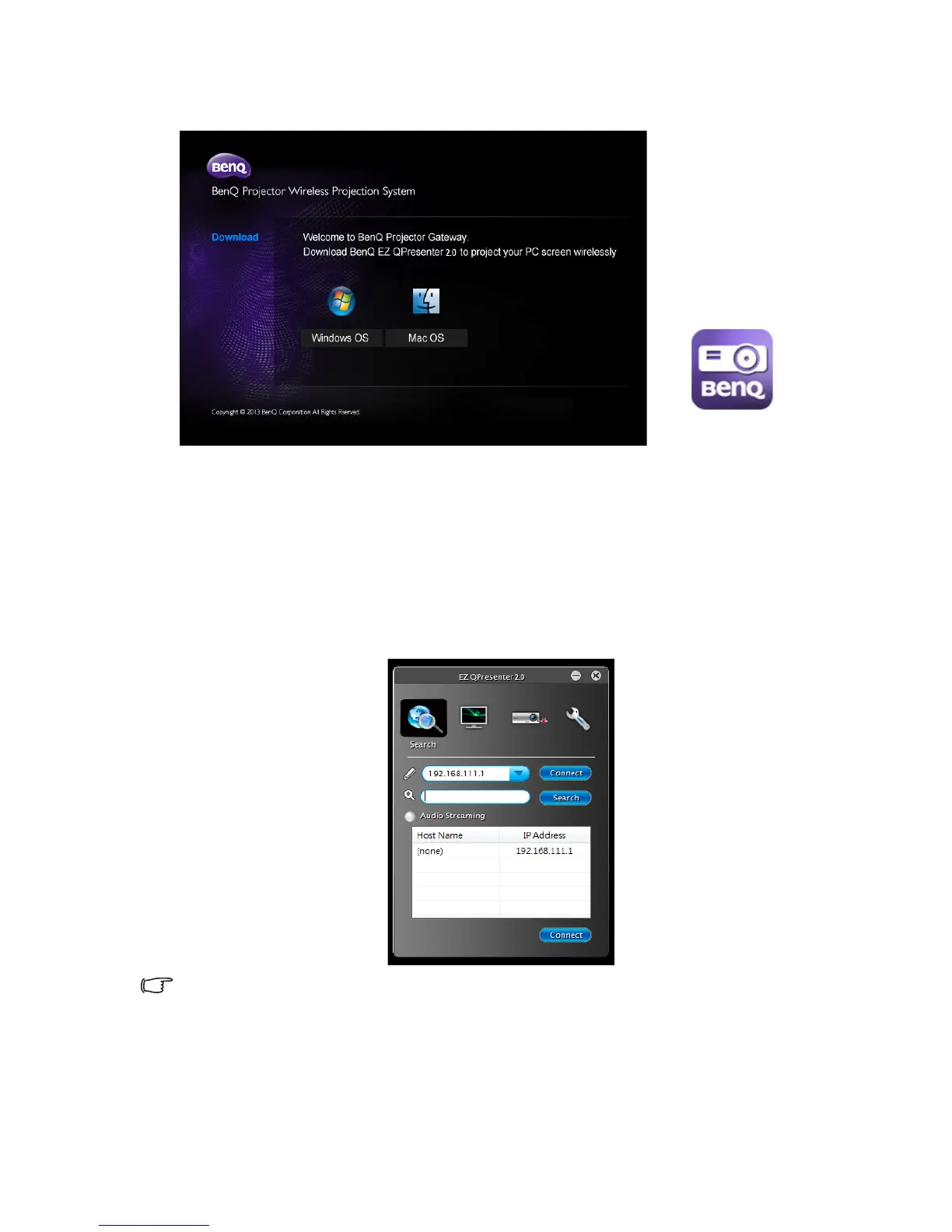
complete, the BenQ EZ QPresenter 2.0 icon will be displayed on your computer
desktop.
6. Double click the QPresenter icon on your computer desktop to open the app.
i. When GP20 is in AP Mode, click on the “Search” icon of EZ QPresenter 2.0
and choose “BenQ GP20” from the network list; press “Connect” to start
projection.
ii. When GP20 is in Client Mode, please connect GP20 to your local Wi-Fi
network first. Then, click on the “Search” icon of EZ QPresenter 2.0; from the
network list menu, choose the local network which GP20 is connected to and
press “Connect” to start projection. You may also type in the IP address directly
and press “Connect” to start projection.
You can disable or enable audio streaming based on your preferences.



 To Next Page