41 Menu operation
Display
Aspect Ratio
There are several options to set the image's aspect ratio depending on your input
signal source.
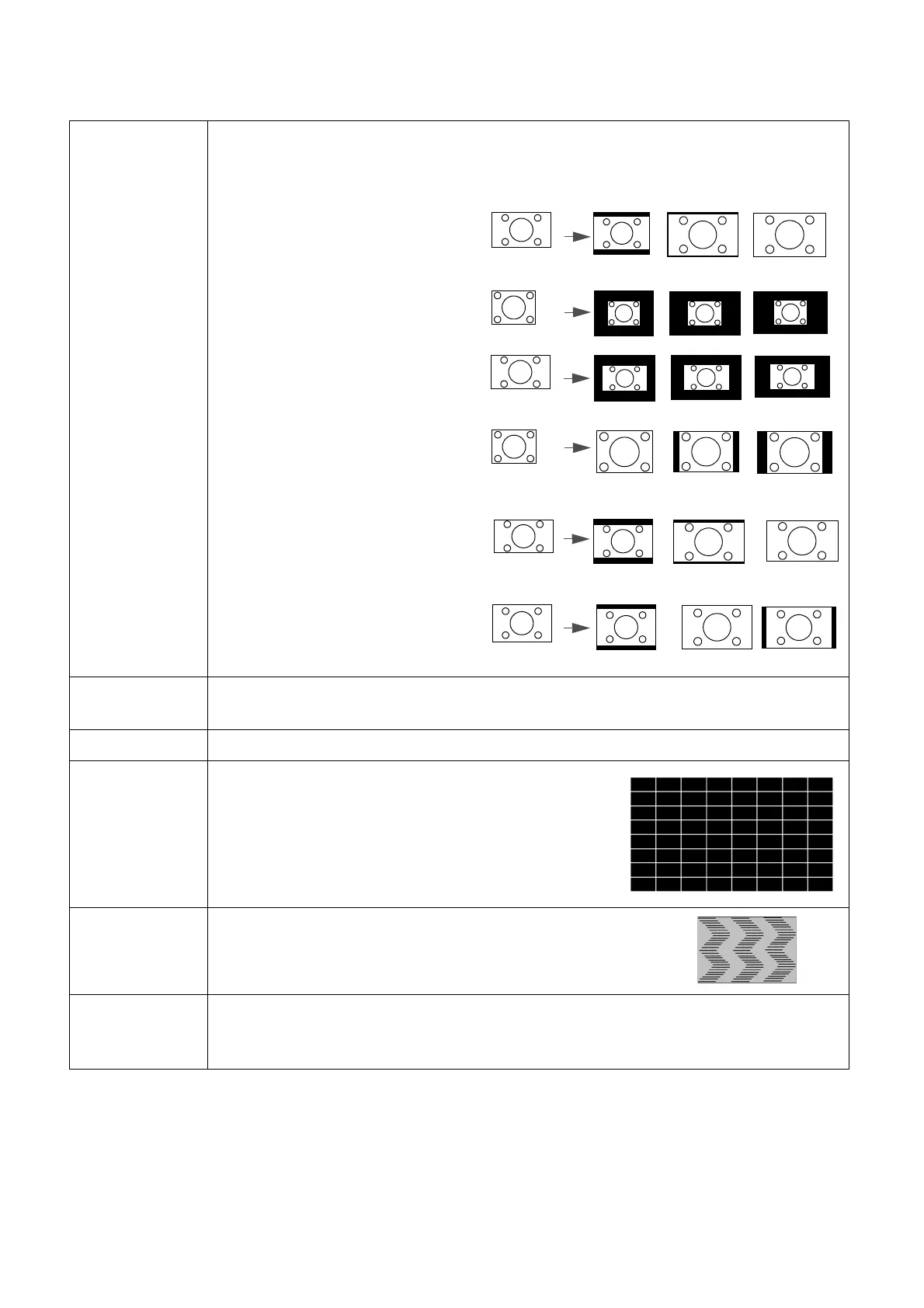
• Auto: Scales an image
proportionally to fit the
projector's native resolution in its
horizontal or vertical width.
• Real: Projects an image as its
original resolution and resizes it to
fit within the display area. For
input signals with lower
resolutions, the projected image
will be displayed in its original size.
• 4:3: Scales an image so that it is
displayed in the center of the
screen with a 4:3 aspect ratio.
• 16:9: Scales an image so that it is
displayed in the center of the
screen with a 16:9 aspect ratio.
• 16:10: Scales an image so that it is
displayed in the center of the
screen with a 16:10 aspect ratio.
Keystone
This function provides manual 2D keystone adjustment and auto vertical keystone
adjustment. See Correcting keystone on page 19.
Corner Fit See Adjusting Corner Fit on page 20.
Test Pattern
Built-in images for checking if the projected image is
free from distortion.
PC &
Component
YPbPr Tuning
• Phase: Adjusts the clock phase to reduce image
distortion.
• H. Size: Adjusts the horizontal width of the image.
Position
Displays the position adjustment page. To move the projected image, use the
directional arrow keys. This function is only available when a PC signal (analog RGB)
is selected.
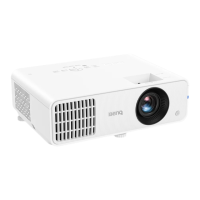
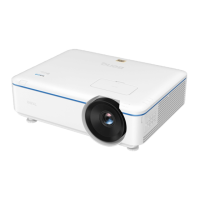
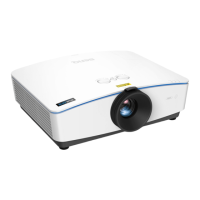
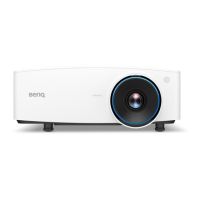
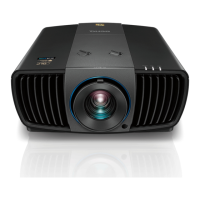
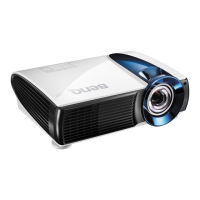
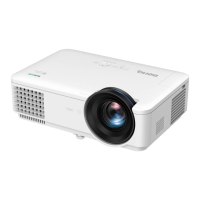
15:9 picture
(LX710/LX710D/
LX730/LX730D)
(LU710/LU710D/
LU930/LU930D)
(LH710/LH710D/
LH930/LH930D)


 To Next Page