EasyManua.ls Logo

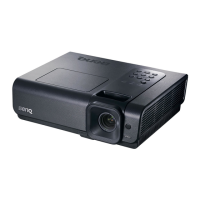
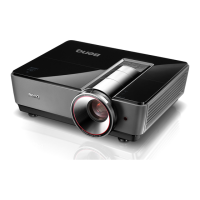
BenQ SP830 - User Manual

BenQ SP830
80 pages
Print Icon
To Next Page IconTo Next Page
Loading...
Welcome
SP830/SP831 Digital Projector
User Manual

Table of Contents

Other manuals for BenQ SP830

Questions and Answers

  • M
    Melinda AdamsAug 12, 2025
    Why my BenQ Projector does not turn on?
    • J
      Jennifer MyersAug 12, 2025
      Your BenQ Projector might not be turning on due to a couple of reasons. First, ensure the power cord is correctly plugged into both the projector's AC inlet and a functioning power outlet, and that the outlet switch is on. Second, if you've recently turned it off, the projector might be in a cooling process. Wait for this process to complete before attempting to turn it on again.
  • M
    Melissa BoydAug 16, 2025
    What to do if BenQ SP830 has no picture?
    • J
      Jennifer GambleAug 16, 2025
      If your BenQ Projector displays no picture, several factors could be the cause. First, verify that the video source is both turned on and correctly connected. Next, ensure the projector is properly connected to the input source device. Then, select the correct input source using the SOURCE key on either the projector or the remote control. Finally, make sure the lens cap has been removed from the lens.
  • T
    Tammy CoxAug 20, 2025
    How to fix blurred picture on BenQ SP830?
    • A
      Alexandra NicholsAug 20, 2025
      A blurred picture on your BenQ Projector can often be resolved with a few adjustments. Start by adjusting the focus of the lens using the focus ring. If that doesn't sharpen the image, check the alignment between the projector and the screen, adjusting the projection angle, direction, and height as needed. Also, ensure that the lens cap is removed.
  • J
    John IrwinAug 25, 2025
    What to do if BenQ Projector remote control does not work?
    • J
      James MitchellAug 25, 2025
      If your BenQ Projector's remote control isn't working, there are a few things you can check. First, replace the batteries with new ones. Second, make sure there isn't anything blocking the path between the remote and the projector. Lastly, ensure you're within 6 meters (19.5 feet) of the projector.
  • D
    Daniel OwensAug 28, 2025
    Why is the computer projected picture too big for the screen on my BenQ SP830 Projector?
    • S
      Sarah BowersAug 28, 2025
      If the computer-projected picture is too large or cut-off on your BenQ Projector, it might be due to resolution mismatches. Ensure the H Position and V Position settings are correct in the Display > Position menu. Configure your computer's external display resolution to match the projector's native resolution (1280 x 768 for SP830/ SP831). If this resolution isn't available, choose a compatible one. Also, verify that your presentation files are created for the correct resolution.
  • S
    Scott BishopAug 31, 2025
    Why is my BenQ Projector Temperature warning light is flashing red?
    • T
      Tiffany DavisAug 31, 2025
      If the Temperature warning light on your BenQ Projector is flashing red, it indicates that the internal temperature is too high or the fans are not working. Turn the projector off and contact qualified service personnel for assistance.
  • K
    kelly28Sep 4, 2025
    Why is the movie window dark on my BenQ SP830?
    • P
      Preston BullockSep 4, 2025
      If your movie window is dark on the BenQ Projector while the Media Player tools display OK, the computer external display is likely set as a secondary display. To fix this, change the Display settings: Click Start > Control Panel > Display > Settings > Advanced > Display. Set the Monitor to Primary, and the Panel to Secondary. This should make the movie window appear on the projection screen.
  • V
    vboyerSep 7, 2025
    Why does my BenQ Projector picture contain static or noise?
    • S
      Suzanne HawkinsSep 8, 2025
      Static or noise in your BenQ Projector's picture can be due to a couple of reasons. If you're using a computer cable longer than 6 feet (2 meters) or an extension cable, switch to a regular length cable and avoid extensions. Also, keep your computer and video cables away from the power cord as much as possible to minimize interference.

BenQ SP830 Specifications

General IconGeneral
Native Resolution1024 x 768 (XGA)
Aspect Ratio4:3
Contrast Ratio2000:1
Projection TechnologyDLP
Projection Size30-300 inches
Input ConnectorsComposite Video, S-Video
Lamp Life2000 hours (Normal), 3000 hours (Economic)

Related product manuals