Basic operations24
Initial setup
After you have connected the display to the power, you are ready to power on the
display. The first time you power on the display, you will be guided through a series of
setup screens. Follow the on-screen instructions or the steps below to start up your
display and complete the initial setup.
1. Turn on the display. Wait for the display to boot up with the BenQ screen. This may
take a moment.
2. Tap Next on the screen to begin. Follow the on-screen instructions to set up the
language, date and time, and network. Or your can skip some of these steps and
complete the setup later.
Setting
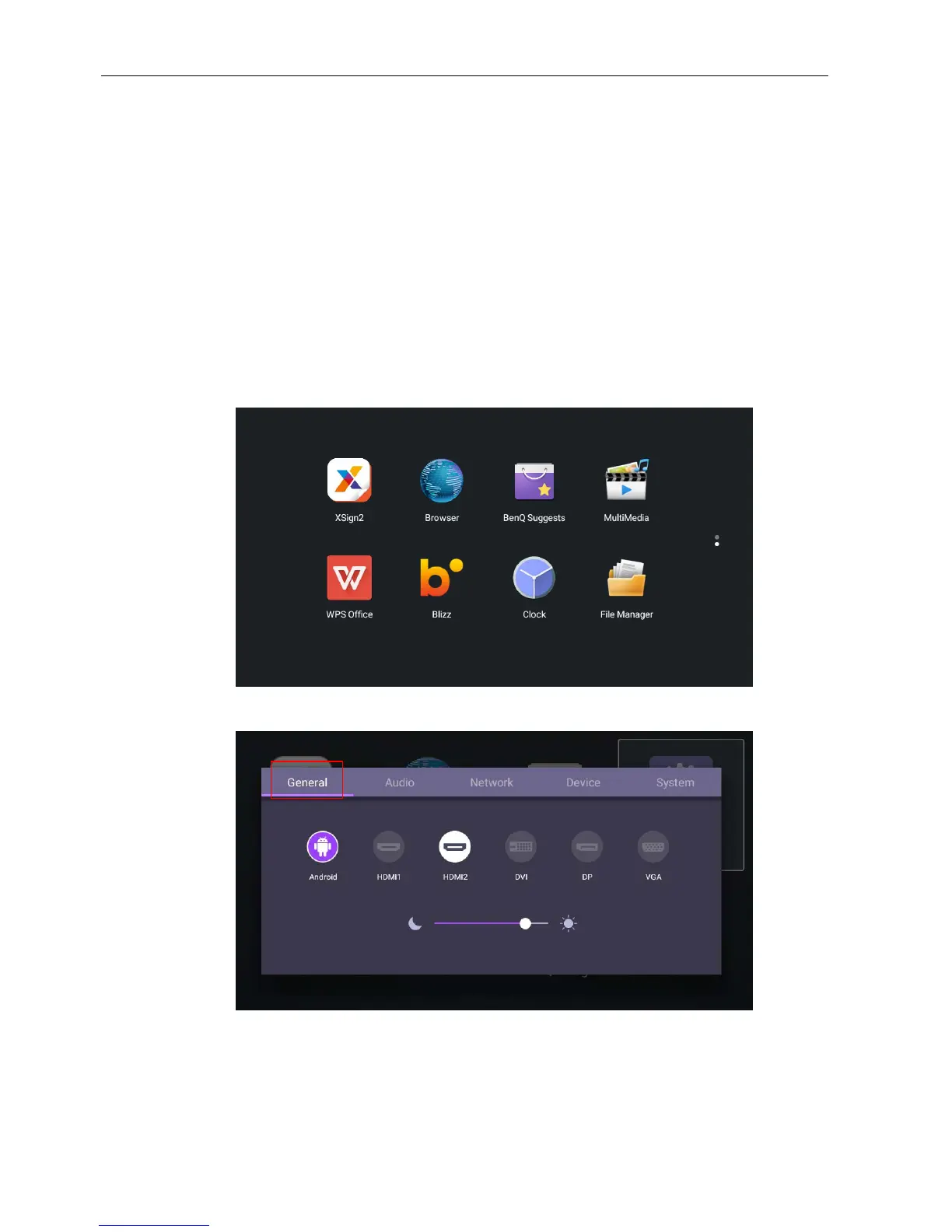
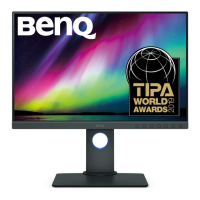
• Press MENU on the remote control or MENU button on the front panel to enter the
OSD menu. You can also select Setting on the home screen to go to the OSD menu.
• Under General, you can select a desired input source and adjust backlight. Refer to
Input settings on page 27 for more information.
Downloading software
BenQ may periodically release software updates that may add functions or applications
associated with your display. To check if there is a software update available for your
device or to obtain the software license key, please visit http://DSdownload.BenQ.com.
Then enter the serial number (can be found on the sticker attached on the back of the
display) and click OK to access the Software download page.



 To Next Page