39
Important safety instructions
Personalizing the projector menu display
The On-Screen Display (OSD) menus can be set according to your preferences. The following settings do
not affect the projection settings, operation, or performance.
• Menu Display Time in the System Setup > Menu Settings menu sets the length of time the
OSD will remain active after your last key press. Use / to select a suitable time length.
• Menu Position in the System Setup > Menu Settings menu sets the OSD position in five
locations. Use / to select a preferred position.
• Blank Reminder Message in the System Setup > Menu Settings menu displays a blank
reminder message while the projected image on the screen is hidden.
• Language in the System Setup menu sets your familiar language for the On-Screen (OSD) Menus.
See "Using the menus" on page 23 for details.
• Splash Screen in the System Setup menu sets a preferred logo screen to be displayed during
projector start-up.
Locking control keys
With the control keys on the remote control and projector locked, you can prevent your projector
settings from being changed accidentally (by children, for example). When Key Lock is on, no control
keys on the remote control and projector will operate except POWER and .
To lock the keys:
1. Press MENU/EXIT and then press / until the Advanced Setup menu is highlighted.
2. Press to highlight Key Lock, and press / to select On. A warning message appears. Select Ye s
and press MODE/ENTER. The control keys lock.
To unlock the keys, press and hold on the projector or remote control for 3 seconds.
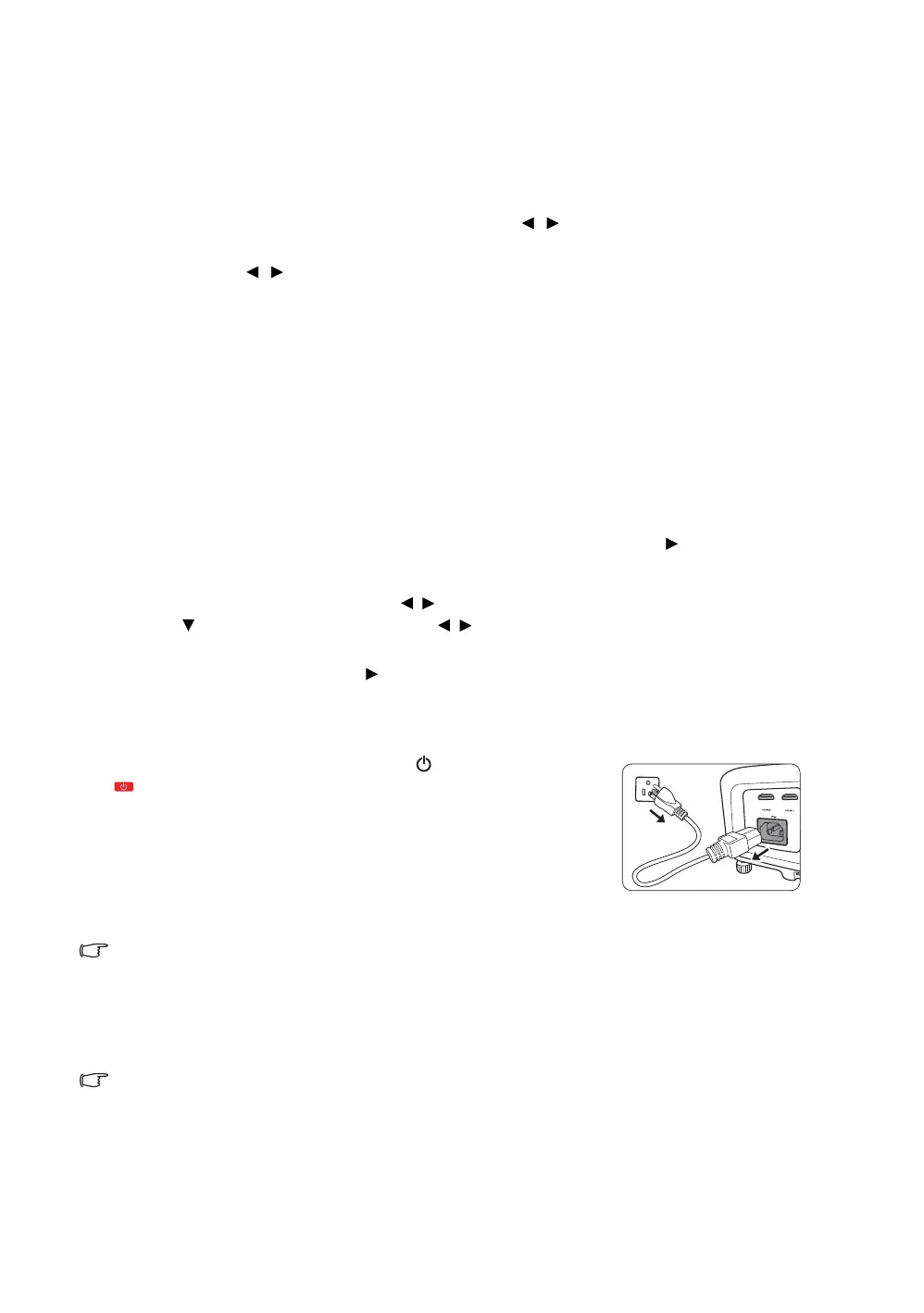
Turning the projector off
To turn the projector off, press POWER on the projector or
on the remote control and a warning message appears. Press
the button again.
• The Power indicator light flashes orange and the fans run for
about two minutes to cool the lamp. The projector will not
respond to any commands until the cooling process is complete.
Once the cooling process finishes, a "Power Off Ring Tone"
will be heard.
To turn off the ring tone, see "Turning off the Power On/Off Ring Tone" on page 33 for details.
• Then, the Power indicator light is a steady orange once the cooling process has finished and fans stop.
• If the projector will not be used for an extended period, unplug the power cable from the power
outlet.
• To protect the lamp, the projector will not respond to any commands during the cooling process.
Actual lamp life may vary due to different environmental conditions and usage.


 To Next Page