Unpair
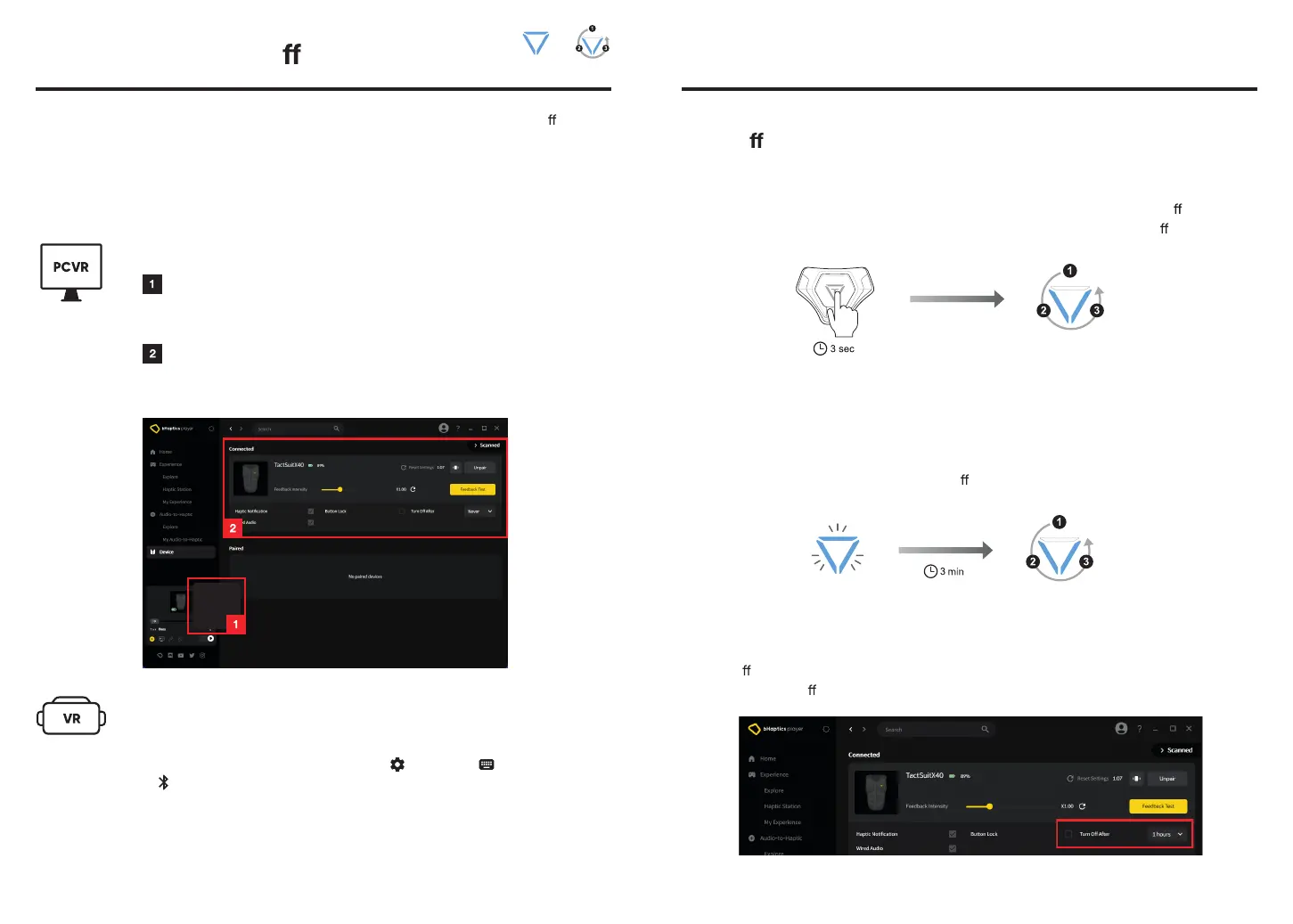
PC - bHaptics Player
Quick Control Panel
In the Quick Control Panel, right-click on the connected device
icon, then click Unpair.
Device Panel
Check the Connected or Paired Device list in the Device tab and
unpair the desired device.
Unpair
Button Lock On
PING
Settings
Standalone VR - System Settings
(Meta Quest Headsets)
1. On your Quest headset, navigate to Settings > Devices >
Bluetooth.
2. Select Bluetooth Pairing > Pair > (Previously) Connected Device and
select your TactSuit.
3. Select FORGET.
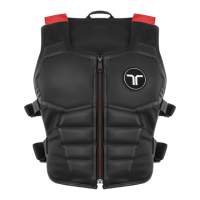
When you finish using your TactSuit, press and hold the power button to turn it o .
If you no longer wish to use it with the paired PC or Standalone VR,
you can also unpair your TactSuit from each paired device.
Unpair and Turn O
20
Turn offPaired
Manual
When you press on the Power Button for 3 seconds, the LED lights will turn o
sequentially in a counterclockwise direction, and the power will be turned o .
Automatic
After 3 minutes in the Pairing Mode
The device's power will automatically turn o after 3 minutes in the Pairing Mode.
When "Turn off After" is enabled
If "Turn O After" is enabled in Device > Connected settings, the device's power will
automatically turn o if it is not used for the set time.
Lights will turn off in 3 stagesBlinking Blue
Lights will turn off in 3 stages
Turn O
* The device will automatically reconnect when you turn it on again.
21



 To Next Page