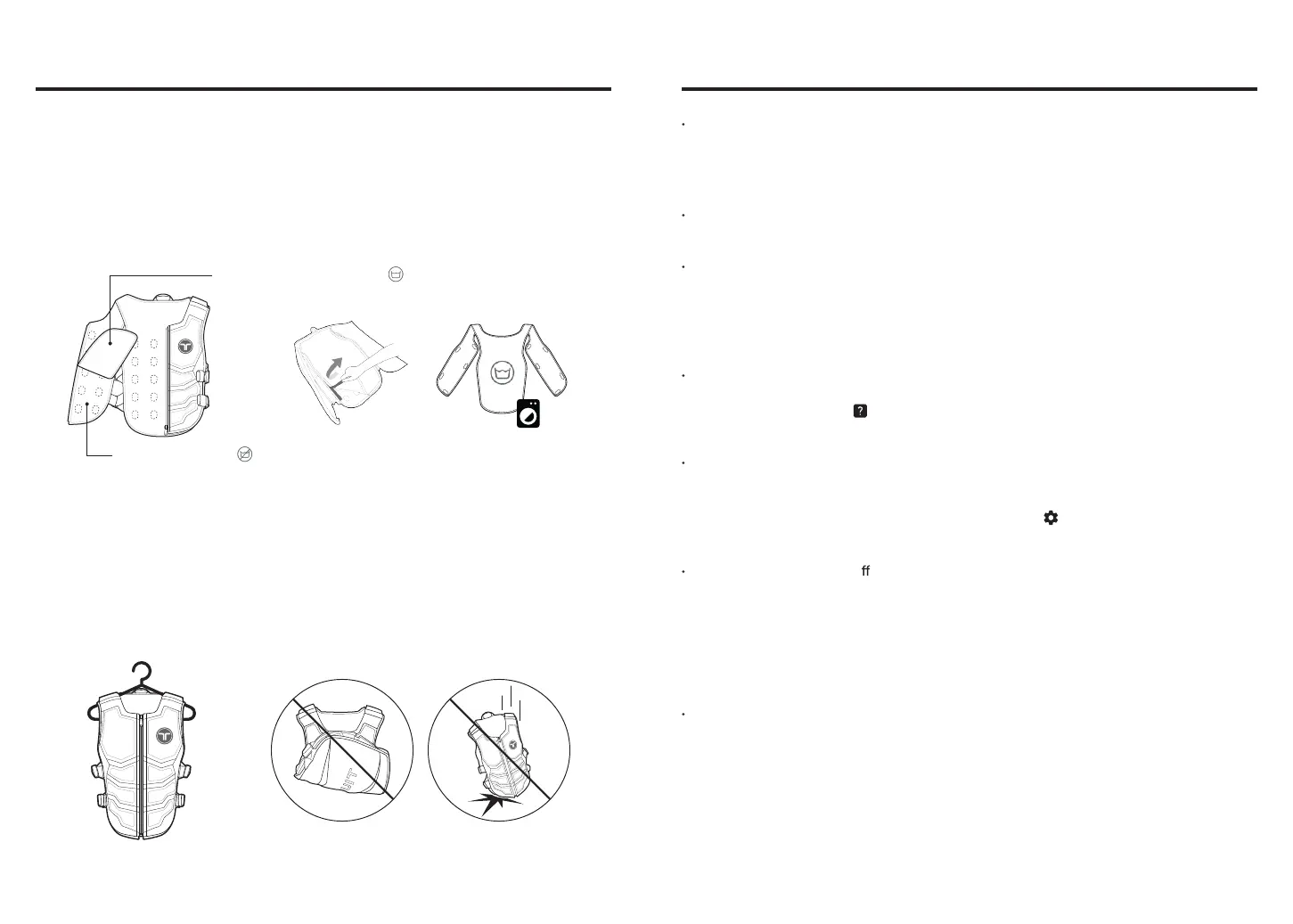
The product is an electronic device, so it is non-washable.
If it becomes contaminated, gently wipe it with a soft cloth or tissue.
- Only the detachable mesh lining is machine washable with neutral detergent.
Note: Frequent machine wash can cause deterioration.
Cleaning
To prevent any issues, please adhere to the following guidelines for storing the product:
– Be careful not to drop TactSuit as it contains haptic motors and cables.
– Do not leave the product folded or creased. When storing, hang it on a hanger or store it in the
original box.
– Store the product in a cool and dry place, away from direct sunlight.
(Recommended storage temperatures: 32 - 75°F (0 - 24°C), 5 - 30% humidity).
Storage
Mesh Lining : Machine Washable
Main : DO NOT WASH
Maintenance
22
The device doesn’t turn on.
- If you are using your TactSuit for the first time, plug in the device for charging to wake it
up. Or, leave the device charging for several hours and charge sufficiently in case the
device is fully discharged.
The device doesn’t charge.
- Try using a different charging cable and/or charger.
I don't feel any feedback.
- Check if your TactSuit is connected on bHaptics Player.
- Check the Feedback Intensity setting in bHaptics Player > Device and ensure
the intensity is set to X1.00 or above for testing.
- Perform Feedback Test on bHaptics Player and test individual motors.
I am having trouble connecting my bHaptics device(s) with bHaptics Player on a
Windows PC.
- Go to bHaptics Player(PC) > Support > Troubleshooting and try resetting your
Bluetooth settings.
The Bluetooth connection is unstable or there is latency in feedback.
- At large events and exhibitions where there is an extreme amount of Wi-Fi signals, it is
possible that the Bluetooth connection becomes unstable. You can secure the
Bluetooth connection by turning on the Stable Connection in the Settings >
Connection.
The device keeps turning o .
- After 3 minutes of no activity in the Pairing Mode, the device automatically turns off.
- Check if the Turn Off After feature is enabled. If "Turn Off After" is enabled in Device >
Connected settings, the device's power will automatically turn off if it is not used for
the set time.
- Try using the Button Lock feature to prevent the device from turning off when the power
button is pressed.
Audio-to-Haptic is not working.
- (On PC) Make sure the Audio-to-Haptic is enabled for TactSuit in bHaptics Player >
Settings > Audio-to-Haptic > Device.
- (On PC) If the Audio-to-Haptic feature is not working wirelessly, check if an audio
cable is plugged into your TactSuit. If the Audio Jack is plugged in, it will activate the
wired AtH and wirelss AtH will not work.
- (Wired AtH with standalone VR) Make sure to enable Wired Audio in bHaptics Player >
Device on your PC or enable Wired AtH in the AtH tab in the mobile bHaptics Player app.
Troubleshooting
23



 To Next Page