03. Basics
Pairing
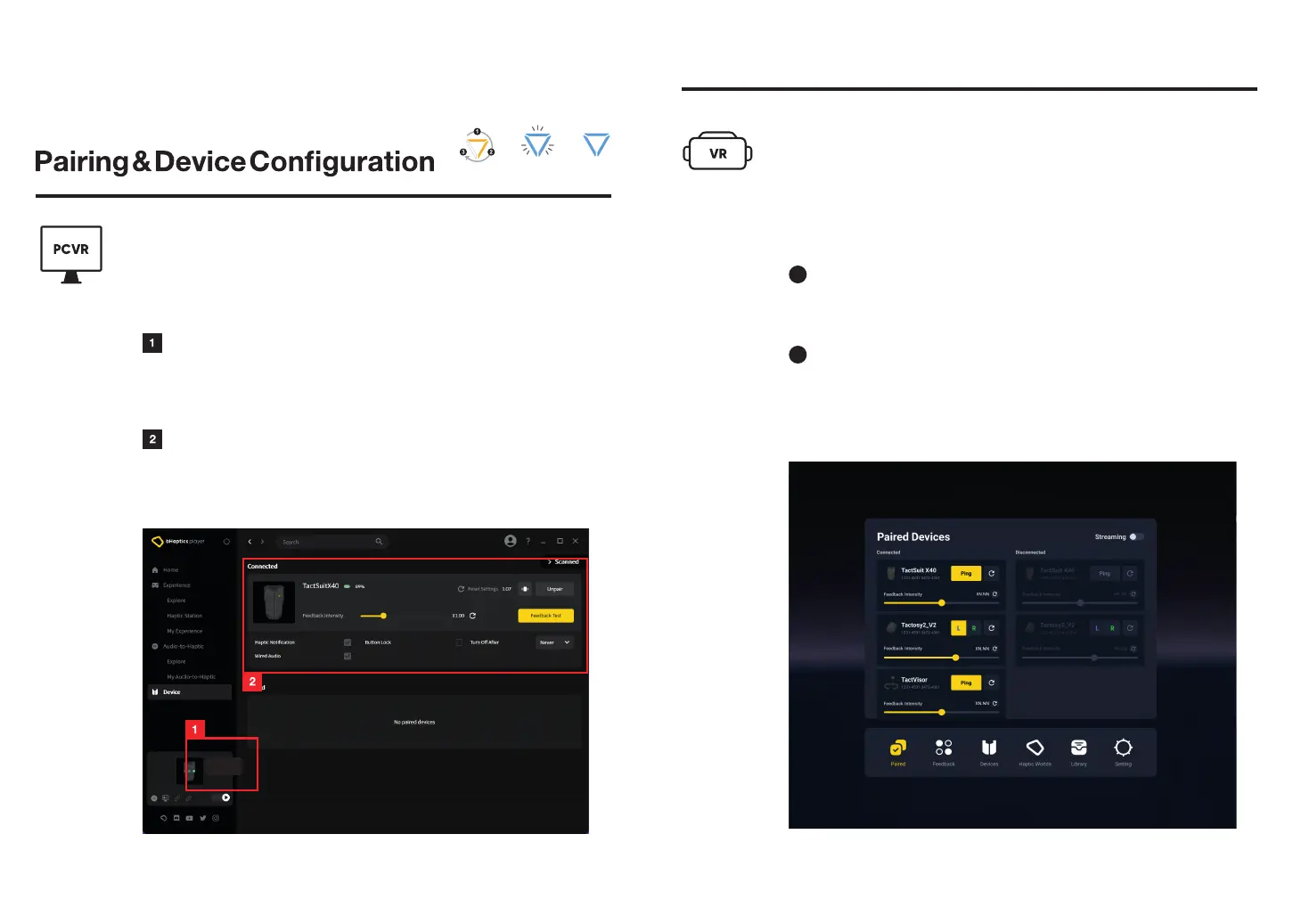
To pair a device, go to the Quick Control Panel, right-click the scanned device
icon, and click "Pair." Once a device is paired, it will automatically connect
when powered on until it is unpaired.
Device Configuration
You can check the details of the connected device, perform a Feedback Test,
control features such as Button Lock, Turn Off After, and adjust Feedback
Intensity, among others, in Device > Connected.
You can connect TactSuit to a Windows PC using bHaptics Player.
Within bHaptics Player, you can access detailed information about
the Connected Devices and make configuration changes.
PCVR - bHaptics Player
Pair
14
Turn On Pairing Mode Paired
When using TactSuit with standalone VR, you can pair it to a headset
in the system settings and check the connectivity and test your bHaptics
device(s) in bHaptics Player.
Standalone VR (Meta Quest Headsets)
- System Settings & bHaptics Player
Pairing (Headset Settings)
1
To pair TactSuit with a headset, go to Quest settings > Device > Bluetooth.
Refer to p.11 for instructions on how to pair.
Device Configuration (bHaptics Player)
2
To enjoy natively supported games on standalone VR, it is essential to
download bHaptics Player on your headset from Meta Quest App Lab.
Within bHaptics Player, you will be able to check the Paired Device List and
perform a Feedback Test.
15



 To Next Page