WR3000N 300M Wireless N Router
- 23 -
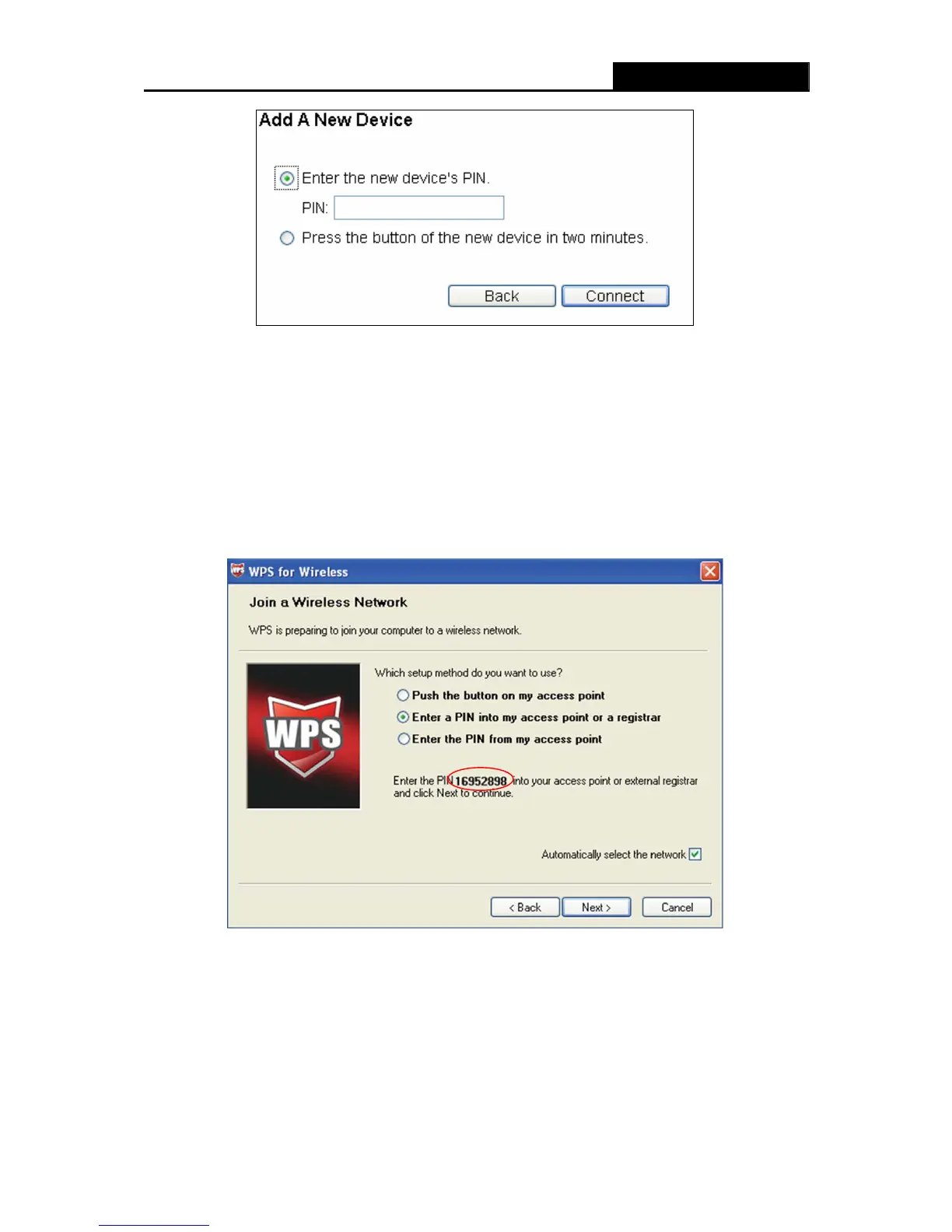
Step 2: Choose “Enter the new device's PIN” and enter the PIN code of the wireless adapter in
the field after PIN as shown in the figure above. Then click Connect.
)
Note:
The PIN code of the adapter is always displayed on the WPS configuration screen.
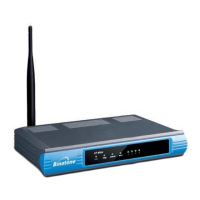
Step 3: For the configuration of the wireless adapter, please choose “Enter a PIN into my
access point or a registrar” in the configuration utility of the WPS as below, and click
Next.
The WPS Configuration Screen of Wireless Adapter
)
Note:
In this example, the default PIN code of this adapter is 16952898 as the above figure shown.
Method Two: Enter the PIN from my Router
Step 1: Get the Current PIN code of the Router in Figure 4-2 (each Router has its unique PIN
code. Here takes the PIN code 12345670 of this Router for example).


 To Next Page