T
he Biodex Balance System software program is easy to master. Simply follow the screen prompts
as they lead you step-by-step through testing and training protocols or software utility options.
For each screen, active option keys are highlighted in boldface type. Touch the desired on-screen
key to make your selection. Option choices progress logically based on the selections made.
There is no more on/off button. There is always power to the display. The screen saver goes blank
after a time out period. System default is 5 minutes. This can be adjusted in System Utilities. See
page 11-1.
When the screen is dark and the unit is plugged into wall current, just touch the screen and the
last viewed screen will be presented.
('# .(
The following on-screen touch keys are consistent whenever they appear throughout the entire
Balance System SD program.
<HOME>: Touch this key to return to the Main Menu.
<NEXT>: Touch this key to advance to the next logical screen.
<BACK>: Touch this key to return to the previous screen.
<OK>: Touch this key to confirm selections or entries and advance to the next screen.
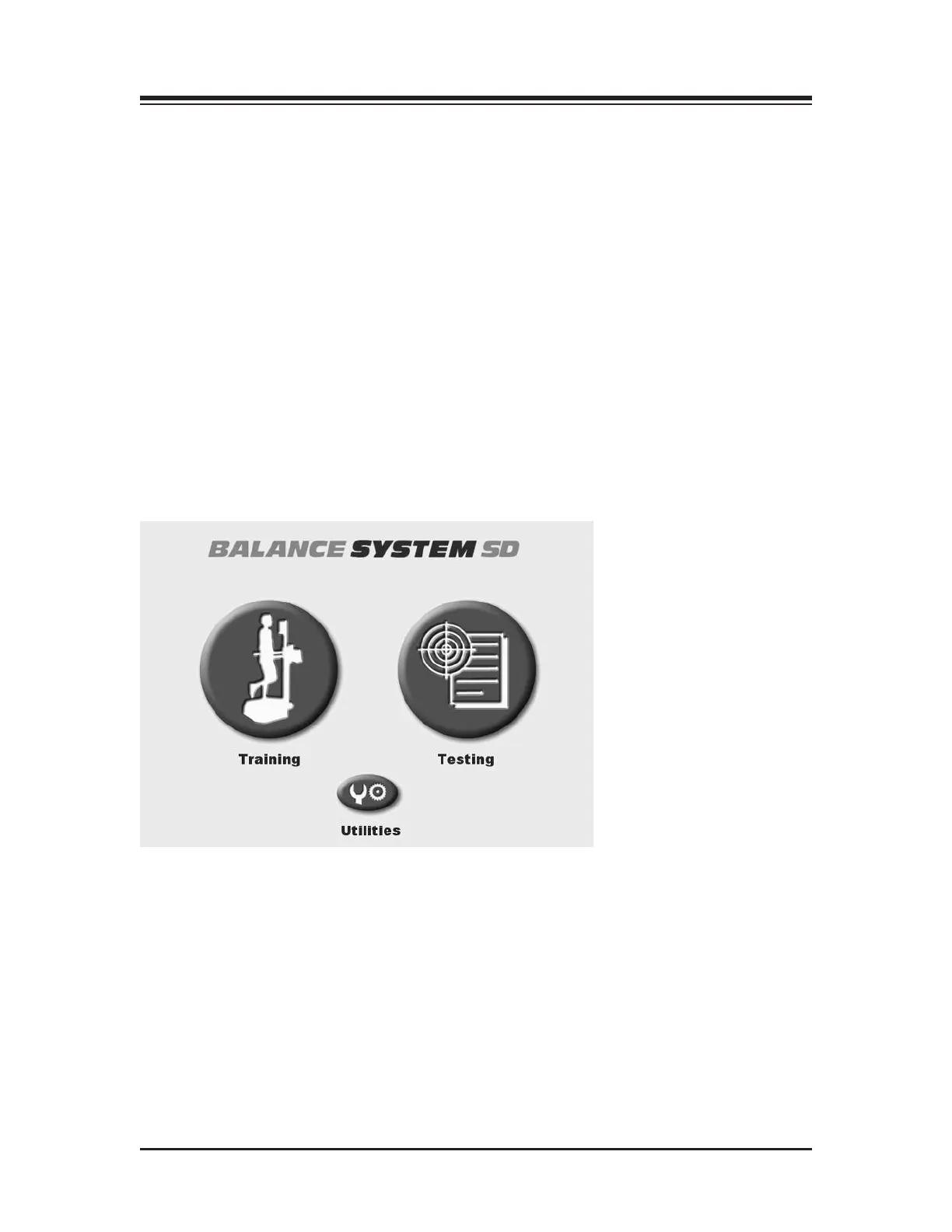
Figure 6.1. The Balance System Main Menu.
6. GETTING STARTED
— 6-1 — GETTING STARTED















 To Next Page