$#*')$#
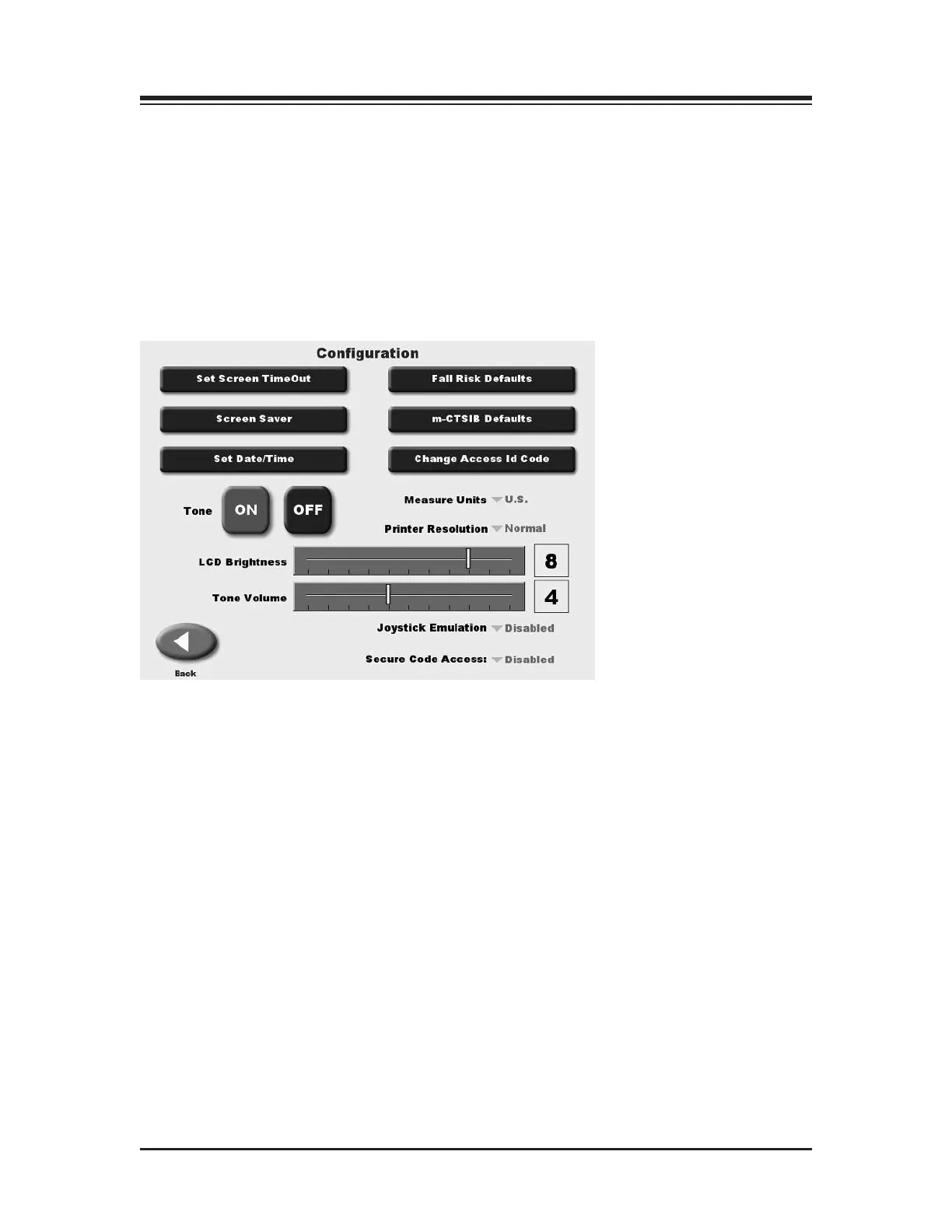
(See Figure 11.1.)
At the System Utilities screen, touch <Configuration> and then enter 781 in response to the
"Enter Access Code" prompt. Touch <OK>. The Configuration screen should now be displayed.
At this screen users can set values for Screen Time Out, Screen Saver, Date/Time, Fall Risk
Defaults, m-CTSIB Defaults and Change Access ID Code. You can also turn Tone ON/OFF,
adjust LCD brightness or Tone volume, and select Measurement Units, Printer Resolution or
Joystick Emulation. When you have finished making all of your selections and adjustments,
touch <OK> to return to the Main Menu.
Figure 11.1. The Configuration screen.
()('#)"$*)
The Screen Time Out setting determines how long the display screen remains ON when the
system is no longer in use following a test/exercise. Once the selected time expires, the system
returns to the Main Menu.
1. At the Configuration Screen, touch <Set Screen Time Out>. The Set Test/Exercise Complete
Screen Time Out screen should now be displayed.
2. Use the < ▲> or < ▼> arrows to increase or decrease the value displayed in 00:30 second
increments. The Time Out range is from 00:00 to 30:00.
3. Touch <OK> to confirm your changes and return to the Configuration screen. Touch
<Cancel> to return to the Configuration screen without making any changes.
CONTENTS
SYSTEM UTILITIES — 11-2 —















 To Next Page