%$+(*%$
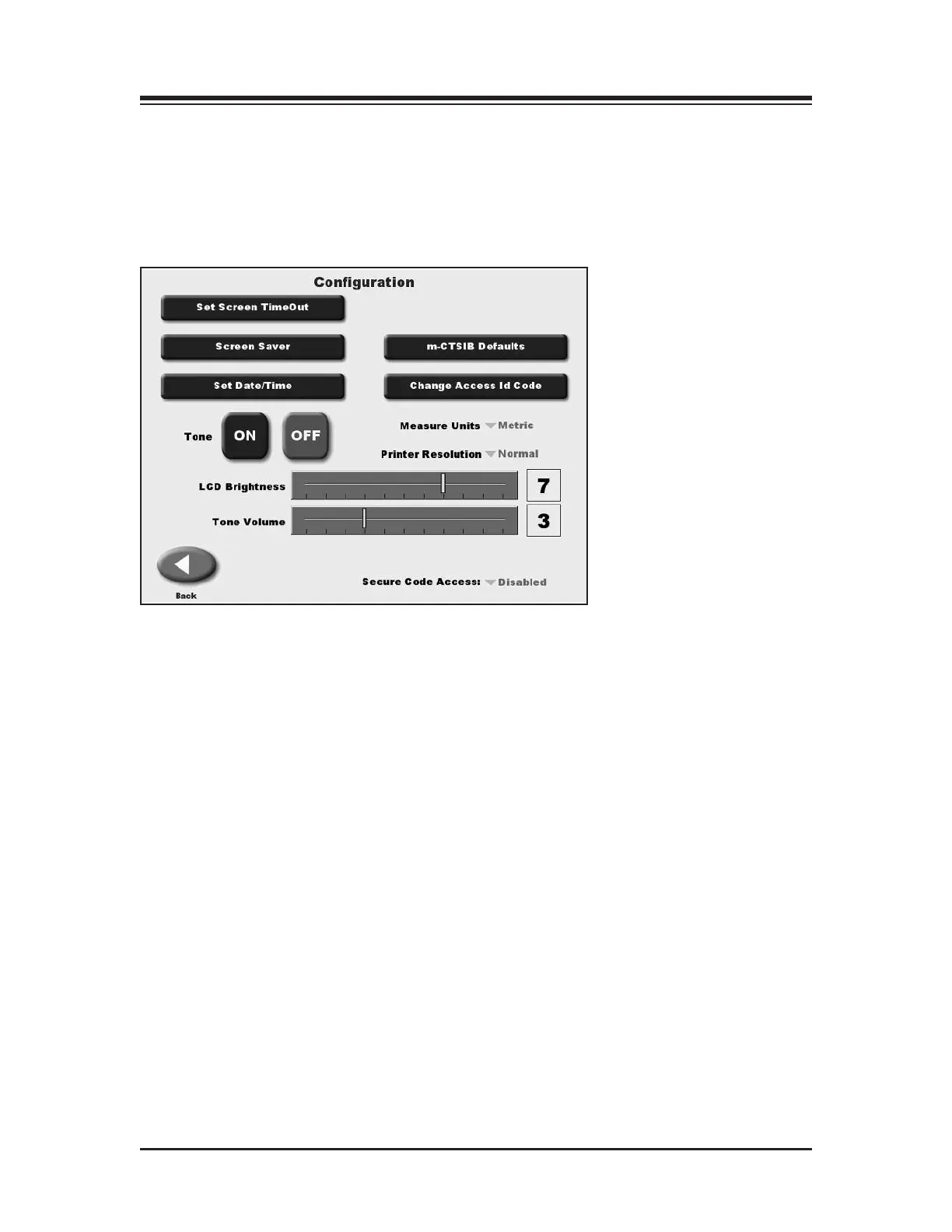
Touch <Configuration> and then enter 781 in response to the “Enter Access Code” prompt.
Touch <OK>. The Configuration screen should now be displayed. At this screen users can set
values for Screen Time Out, Date/Time and Default Settings. You can also turn Tone ON/OFF,
adjust LCD brightness or Tone volume, and select Measurement Units, Printer Resolution or
C
TSIB Defaults. When you have finished making all of your selections and adjustments, touch
<OK> to return to the Main Menu.
Figure 9.2. The Configuration screen.
)5C)3A55>*9=5%DC
The Screen Time Out setting determines how long the display screen remains ON when the sys-
tem is not in use of the test/exercise is completed. Once the selected time expires, the screen
fades to black even if the system remains ON.
1. At the Configuration Screen, touch <Set Screen Time Out>. The Set Test/Exercise Complete
Screen Time Out screen should now be displayed.
2. Use the <
▲> or <▼> arrows to increase or decrease the value displayed in 30-secondincre-
ments. Time Out range is from 00:00 to 30:00.
3. Touch <OK> to confirm your changes and return to the Configuration screen. Touch
<Cancel>to return to the Configuration screen without making any changes.
)5C1C5*9=5
Time and Date are system-wide parameters that show on all printed reports.
1. At the Configuration Screen, touch <Set Date/Time>. The Set System Date/Time screen
should now be displayed.
2. Touch the parameter to set so that the selected field is highlighted.
3. Use the <▲> or <▼> arrows to increase or decrease the value displayed for the highlighted
parameter.
4. Repeat steps 2 and 3 until you have adjusted all the parameters you wish to correct.
5. Touch <OK> to confirm your changes and return to the Configuration screen. Touch
<Cancel>to return to the Configuration screen without making any changes.
CONTENTS
SYSTEM UTILITIES — 9-2 —



 To Next Page