17
3. Connect the USB printer cable to the empty USB port on the USB hub.
4. Insert the USB memory device into the USB Extension Cable, and install the necessary printer drivers onto the BITS
Computer.
Note: Connecting the BITS PC to the Internet will void the warranty.
Testing the BITS Software
You will need to log into BITS software application to confirm that it is running.
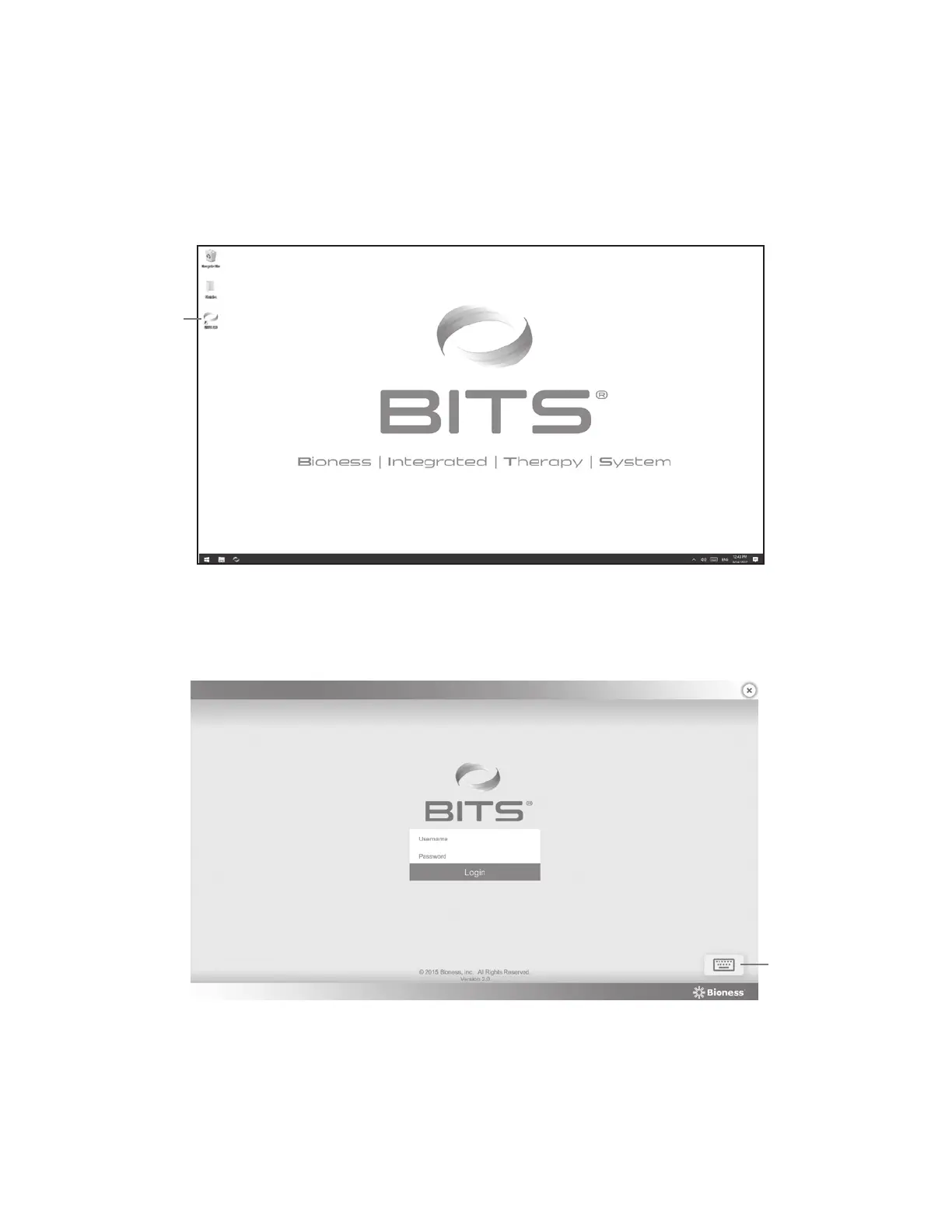
1. Press the BITS Icon located on the desktop. See Figure 23.
Figure 23: BITS Icon on Desktop
2. The BITS Login Screen will open. To open the on-screen keyboard, press the Keyboard Icon located at the bottom
right of the screen. See Figure 24.
Figure 24: BITS Login Screen
3. Use the keyboard to enter "admin" as the username and "BITS" as the password.
4. Press the Login Button to complete the login process.
BITS
Icon
Keyboard
Icon



 To Next Page