18
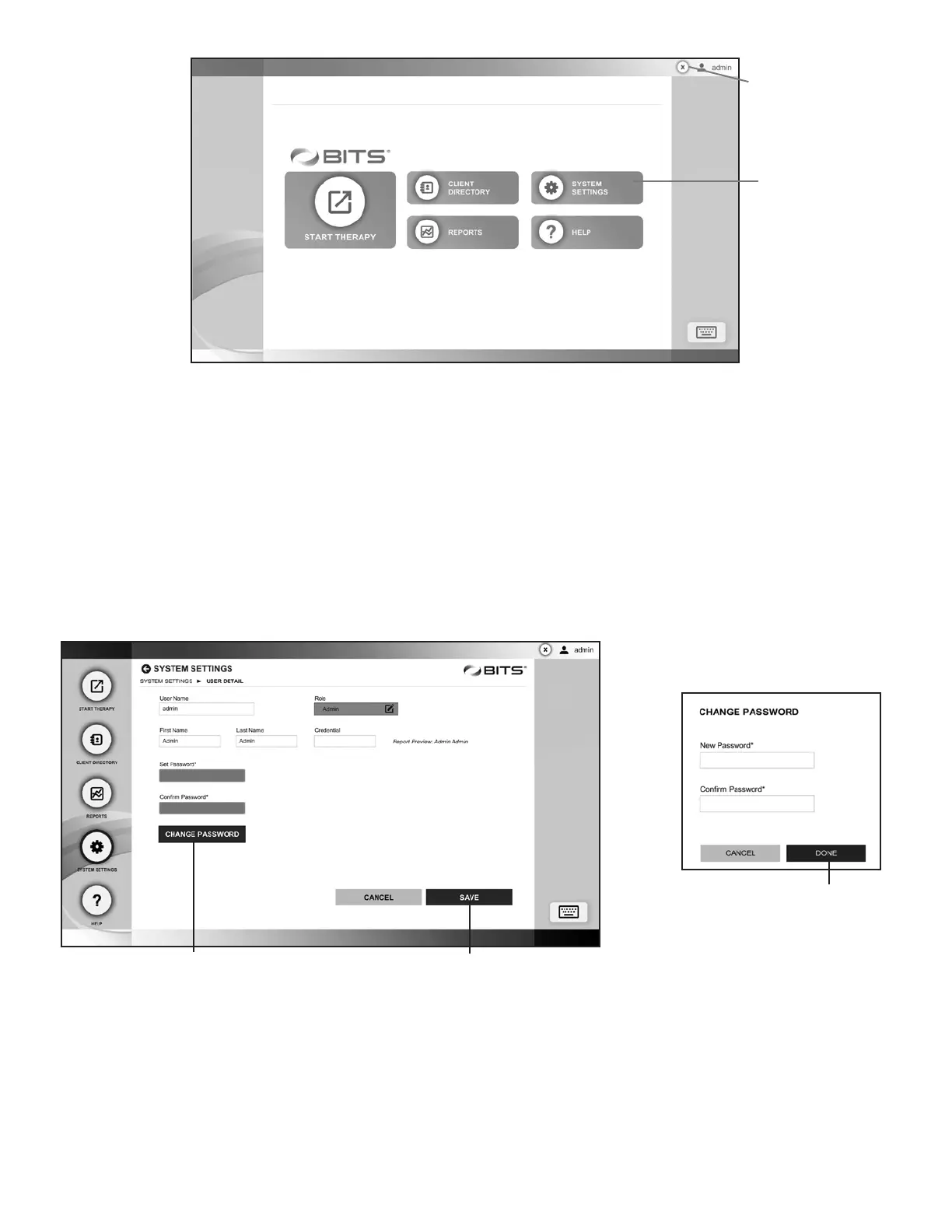
5. The Home Screen will open. See Figure 25.
Figure 25: Home Screen
Changing the Administrator Profile Password
For security purposes, it is recommended that the default Administrator Profile Password be changed before adding Client
Profiles or entering patient data into the BITS System.
1. From the Home Screen, press the System Settings Button. See Figure 25.
2. From the System Settings Screen, select the admin account from the User List by pressing the row.
3. The User Detail Screen will open. See Figure 26.
4. Enter a new User Name, First Name, Last Name, and Clinical Credentials into the text fields.
5. Press the Change Password Button. See Figure 26.
Figure 26: User Detail Screen (Left), Change Password Pop Up Window (Right)
6. The Change Password pop up window will open. Enter a new password, confirm the password, and Press the Done
Button. Figure 26.
7. Give the revised password to the administrator.
X Button
System
Settings
Button
Save ButtonChange Password Button
Done Button



 To Next Page