20
Figure 29: Select the Desired Language for Date & Time Format
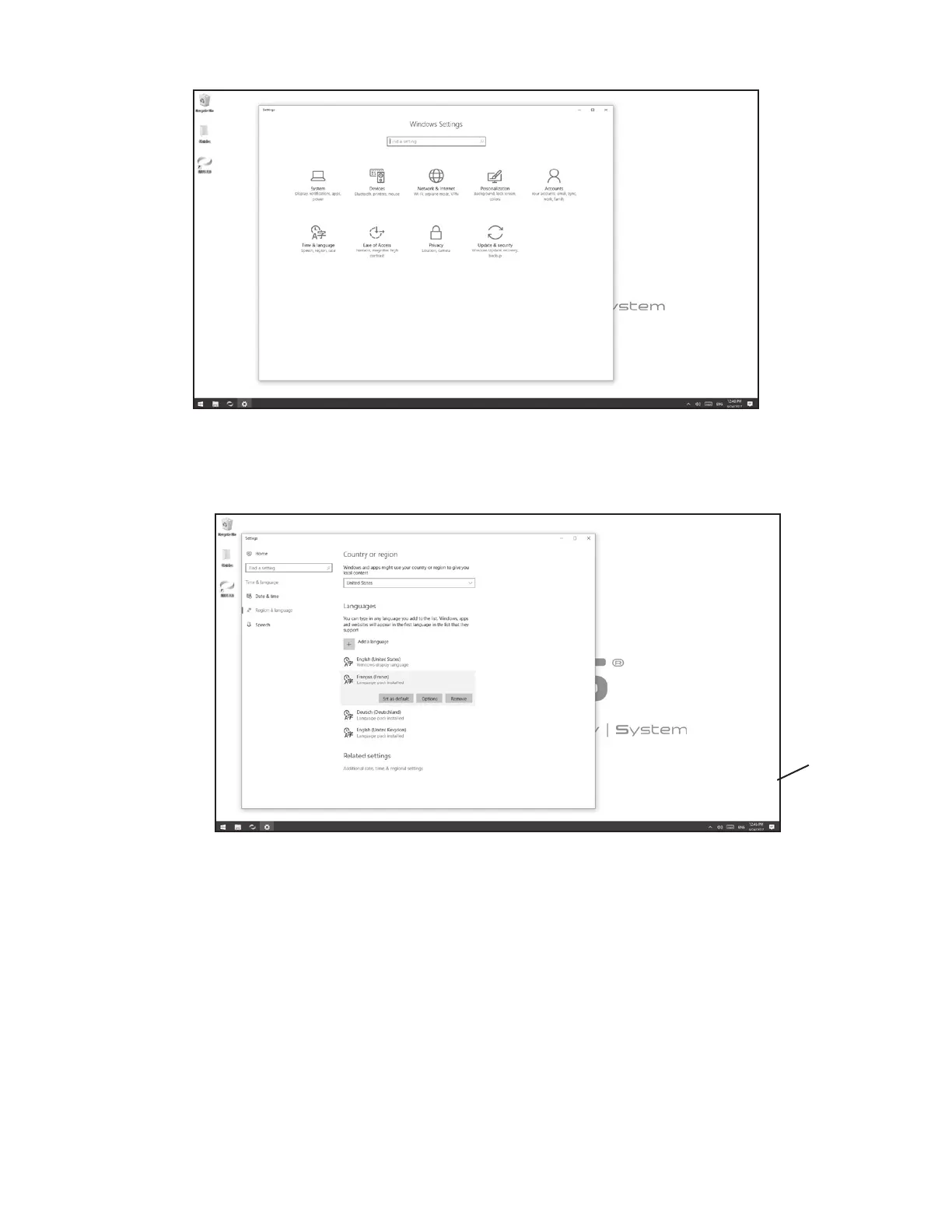
6. From the Windows Settings menu, select the Time & Language settings icon. See Figure 30.
Figure 30: Windows Settings Menu
7. From the Region & Language menu, select the appropriate language and press Set as default. See Figure 31.
8. Restart Windows for the change to the Windows Display Language to take effect.
Figure 31: Region & Language Settings Menu
Log Out and Exit
To log out of the BITS software application, press the "X" Button. The "X" Button is located in the upper right corner of the
display screen in the BITS software, see Figure 26. Pressing the Logout Button will bring the user back to the Login Screen.
To exit the BITS software application, press the "X" Button located in the upper right corner of the Login Screen. The display
screen will return to the operating system's desktop.
The installation process for the Bioness Integrated Therapy System is now complete.
Language Selection



 To Next Page