411829-L, Operation April 2012 Page 4-3
4
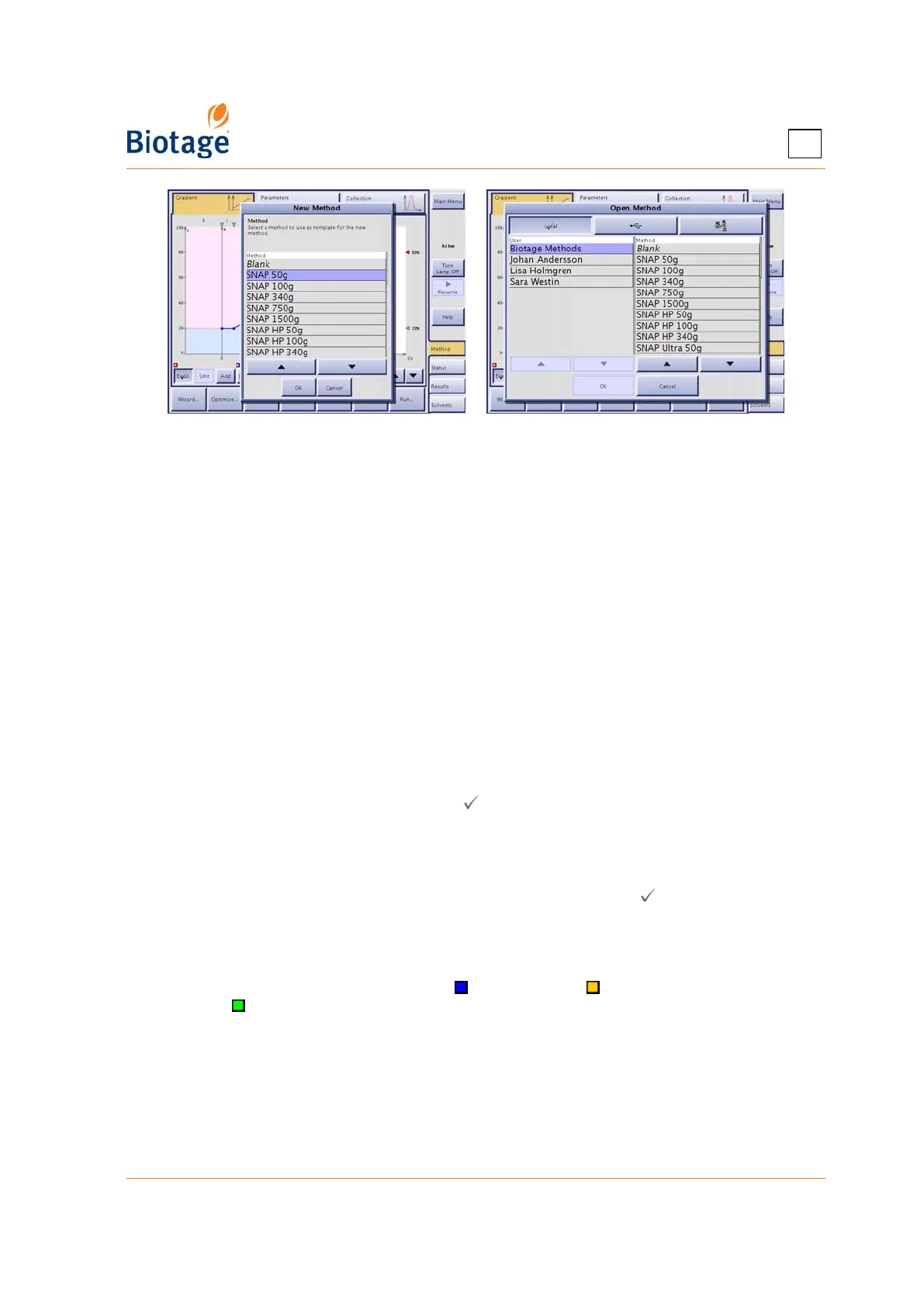
Figure 4-1. New Method and Open Method Dialogs (Isolera LS Shown)
3. To create a method from a previous purification:
a. Select the Results tab in the right-hand panel.
b. Select the run at the Result Selection tab and press Create. For information on how to
find the desired run, see “Search for Records” on page 4-28. The method is opened at the
Method tab and can be edited and/or saved. If desired, the system can help you to
optimize the gradient to isolate one of the peaks and reduce the amount of solvent used.
For instructions, see “Create a Gradient at the Gradient Tab” on page 4-3.
Create a Gradient at the Gradient Tab
NOTE
If you want to calculate the gradient from TLC data, see page 4-10.
Isolera One, Four, and LS have four solvent inlets (A, B, C, and D) while
Isolera Prime has two (A and B).
1. Select the Gradient tab.
2. The gradient can be set up using the gradient table and/or the gradient graph. To show or hide
the gradient table, press the Table button ( = gradient table is shown).
3. In the graph, the X-axis indicates the length and the Y-axis indicates the percentage of Solvent B
(if a blue gradient line), Solvent C (if a yellow gradient line), or Solvent D (if a green gradient
line) in the solvent mix. To change the length unit, press the Unit button repeatedly until the
desired unit appears; CV (Column Volumes), milliliter, or minutes. CV is the default unit.
4. If you want to equilibrate the cartridge before the run, press Equil. ( = equilibration is
enabled). The default equilibration length is 3 CV (3 to 5 CV are recommended for full
equilibration).
5. To add a gradient segment, select a segment in the gradient table or the graph (see Figure 4-2)
and press Add. The new segment will be added after the selected segment.
6. To add a gradient segment with Solvent B ( ) and Solvent C ( ) and/or with Solvent C and
Solvent D ( ), press B/C and/or C/D. The new segment will be added at the end of the gradient.
7. To delete a gradient segment, select it in the gradient table or the graph (see Figure 4-2) and
press Delete.



 To Next Page