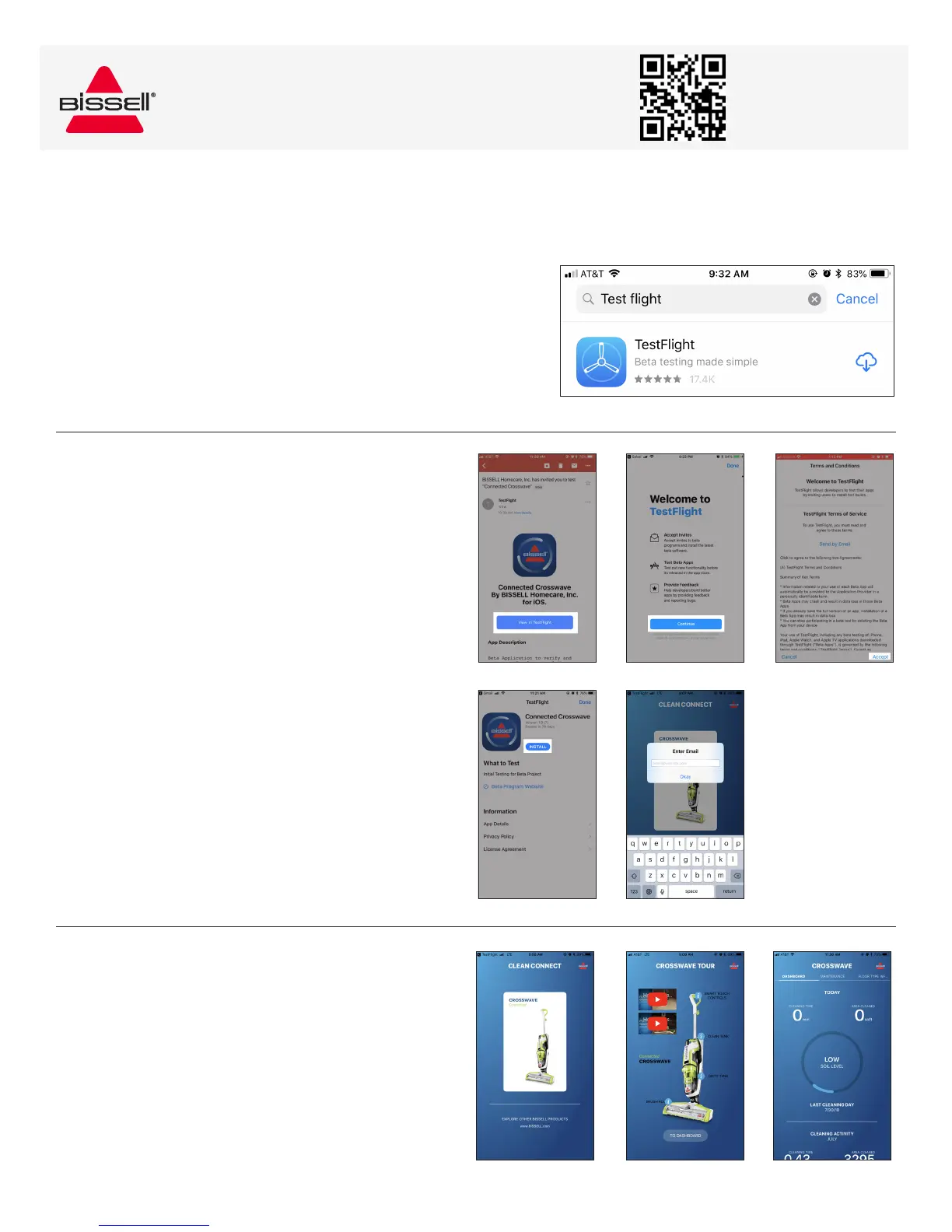
STEP 1
Install the TestFlight App
a. Search for "TestFlight" in the App Store and press "GET".
b. Enter your App Store password to download the app.
c. Once it shows "OPEN", go back to your main phone screen.
NOTE: If you click "OPEN", a Welcome screen will appear.
Close out of app and go to Step 2.
STEP 2
Install Connected CrossWave app
via TestFlight
a. Open the email from TestFlight "BISSELL
Homecare, Inc. has invited you to test
Connected CrossWave".
b. Click the blue “View in TestFlight” button.
c. A "Welcome to Testflight" screen will
appear. Click "Continue".
d. A "Terms and Conditions" page will
appear. Read through it and click "Accept"
on the bottom right.
e. TestFlight will open. Click "INSTALL" to
install Connected CrossWave.
f. When Connected CrossWave is finished
installing, click "OPEN". When prompted,
enter your email address (the one where
the TestFlight email was sent to) and click
"Okay".
STEP 3
Explore Connected CrossWave
a. Each time you open the app, there will be a slight
pause on the “CLEAN CONNECT” screen as the
app checks for a connection to your CrossWave.
b. Once the connection check is complete, the
“CROSSWAVE TOUR” screen will appear. Enjoy
exploring your CrossWave!
c. When you’re ready, click “TO DASHBOARD” to
view information such as your last cleaning day,
maintenance schedules and troubleshooting.
Downloading the TestFlight app and
Connected CrossWave app
2.b 2.c 2.d
2.e 2.f
3.a 3.b 3.c
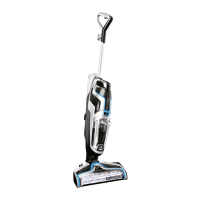
CROSSWAVE
®
CONNECTED
QUICK START GUIDE
More of a visual
person? Scan this
code to watch a
step-by-step video.





 To Previous Page