12
SERVSWITCH™ JR.
• Front-panel LEDs show which CPU is selected.
• The units remember and restore Num Lock, Caps Lock, Scroll Lock, and
keyboard mode for each CPU.
• Scan function can sequence between CPUs every 1 to 15 seconds.
• Screen-save function can turn off video after 1 to 999 seconds of inactivity.
• You can program the keyboard’s typematic rate and delay.
• Custom settings for each CPU can be saved in nonvolatile memory.
• Rackmount kits are also available.
2.3 The Front Panel
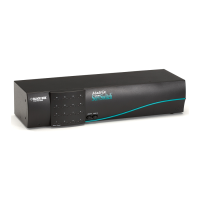
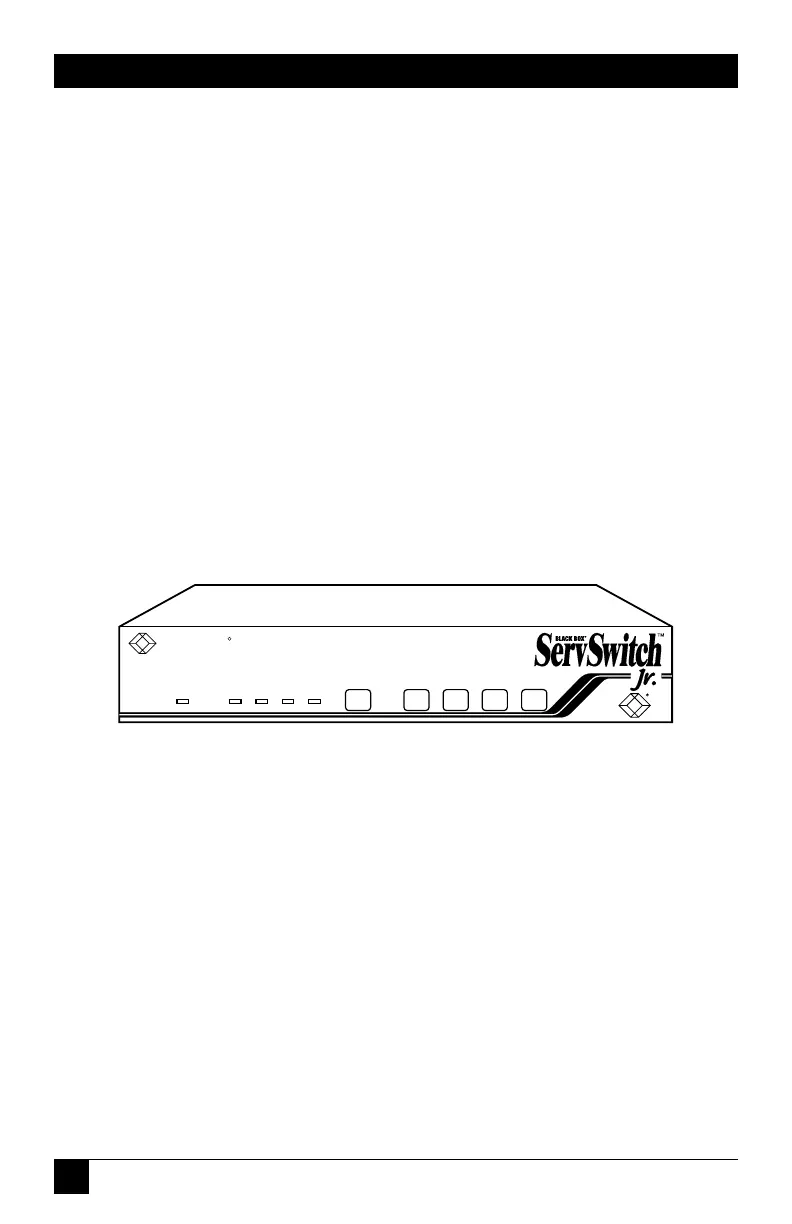
The ServSwitch Jr.’s front panel features a number of LED indicators and port-
selection controls. To familiarize yourself with these, refer to Figure 2-1 below and
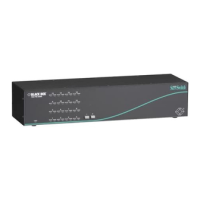
the descriptions that follow for 2- or 4-port models, or refer to Figure 2-2 on the
next page and the descriptions that follow for 8-port models.
Figure 2-1. The front panel of a 4-port ServSwitch Jr. (SW622A-R2).
Panel Label Description
POWER Power LED: Lights to indicate that the Switch is receiving
power.
[Numbered Port-Selection LEDs: Light if the corresponding port is
LEDs] currently selected.
RESET Reset Switch: Press this membrane switch to reset the unit and
reinitialize the shared keyboard and mouse; also used to
restore the unit to its factory-default state.
[Numbered Port-Selection Switches: Press any of these membrane switches
Switches] to select the corresponding CPU.


 To Next Page
 Loading...