Using Blackmagic Web Presenter with Third Party Software
Using Blackmagic Web Presenter
with Third Party Software
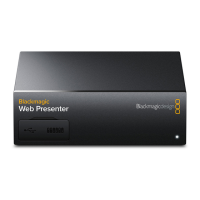
Using Blackmagic Web Presenter with Skype
To use Blackmagic Web Presenter with Skype, first download the Skype software and install it
on your computer. The Skype software is free and can be downloaded from www.skype.com
1 Once installed on your computer, launch Skype.
2 Open the preferences under Skype>Preferences and select ‘audio/ video’.
3 If your computer has a webcam it will be selected by default, and the Skype preview
window will show the image from the webcam. By clicking on the ‘Camera’ drop
down menu, you can select Blackmagic Web Presenter from the list. Once selected,
you will see the source video connected to your Web Presenter appear in the Skype
preview window.
Select Blackmagic Web Presenter from
the ‘Camera’ drop down menu
NOTE In Skype’s preferences window, you may noticed that your image is reversed
from left to right. This is normal as Skype presents users with a mirror image of
themselves for preview purposes. Your video calls themselves will not be reversed.
7







 To Next Page