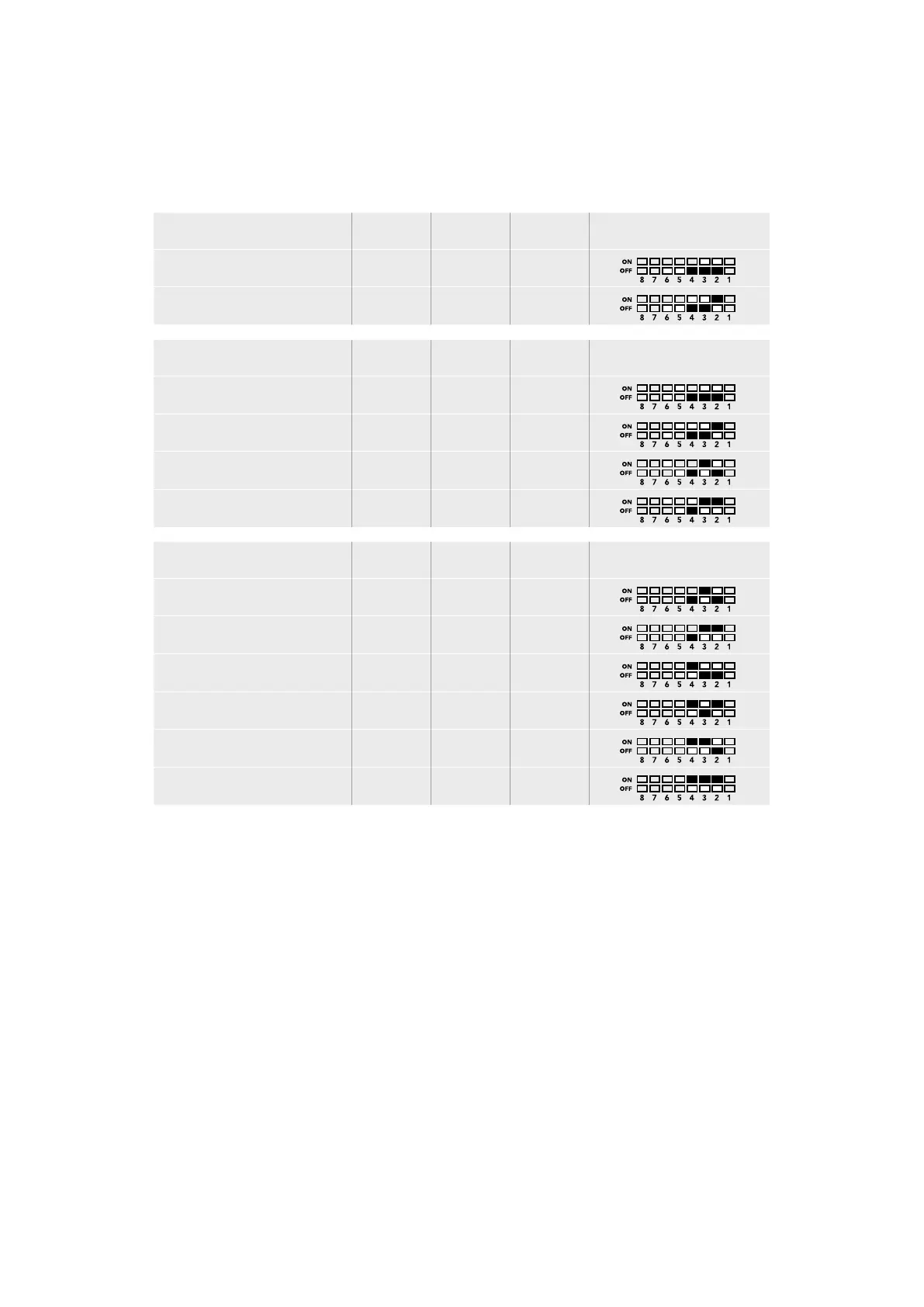
SDI Audio Selection Table
By using the following combinations of switch settings, you can select which SDI or Optical
audio channels to embed into your Teranex Mini - Optical to HDMI 12G’s output signal.
Analog Audio Channels Switch 4 Switch 3 Switch 2 Switch Diagram
1 and 2 OFF OFF OFF
3 and 4 OFF OFF ON
AES/EBU Audio Channels Switch 4 Switch 3 Switch 2 Switch Diagram
1-4 OFF OFF OFF
5-8 OFF OFF ON
9-12 OFF ON OFF
13-16 OFF ON ON
Analog Audio Channels Switch 4 Switch 3 Switch 2 Switch Diagram
5 and 6 OFF ON OFF
7 and 8 OFF ON OFF
9 and 10 ON OFF OFF
11 and 12 ON OFF ON
13 and 14 ON ON OFF
15 and 16 ON ON ON
Blackmagic Teranex Setup Settings
The Teranex setup utility can change all the same settings that are available using the switches,
plus additional settings. You can access these settings by moving between the ‘video,’ ‘audio,’
‘configure,’ and ‘about’ tabs.
The ‘about’ and ‘configure’ tabs are detailed in the ‘changing settings’ section in this manual.
The ‘video’ tab for Teranex Mini - Optical to HDMI 12G contains the following settings.
Video Output Menu
Clip HDMI Output to Legal Levels
This checkbox controls clipping of your SDI and Optical input to ensure that it stays within HDMI
legal levels and should be kept on by default.
HDMI Instant Lock
Select this checkbox to enable the HDMI instant lock feature. When HDMI instant lock is
enabled, the HDMI output signal is kept active even when changing sources. This means your
converter does not have to wait for the HDMI television or monitor to lock before displaying the
66Teranex Mini – Optical to HDMI 12G





 To Next Page