03.1 Installation
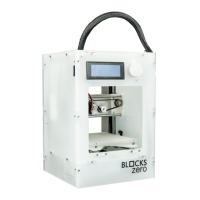
When receiving the Blocks zero printer you must make sure that you open the carton box by
the correct side identied with the sticker. Doing so in this way ensures that all components
of the kit are accessible in the correct order, thus avoiding mixing the various components.
03.2 Unpacking
1. Remove the coating lm and printed sleeve.
2. Open the carton box by the correct side marked with a sticker.
3. Carefully remove the top components, the toolbox, polished vertical axis rods, and acrylic
panels. Take special care to remove the acrylic panels as these are fragile.
4. Follow all assembly steps of the machine in the correct order as described in the assembly
manual.
5. During the assembly process, if any components are missing or damaged, contact the
dealer where you purchased the equipment immediately.
03.3 Installation and conguration
Blocks zero already has the rmware installed, but it may be undergoing updates so we ad-
vise you to visit the equipment page on our website and check if the installed version (can
be seen on the screen when the printer is switched on) is the latest version available.
After you have assembled the Blocks zero kit following the assembly manual you will need
to go to our website to the Blocks Zero page and download the software for preparing the
3D printing les and also download the pre-congured printing proles for the different
materials and resolutions.
To congure the recommended preparation software follow these steps:
1. Add a machine:
1.1. First of all, make sure you have the right version of Cura installed (v3.3.1)
1.2. Open the software and click Settings » Printer » Add Printer
1.3. Select Custom » Custom FDM printer
1.4. Write the name for it (ex: Blocks zero) and press Next
1.5. Fill in the data for Printer and Extruder settings as shown in the next page images.
You can nd the texts to Start and End G-Code in page 13.
Installation03


 To Next Page