5 Basics
17
5.5 Using the Home Screen
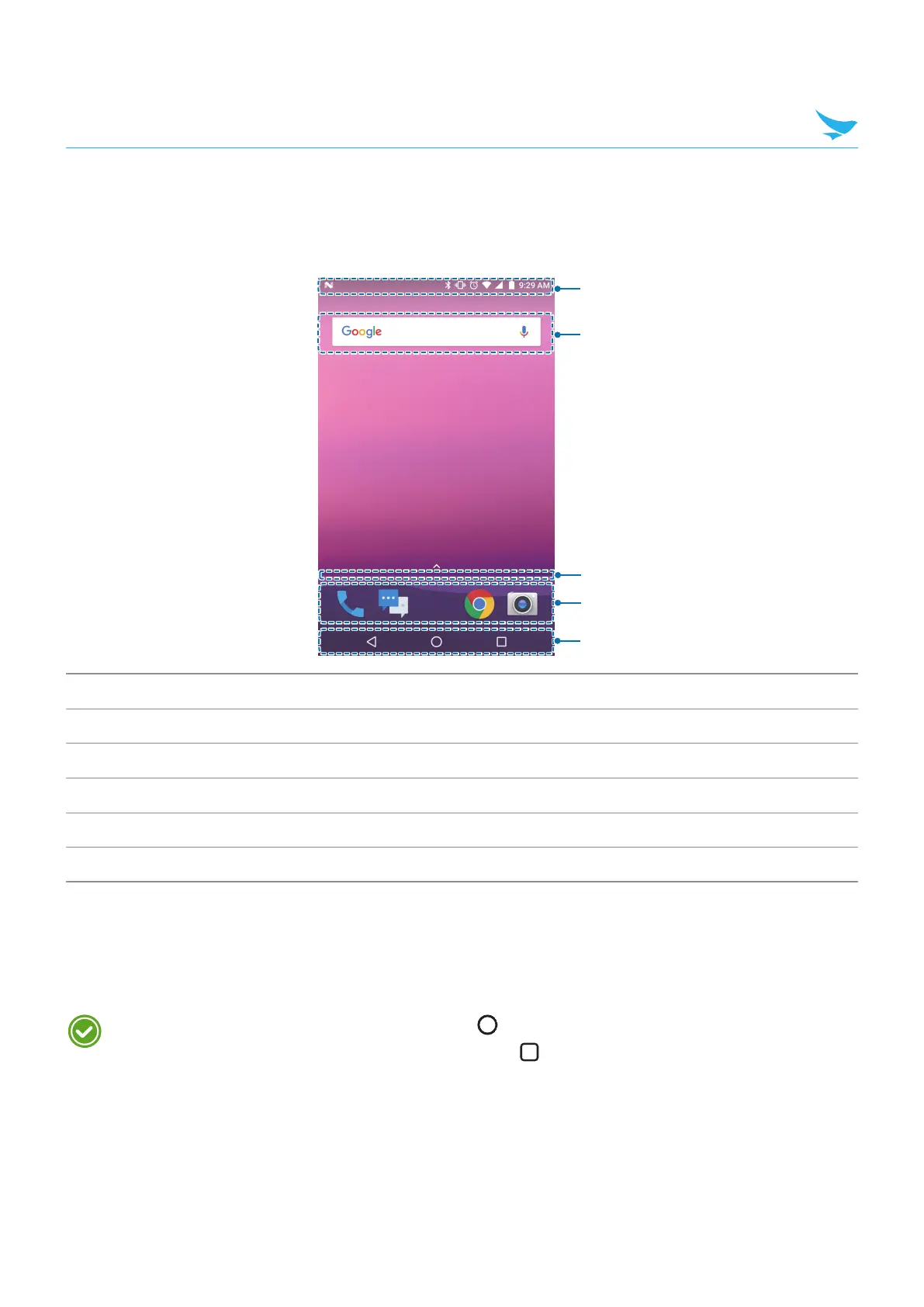
The Home screen is the starting point for all apps and features. It displays icons, shortcuts, and widgets for
apps.
1
2
4
3
5
No. Description
1
Status bar
2
Widget
3
Location indicator
4
App icons
5
Back/Home/Menu button
The Home screen has multiple pages. To view other pages, swipe left or right. The white bar at the bottom
of the Home screen indicates the current page you are viewing.
You can add or delete shortcuts, and widgets on the Home screen. You can also arrange the shortcuts
and widgets. For more information about personalizing your Home screen, refer to Customizing Your Home
Screen on page 20.
• To return to the Home screen, tap Home button at any time from any menu or app.
• To view the previously opened apps, tap Menu button
and swipe between the apps. Tap any app
to open it again.



 To Next Page