Copyright © by BOA Warenhandels-GmbH ● Germany
Rev 0, Stand: 01 / 2007
36
Move the yellow lighting band to the Mp3 directory item and push [ENTER], the Mp3 will play.
To stop the play and select other Mp3, push [STOP], then push [▲]/[▼]/[◄]/[►] to select the Mp3.
Attention!
3. While playing, you can push [PREV] or [NEXT] to play the previous track or the next one.
4. While playing you can push [STOP] to back to the menu picture.
System setting
Press [SETUP]. The screen will display the system setting menu. To navigate the menu, use [◄]/[►] buttons.
To confirm your selection, press [ENTER]. In the sub-menus, use the [▲]/[▼] buttons to make your selection,
press [ENTER] to enter the item to be changed. To navigate up and down use the [▲]/[▼] buttons. Highlight
your selection and press [ENTER] as confirmation.
Press [◄] to escape the sub-menu and make another selection, or press [SETUP] to exit the SETUP menu.
Provided below are examples of settings and the instructions on changing common settings:
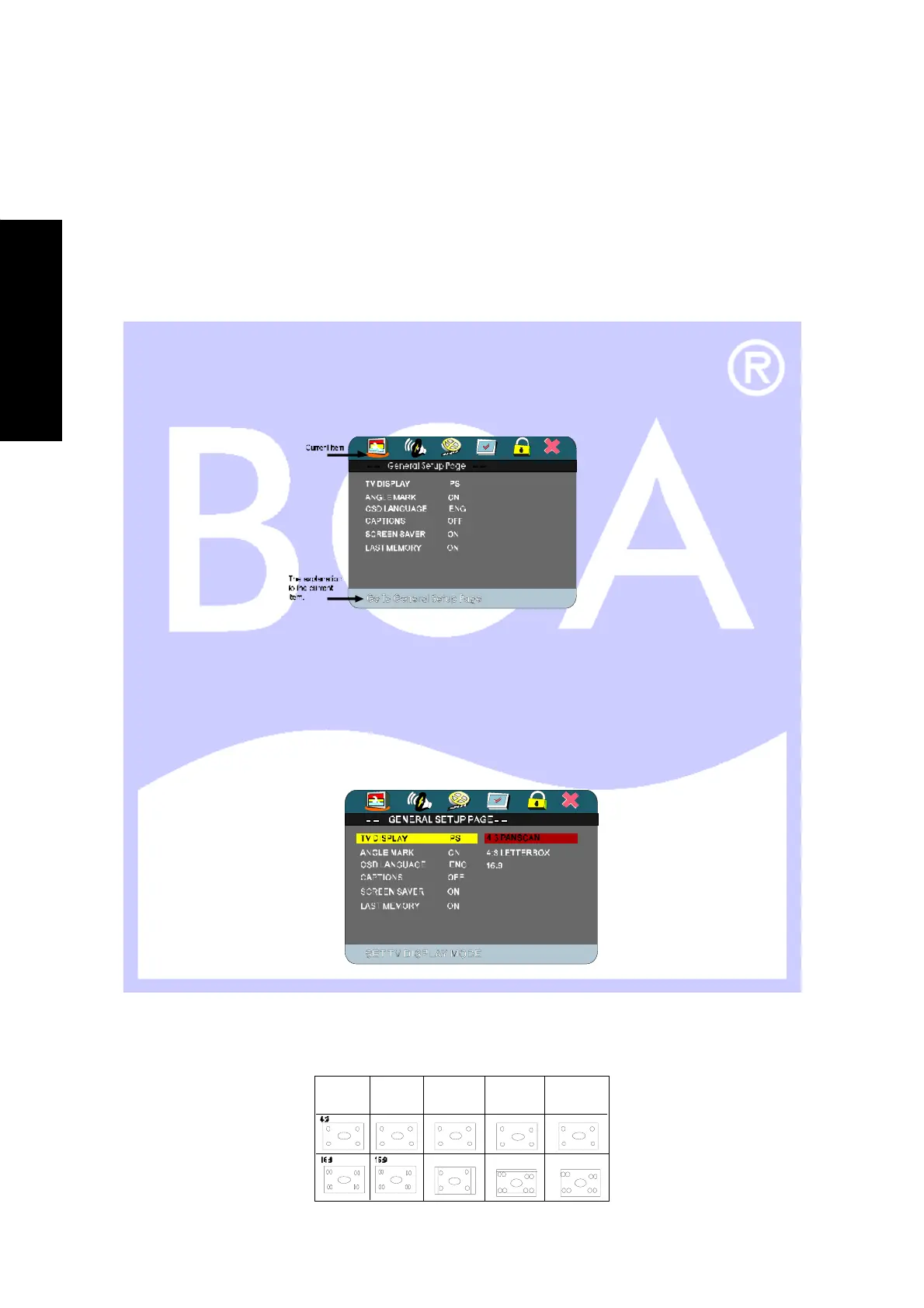
Set TV screen ratio mode
Press [SETUP] to enter the menu. Press [Enter] to make your selection. Use [▲]/[▼] to navigate to TV Display.
Press [ENTER] to select.
Press [►] to enter sub-menu on the right. To change the screen settings, use [▼] to navigate to TV Display.
Press [ENTER] to select.
Press [SETUP] to exit system setting.
Note: three screen ratio modes are available (16:9 WIDE, 4:3PS, 4:3L) It enables user to select the disc to
match your screen. Below is chart showing the various formats.
Video of dis c
Normal 4:3PS 4:3LB
16:9
E
N
G
L
I
S
H


 To Next Page