Need help?
Do you have a question about the boblov W4 and is the answer not in the manual?
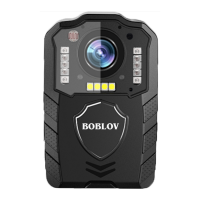
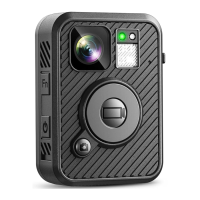
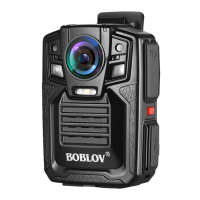
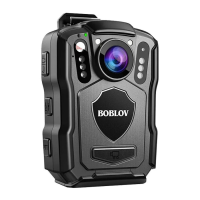
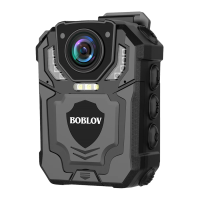
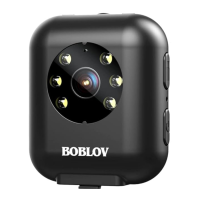
The BOBLOV W4 is a mini body camera designed for various recording needs, including video, audio, and photo capture, with a focus on ease of use and portability. It is equipped with a range of features to support its primary functions, including a robust memory card system, time/date stamping, and white illumination.
The BOBLOV W4 primarily functions as a body camera capable of recording video, audio, and taking photos. It is designed to be user-friendly with dedicated buttons for each recording mode. The camera supports loop recording and can embed a time and date stamp on recorded files. It also features six white illuminating lights, which can be turned on or off to assist in low-light conditions. The device connects to a computer via a USB cable, allowing users to review, delete, and manage files, as well as set the time and date.
Powering On/Off & Standby: To power on, long press the power button. Working indicator 1 will be solid red, and working indicator 2 will be solid green. To power off, long press the power button again. If the camera is powered on for 5 minutes without any operation, it will flash red and blue indicators for a few seconds and then auto shut off. To restart, long press the power button.
Video Recording: From standby mode, long press the power button to turn on the camera, then short press the video button to start recording. During video recording, working indicator 1 and charging indicators will be solid green, and working indicator 2 will flash blue. Press the video button again to stop recording and save the file. Video files are saved in AVI format and are auto-saved every 15 minutes as a separate file to prevent large file sizes and potential loss.
Audio Recording: After powering on, short press the audio button to start recording audio. While recording, working indicator 1 will flash red, and working indicator 2 and charging indicators will be solid green. Press the audio button again to stop recording and save the file. Audio files are saved in WAV format and are auto-saved every 15 minutes as a separate file.
Photo Taking: In standby mode, short press the photo button once to take a photo. Working indicator 2 will flash blue once. Photo files are saved in JPG format.
White Illumination: After powering on, long press the photo button to turn on or off the six white lights, which serve as illuminating lights.
Time/Date Setting: The W4 camera supports enabling or disabling the time and date stamp on video and photo files. To set the time and date:
Connecting to Computer: Connect the camera to a computer using the provided USB cable, or use a card reader to access the Micro SD card directly. The camera will enter USB disk mode, allowing users to review or delete files.
Reset Function: If the camera crashes or stops working, a reset can be performed by poking the reset hole (located below the video button) with a pin or thimble. Avoid excessive force. The device will auto shut down after the reset and can be restarted by long pressing the power button.
Memory Card Insertion: It is highly recommended to use a reliable and genuine brand of Class 10 micro SD card (16GB to 128GB MAX). Ensure the correct card format is used: FAT32 for ≤32GB cards and exFat for ≥64GB cards.
Troubleshooting:
General Maintenance:
The BOBLOV W4 comes with a packaging list including the W4 Mini Body Camera, Short 360° Rotatable Back Clip, Type-C Cable, Card Reader, User Manual, Head Strap, and Lanyard. Accessories may be updated, so refer to the actual receipt.
 General
| Brand | boblov |
|---|---|
| Model | W4 |
| Category | Digital Camera |
| Language | English |

 To Next Page