Home Checkup Test
If Orb-i is not performing as well as he should, you can diagnose the problem with a simple home
checkup test.
Putting Orb-i in/out of Checkup mode
To put Orb-i in Checkup mode:
Press and hold the “GO” “CHARGE” and “WI-FI” buttons simultaneously for a few seconds until the
bot says: “Home Checkup Mode Activated”. In this mode, Orb-i’s LiDAR sensor rotates.
To exit the Checkup mode:
Press the “GO” “CHARGE” and “WI-FI” buttons together again. You’ll hear “Exiting Home Checkup
Mode” and Orb-i’s LiDAR sensor stops rotating.
Important Notes:
- During the test, if Orb-i’s left idle for over a minute, he’ll automatically exit the Home Checkup Test.
- To move among Steps in the Checkup test, press the Wi-Fi button.
- To start / stop the tests in each Step, press the GO button until you hear “Begin Test” and “Stop
Test”. Always stop a test before moving to the next step.
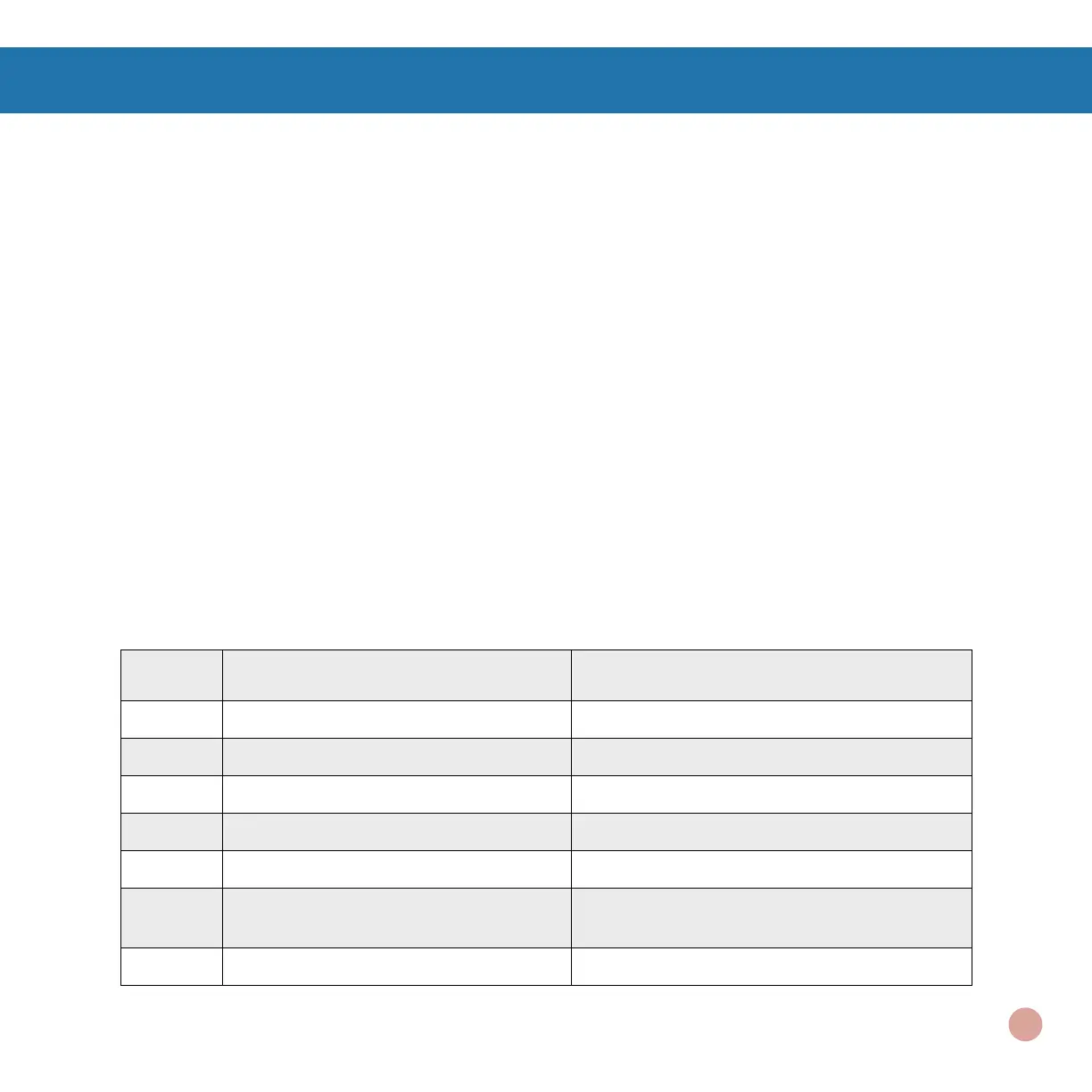
Step Part(s) Tested Description
1 Battery After a full charge, test Orb-i’s battery.
2 Edge Sensors Test edge sensors individually.
3 Charging Station Test charging sensors individually.
4 Bumpers and Wi-Fi Test the Wi-Fi module & touch sensors.
5 Motors (wheels, brushes, vacuum) Test Orb-i’s motors individually.
6
SLAM LiDAR, Charging and
Self-empty
Test Orb-i’s SLAM LiDAR, charging con-
tact points, and self-empty function.
7 Hard Resetting Orb-i Factory reset Orb-i and erase all data.
For a step-by-step video guide of Home Checkup Test, visit: bobsweep.com/Orbi-support.
Home Checkup Test
Home Checkup Test
26




 To Next Page