Check for Updates to Install Bomgar Software
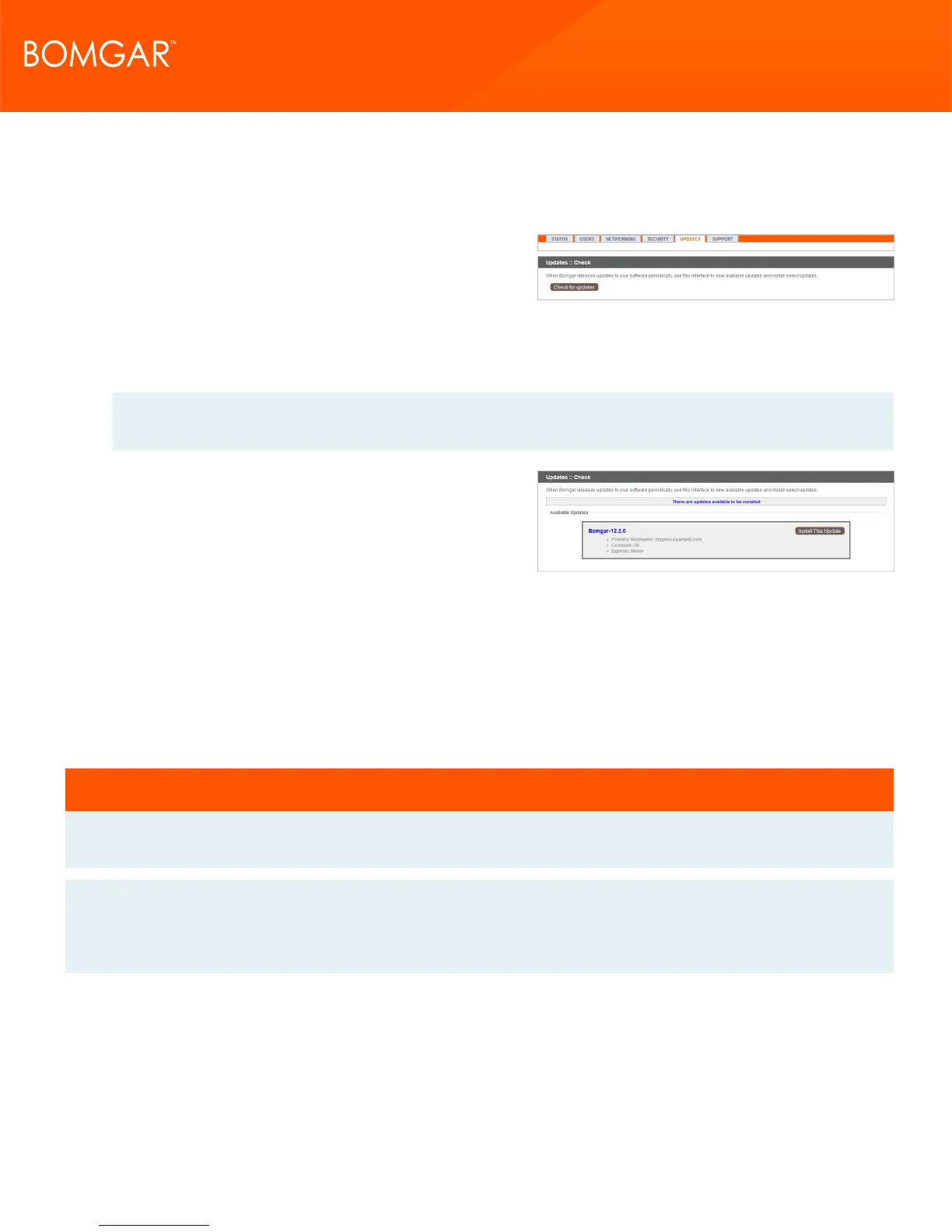
Bomgar Appliance updates are installed from the /appliance web
interface on the Updates page. Each update must be built by Bomgar
and is keyed to the serial number of the appliance for which it was built.
For this reason, the appliance must be registered in order to check for
updates.
1. Once Bomgar has built an update for your appliance, you will receive a notification email. Go to /appliance > Updates.
Retrieve the update using either Updates :: Check > Check for Updates or Updates :: Manual Installation > Appliance
Download Key.
Note: The Check for Updates option can be used only if the appliance has outbound access over TCP port 443 to
update.bomgar.com. Manual installation does not require this connection.
2. Once the check is complete, all available updates matching the
serial number of your appliance will be listed in the /appliance
web interface. There are two types of updates:
l Updates for /login licensing (always shown in the format
of Bomgar-x.x.x)
l Updates for /appliance Base Software (always shown in
the format of Base Software x.x.x)
Base Software includes features and fixes for /appliance as well as the prerequisite code required before installing license
updates. Therefore, new licensing updates typically require you to install the prerequisite Base Software Update first. In this
case, Bomgar's update interface will make note of the correct order in which to install updates. If you are still unsure, take a
screenshot of your available updates and send the screenshot to Bomgar Technical Support for assistance.
If no update packages or patches are available for your Bomgar Appliance, a message stating "No updates available" is
displayed. If an update is available but an error occurred when distributing the update to your appliance, an additional
message is displayed, such as "An error occurred building your update. Please visit help.bomgar.com for more information."
IMPORTANT!
As a reminder, you must send Bomgar Technical Support the following items before Support can build your Base Software
and/or software licensing updates:
1. DNS hostname (fully qualified domain name) of the appliance
2. SSL root certificate or self-signed SSL certificate
3. Screenshot of the /appliance > Status > Basics page
3. Once you have sent Bomgar Technical Support your hostname, SSL certificate, and screenshot, they will build the
necessary updates and send you detailed installation instructions.
4. When installation is complete, the Bomgar Appliance is ready to be used for remote support. To validate your appliance's
readiness, log into the /login interface by going to your appliance's URL followed by /login (e.g.,
support.example.com/login).
Default Username: admin
CONTACT BOMGAR info@bomgar.com | 866.205.3650 (US) | +44 (0) 1628 480 210 (UK/EMEA) BOMGAR.COM 20
© 2017 Bomgar Corporation. All rights reserved worldwide. BOMGAR and the BOMGAR logo are trademarks of Bomgar Corporation; other trademarks shown are the property of their respective owners. TC: 1/11/2018
REMOTE SUPPORT APPLIANCE INSTALLATION



 To Next Page