EasyManua.ls Logo

Bosch MIC-7130-PB4 - User Manual

Bosch MIC-7130-PB4
122 pages
Print Icon
To Next Page IconTo Next Page
Loading...
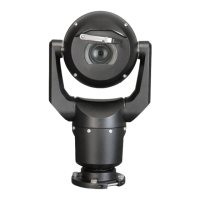
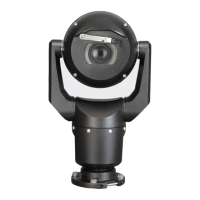
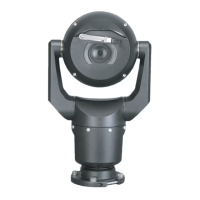
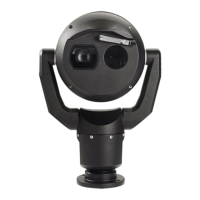
MIC IP starlight 7000 HD
MIC-7130-PB4 MIC-7130-PW4 MIC-7130-PG4 MIC-7230-B5
MIC-7230-W5 MIC-7230-G5
en
Operation Manual

Table of Contents

Other manuals for Bosch MIC-7130-PB4

Questions and Answers

  • B
    Benjamin HobbsAug 19, 2025
    Why is the picture dark on my Bosch Security Camera?
    • A
      agreeneSep 12, 2025
      If the picture from your Bosch Security Camera is dark, verify that the Gain Control is set to High and the Auto Iris Level is appropriately adjusted. Also, make sure the camera lens cover is removed and the maximum Ethernet cable distance is not exceeded. If the issue continues, restore all camera settings.
  • T
    Tamara WilsonAug 21, 2025
    Why is the image dim on my Bosch Security Camera?
    • A
      Angela CarrAug 21, 2025
      If the image on the screen of your Bosch Security Camera is dim, check if the lens is dirty. If it is, clean the lens with a soft, clean cloth.
  • T
    Tammy Decker MDAug 23, 2025
    Why does my Bosch MIC-7130-PB4 Security Camera have no network connection?
    • E
      erikhayesAug 23, 2025
      If your Bosch Security Camera has no network connection, verify all network connections are properly established. Ensure that the distance between any two Ethernet connections does not exceed 100 m (328 ft). If you're using a firewall, check that the Video Transmission mode is configured to UDP.
  • P
    Paula Combs PhDAug 26, 2025
    What to do if my Bosch MIC-7130-PB4 Security Camera has no video?
    • P
      Pamela RoseAug 26, 2025
      If your Bosch Security Camera shows no video, first, ensure that the main power supply is on. If you have an IP-enabled camera and have a web page, try cycling the camera’s power off and on. If there is no web page, verify the IP address using Configuration Manager. Also, check for 24 V output from the transformer and inspect all wires and connectors leading to the camera for integrity.
  • L
    leepetersonAug 28, 2025
    How to fix no camera control on Bosch MIC-7130-PB4?
    • R
      rkerrAug 28, 2025
      If there is no camera control for your Bosch Security Camera, ensure the LAN cable is securely connected. Refresh the browser and check if the video updates. If the issue persists, try cycling the camera's power off and on.
  • T
    Teresa ShannonAug 29, 2025
    Why does my Bosch Security Camera move when trying to move other cameras?
    • B
      bjacksonAug 30, 2025
      If your Bosch Security Camera moves when you attempt to move other cameras, check that the camera’s IP address is properly set. Use the Configuration Manager to confirm that two cameras do not have the same IP address, and if they do, change the address of one of the cameras.
  • J
    Julie HesterSep 1, 2025
    What to do if video is rolling, noisy, or distorted on Bosch Security Camera?
    • G
      Gerald GriffithSep 1, 2025
      If the video from your Bosch Security Camera is rolling, noisy, or distorted, check the integrity of all connectors and splices of the Ethernet cable.
  • H
    hallelaineSep 3, 2025
    How to fix weak contrast on Bosch MIC-7130-PB4 Security Camera?
    • D
      david86Sep 3, 2025
      If the contrast on the screen of your Bosch Security Camera is too weak, adjust the contrast feature of the monitor. Also, check if the camera is exposed to strong light; if so, change the camera position.
  • A
    Andrew FischerSep 5, 2025
    Why does my Bosch MIC-7130-PB4 Security Camera reboot frequently?
    • D
      Daniel MathisSep 5, 2025
      If your Bosch Security Camera reboots frequently or intermittently, test the camera with another power supply.
  • S
    Sarah MorrisSep 7, 2025
    Why is the image flickering on my Bosch Security Camera?
    • E
      Erica RobertsSep 7, 2025
      If the image on the screen of your Bosch Security Camera flickers, check if the camera faces directly into the sun or fluorescent lighting. If so, reposition the camera.

Summary

Safety

Important Safety Instructions

Crucial instructions for safe operation and installation.

Overview of Installation Steps

Configuration Programming in the Shipping Box

Configuration Programming on a Temporary Table-top Stand

Mounting Location and Mounting Orientation

Install the Camera

Make Connections - Power and Control

Power Source Options

Details on available power supply methods for the camera.

Ethernet Connections

Information on network cabling requirements and specifications.

Connect the Camera to the Network

Instructions for establishing network connectivity for the camera.

Configuration

System Requirements

Hardware and software requirements for configuring the camera.

Configuring the Camera

General steps for network configuration.

Using the Web Server of the Camera

Steps to configure network settings via the camera's web interface.

General

User Management

Configuration of user authorization levels and passwords.

Web Interface

LIVE Functions

Adapting display options and controls on the LIVE page.

Camera

Installer Menu

Access to camera settings like application variant, frame rate, and reboot.

Encoder Profile

Configuration of video encoding settings and profiles.

Encoder Streams

Settings for H.264 standards for video streams.

Privacy Masks

Blocking out specific areas of the scene from view.

Picture Settings

Adjusting image parameters like mode, white balance, and color.

Lens Settings

Adjusting focus, iris, zoom, and other lens parameters.

PTZ Settings

Configuration of Pan/Tilt/Zoom movements and behavior.

Recording

Storage Management

Configuring storage for recorded video data.

Recording media

Selecting and configuring storage media like iSCSI or SD cards.

Recording Profiles

Defining and assigning settings for video recording.

Recording Scheduler

Scheduling recording profiles for specific days and times.

Alarm

Alarm Connections

Configuring how the camera responds to alarms and connects to remote stations.

VCA

Configuring Video Content Analysis features like noise reduction.

Alarm E-Mail

Setting up email notifications for alarms with optional images.

Alarm Rules

Defining custom responses to alarm inputs and triggers.

Network

Network Access

Configuring IP addresses and network connectivity settings.

Service

Operation via the browser

Live page

The main interface for viewing live video and camera controls.

Intelligent Tracking

Options for tracking moving objects within the camera's view.

Playback

Accessing and controlling recorded video content.

Searching for recorded video

Finding specific recorded footage based on criteria.

Operation

Using Intelligent Tracking

Configuring and utilizing the feature to track moving objects.

Troubleshooting

Maintenance

Keyboard Commands

Bosch Protocol

List of AUX commands for the Bosch protocol keyboard.

Pelco Protocol

List of PTZ and non-PTZ commands for Pelco protocols.

Bosch MIC-7130-PB4 Specifications

General IconGeneral
Resolution1280x720
Lens2.8mm
Operating Temperature-10°C to +50°C
Power Supply12V DC
Night VisionYes
Video CompressionH.264
Weather ResistanceIP66

Related product manuals