EasyManua.ls Logo

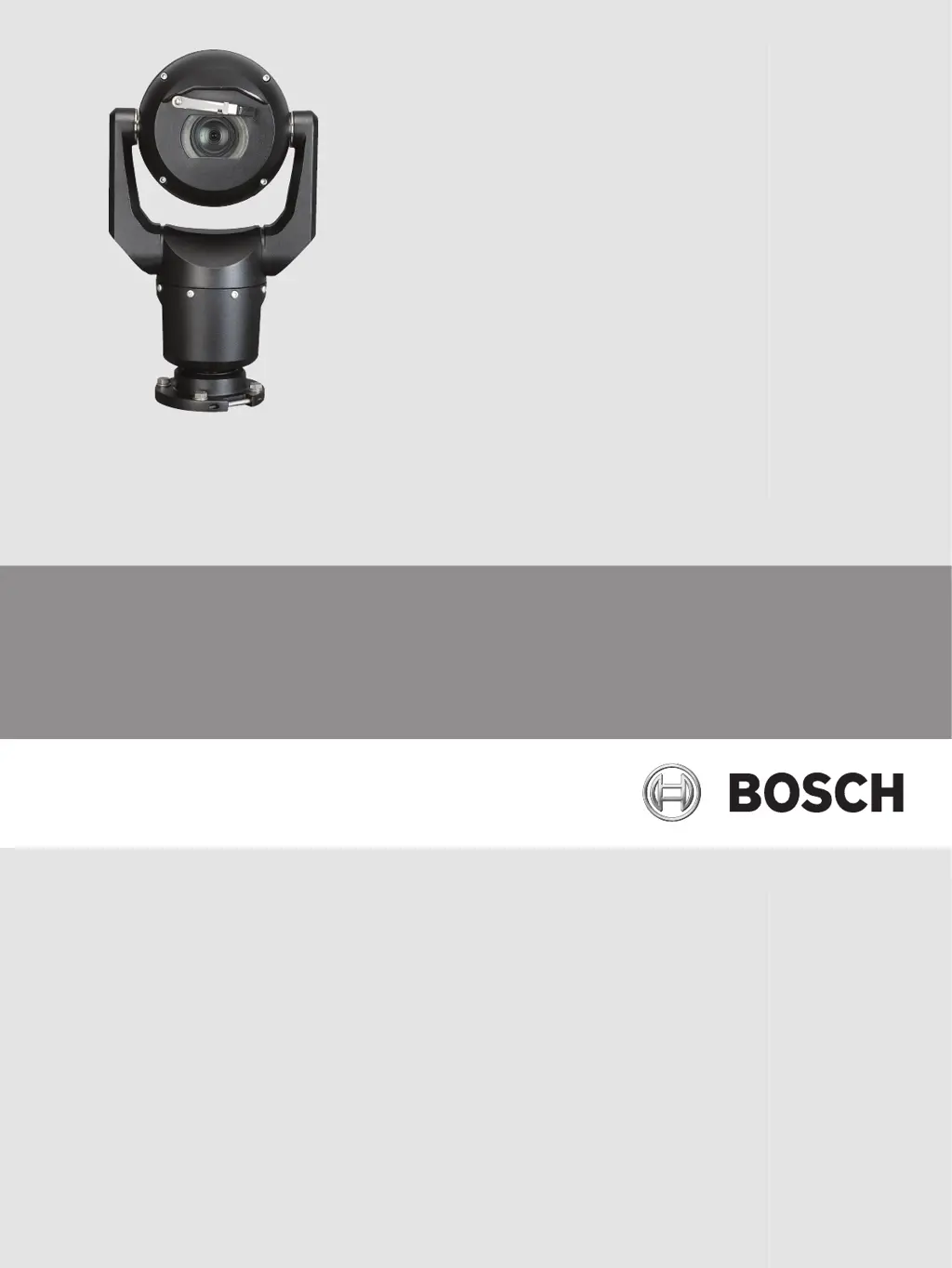
Bosch MIC-7230-PB4 - User Manual

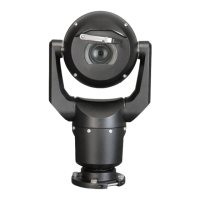
Bosch MIC-7230-PB4
112 pages
Print Icon
To Next Page IconTo Next Page
Loading...
MIC IP starlight 7000 HD, MIC IP dynamic
7000 HD
MIC71xx, MIC72xx
en Operation Manual

Table of Contents

Questions and Answers

  • K
    Kristy RomeroAug 19, 2025
    Why is the picture dark on my Bosch MIC-7230-PB4 Security Camera?
    • L
      Larry WrightSep 12, 2025
      If the picture from your Bosch Security Camera is dark, verify that the Gain Control is set to High and the Auto Iris Level is appropriately adjusted. Also, make sure the camera lens cover is removed and the maximum Ethernet cable distance is not exceeded. If the issue continues, restore all camera settings.
  • W
    William OwenAug 21, 2025
    Why is the image dim on my Bosch MIC-7230-PB4?
    • M
      Michael AndersonAug 21, 2025
      If the image on the screen of your Bosch Security Camera is dim, check if the lens is dirty. If it is, clean the lens with a soft, clean cloth.
  • A
    Anne WalkerAug 23, 2025
    Why does my Bosch Security Camera have no network connection?
    • S
      Sydney ShermanAug 23, 2025
      If your Bosch Security Camera has no network connection, verify all network connections are properly established. Ensure that the distance between any two Ethernet connections does not exceed 100 m (328 ft). If you're using a firewall, check that the Video Transmission mode is configured to UDP.
  • K
    Kimberly CurryAug 26, 2025
    What to do if my Bosch MIC-7230-PB4 has no video?
    • V
      vpowellAug 26, 2025
      If your Bosch Security Camera shows no video, first, ensure that the main power supply is on. If you have an IP-enabled camera and have a web page, try cycling the camera’s power off and on. If there is no web page, verify the IP address using Configuration Manager. Also, check for 24 V output from the transformer and inspect all wires and connectors leading to the camera for integrity.
  • M
    Melissa MartinezAug 27, 2025
    How to fix no camera control on Bosch MIC-7230-PB4 Security Camera?
    • M
      Mr. Michael ScottAug 28, 2025
      If there is no camera control for your Bosch Security Camera, ensure the LAN cable is securely connected. Refresh the browser and check if the video updates. If the issue persists, try cycling the camera's power off and on.
  • W
    wblackAug 29, 2025
    Why does my Bosch MIC-7230-PB4 move when trying to move other cameras?
    • J
      jessica95Aug 30, 2025
      If your Bosch Security Camera moves when you attempt to move other cameras, check that the camera’s IP address is properly set. Use the Configuration Manager to confirm that two cameras do not have the same IP address, and if they do, change the address of one of the cameras.
  • W
    wilsonfranciscoSep 1, 2025
    What to do if video is rolling, noisy, or distorted on Bosch Security Camera?
    • C
      Caitlin BrownSep 1, 2025
      If the video from your Bosch Security Camera is rolling, noisy, or distorted, check the integrity of all connectors and splices of the Ethernet cable.
  • G
    Gary GriffinSep 3, 2025
    How to fix weak contrast on Bosch MIC-7230-PB4?
    • M
      Mr. Brandon SteinSep 3, 2025
      If the contrast on the screen of your Bosch Security Camera is too weak, adjust the contrast feature of the monitor. Also, check if the camera is exposed to strong light; if so, change the camera position.
  • C
    charles04Sep 5, 2025
    Why does my Bosch MIC-7230-PB4 Security Camera reboot frequently?
    • D
      Dawn McgeeSep 5, 2025
      If your Bosch Security Camera reboots frequently or intermittently, test the camera with another power supply.
  • C
    christopher01Sep 7, 2025
    Why is the image flickering on my Bosch MIC-7230-PB4?
    • R
      Robert RileySep 7, 2025
      If the image on the screen of your Bosch Security Camera flickers, check if the camera faces directly into the sun or fluorescent lighting. If so, reposition the camera.

Summary

Safety

Safety Precautions

Explains symbols and notations used for safety warnings in the manual.

Important Safety Instructions

Provides critical safety instructions to follow before operating the unit.

Overview of Installation Steps

Make Connections - Power and Control

Power Source Options

Describes available power sources like High PoE and 24 VAC, and their configurations.

Ethernet Connections

Details Ethernet cable types, maximum distance, bandwidth, and PoE requirements.

Camera Connections

Illustrates and describes the camera's electrical and data connection points.

Connect the Camera to the Network

Provides two options for connecting the camera to a network via Ethernet.

Typical System Configurations

Typical IP Configuration with 95 W midspan (no I;O connections)

Illustrates a typical IP setup using a 95 W midspan for camera connectivity.

Typical Configuration with MIC-ALM-WAS-24

Shows a typical system configuration involving the MIC-ALM-WAS-24 accessory unit.

Typical IP Configuration with NPD-PSU-HPOE

Depicts a standard IP configuration using the NPD-PSU-HPOE for camera setup.

Configuration

System Requirements

Lists the necessary hardware and software requirements for camera configuration and viewing.

Configuring the Camera

Explains how to configure the camera's network settings for proper operation.

Configuration via IP, Basic Mode

Basic Mode: Device Access

Covers camera naming, password protection, and authorization levels for accessing the unit.

Basic Mode: Network

Guides on integrating the camera into an existing network by configuring IP settings.

Basic Mode: Encoder

Discusses selecting video encoding profiles to adapt transmission to the operating environment.

Configuration via IP, Advanced Mode

Advanced Mode: General

Covers general settings including identification, password, and date/time configuration.

Password

Explains password protection and authorization levels for securing camera access.

Date;Time

Covers setting the date, time, and device time zone, including daylight saving time options.

Advanced Mode: Camera

Contains settings related to camera operation, including installer menu and frame rates.

Encoder Profile

Allows selection and configuration of video encoding profiles for optimal data transmission.

Encoder Streams

Configures H.264 standards for different video streams, including recording and non-recording profiles.

PTZ Settings

Configures pan, tilt, zoom, auto pan, inactivity, and tracking features for camera movement.

Scenes and Tours

Allows defining and managing preset camera scenes and tours for automated monitoring.

Advanced Mode: Recording

Section dedicated to configuring recording settings, including storage management and profiles.

Storage Management

Details how to manage recording media, including local storage and iSCSI systems.

Network Access

Guides on setting up IP addresses, subnet masks, and gateway addresses for network integration.

Operation

LIVE Page

The initial display showing live video, overlays, and status indicators.

Using Intelligent Tracking

Troubleshooting

Bosch MIC-7230-PB4 Specifications

General IconGeneral
BrandBosch
ModelMIC-7230-PB4
CategorySecurity Camera
LanguageEnglish

Related product manuals