ctrlX AUTOMATION First Steps
Step 9 – Configuring an axis
2. Adding an axis
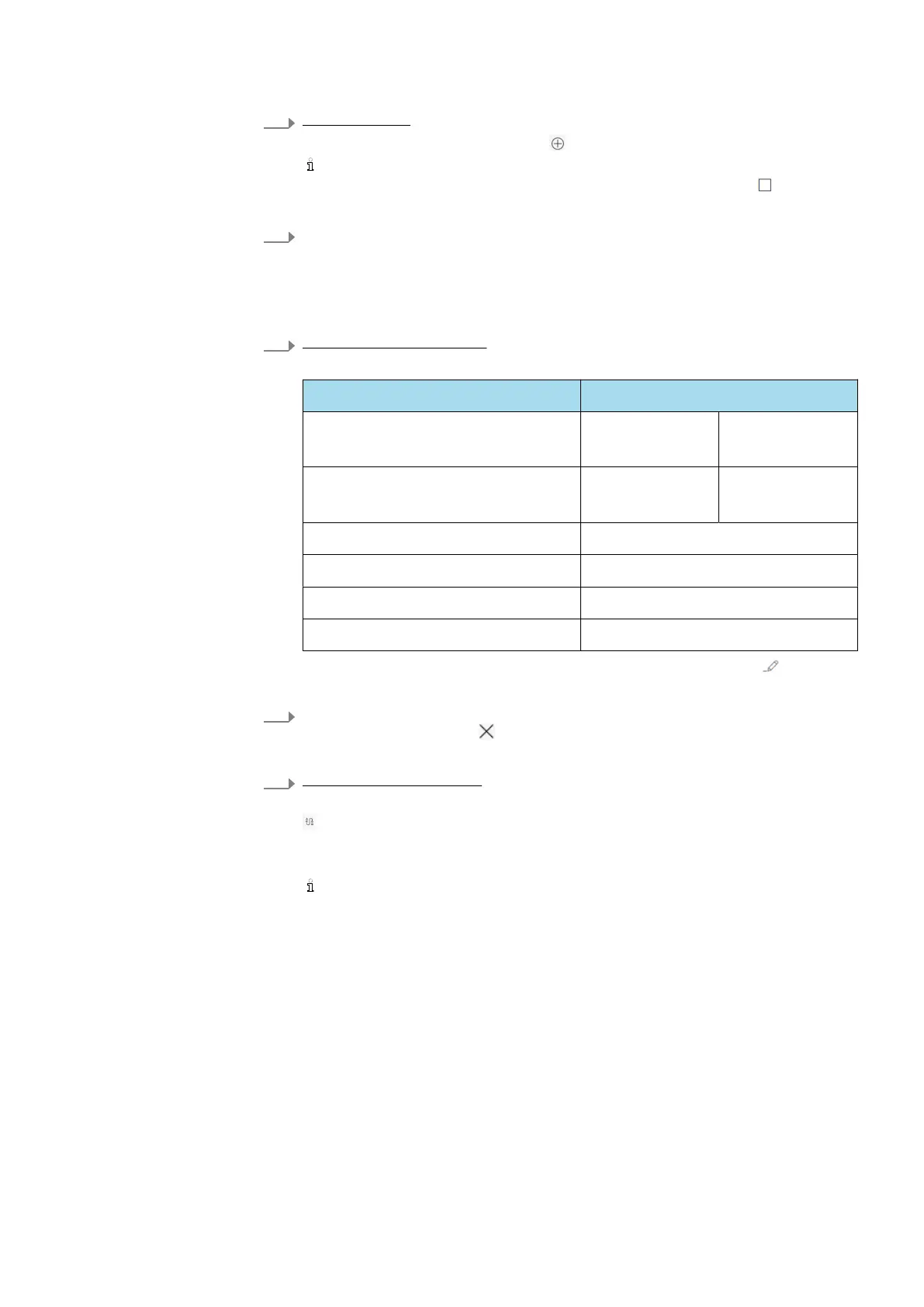
To add an axis, select the button .
The Motion has to be in the operating state “[Configuration]”. If the
Motion is in the “[Running]” state, stop it first via the button
.
The dialog “Add Axes” opens.
3.
Axis names can be defined in the “Add Axes” dialog. The axis names
cannot be changed anymore.
Confirm the dialog with “OK”.
The axis is added to the configuration and shown in the table with the
“Disabled” state.
4.
Defining axis limit values
The following limit values are preset after creating the axis:
Limit value Preselected values
Position Min.
-1000 units
Max.
1000 units
Velocity Neg
1000 units/s
Pos.
1000 units/s
Acceleration 2000 units/s
2
Deceleration 2000 units/s
2
Jerk Acceleration 4000 units/s
3
Jerk Deceleration 4000 units/s
3
To adapt the limit values to the application, select the button .
The tab “Limits” opens.
5. Enter the valid limit values for the axis into the tab “Limits” and close the
dialog using the button .
The settings are applied to the axis.
6. Assigning an axis profile
Assign an axis profile to the control. To assign a profile, select the button
.
Enter the address of the EtherCAT device to be linked (ctrlX DRIVE / type
Servodrive_over_EtherCat).
Determine the address via the “ctrlX I/O Engineering” or the EtherCAT
status in the ctrlX CORE web interface (default = 1001, if ctrlX DRIVE is
the only device)
After the ctrlX DRIVE has been assigned, a dialog opens to assign the
input/output variables for the axis.



 To Next Page