ctrlX AUTOMATION First Steps
6 ctrlX CORE basics
This chapter provides a brief overview on the sections of the ctrlX CORE web
interface relevant to execute the First Steps.
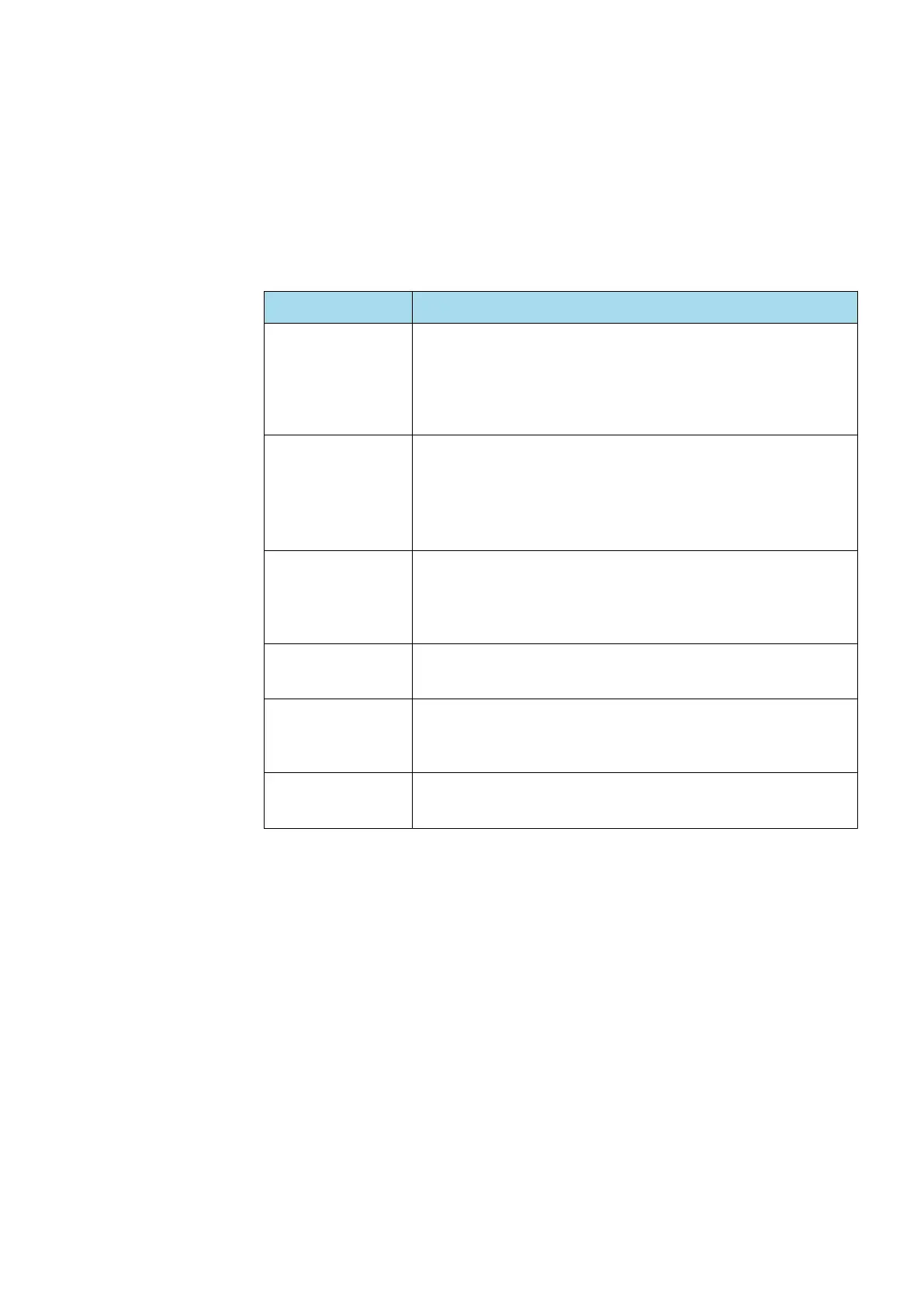
Side navigation
The “side navigation” is at the left edge of the screen and used to navigate in
the ctrlX CORE web interface. The installation of additional apps adds addi-
tional entries to the side navigation, e.g. “Motion” or “PLC”.
Side navigation Function
“Automation” Central navigation site that visualizes all installed apps as
“Widgets”.
Depending on the app, the operating state is shown in
the Widget. Links are provided to directly reach the app
site and the software tools if available.
“Configurations” Used to manage configurations.
All project data of the control/apps is saved to a configu-
ration.
The “Default” configuration is already installed upon
delivery.
“Settings→ Apps” Used to manage apps on the control (installation, update,
disabling, uninstallation).
Go to the Local storage or to the Online store to install
additional apps on the control.
“PLC” Optional: “PLC app”
Shows the active PLC applications on the control.
“Motion” Optional: “Motion app”
Used to configure axes and kinematics and for commis-
sioning (jog mode).
“EtherCAT” Optional: “EtherCAT Master app”
Used to configure the EtherCAT Master on the control.
Back to step 5
Chapter 5.5 “Step 5 – Starting the ctrlX CORE web interface”
on page 13



 To Next Page