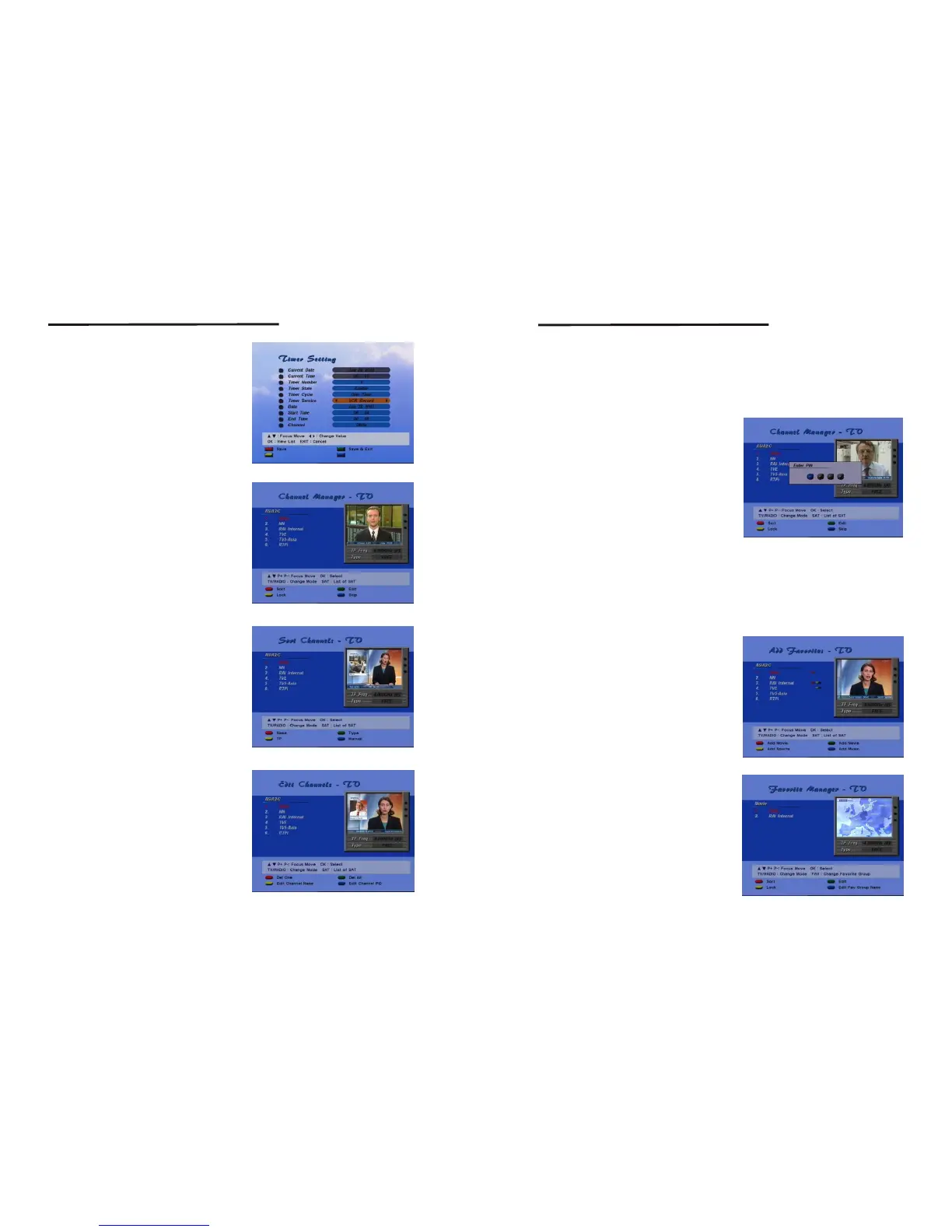
<screen 16>
Timer
Move the cursor to an event in the required
time zone, and press Blue(Timer).
Then the timer is set to the designated time.
See the Timer Settings for details
You can change channel information in the
"Channel Manager" of Main Menu.
Use TV/Radio button to view TV/Radio
channel list. Use SAT button to view other
satellite's channel list.
4.5 Channel Manager(Edit Mode)
<screen 17>
Sort
You can sort channel orders of channel list.
Use the 'Sort' button.
Name : Sort channel order by channel name.
Use the 'Name' button.
Type : Sort channel order by channel status.
Free and Scrambled.
Tp : Sort channel orders by transponder order.
Manual : You can move a channel position.
<screen 18>
Then check mark will be shown on the
selected channel. Use the cursor move
buttons to move to the position that you
want. Use the 'Manual' button again.
Be aware that the function can completely
delete the saved channels. When you delete
a channel in Channel Manager, the channel
is also deleted from the Favorite List.
EDIT
You can change a channel name or PID and
delete one or all channels on the current
satellite channel list.
<screen 19>
First use the 'Manual' button.
Delete One : You can delete current
selec ted channel only.
Use 'Del One' button.
Delete All : You can delete current list's all
channel. Use 'Del All' button.
18
19
Setting and Operations
Setting and Operations
Edit Channel Name : You can edit current channel name.
Press 'Edit Channel Name' button(Yellow).
Edit window will be displayed.
Edit Channel PID : You can edit channel PID in formation. Use 'Edit Channel PID'
button(Blue). Channel PID edit menu will be displayed. (The
changed PID value can be disregarded if the PID information is
updated from satellite.)
LOCK
SKIP
<screen 20>
If channel lock status is enabled, you must
enter PIN code to view channel.
If channel skip status is enabled, channel cannot be viewed on a channel view operation.
4.6 Add Favorites
You can designate the channels of the current TV/Radio list as the favorite channels.
The default favorite list names are "Fav1", "Fav2", "Fav3", "Fav4". Move to the required
channel with Up/Down or P+/P- button, and then press color button on the remote
controller to set channel as favorites. For
example, if you press Red(Fav1) button the
channel is designated as 'Fav1' favorite
channel. If Red button is pressed again the
selected channel is un-selected from "Fav1"
favorite list. One channel can be selected
into more than one favorite list.
You can change default favorite list name
from Favorite Manager menu. To select
Radio channel in the TV list use Radio button,
and use TV button in the Radio channel list.
You can see the favorite list if you press the
'Fav' button while you are watching TV(or
listening Radio channel) in Normal State.
<screen 21>
4.7 Favorite Manager
<screen 22>
The function is basically the same as the
channel manager menu in 4.5.
- Sort :Same as the Sort function of channel
manager menu in 4.5.
- Edit :Same as the Edit function of channel
manager menu in4.5.
- Lock :Same as the Lock function of channel
manager menu in 4.5.
- Fav Group Name : You can edit the name
of the favorite group.
(See 4.9Name Edit)



 To Next Page
 Loading...