13
DEVICE SETUP
Set interface language
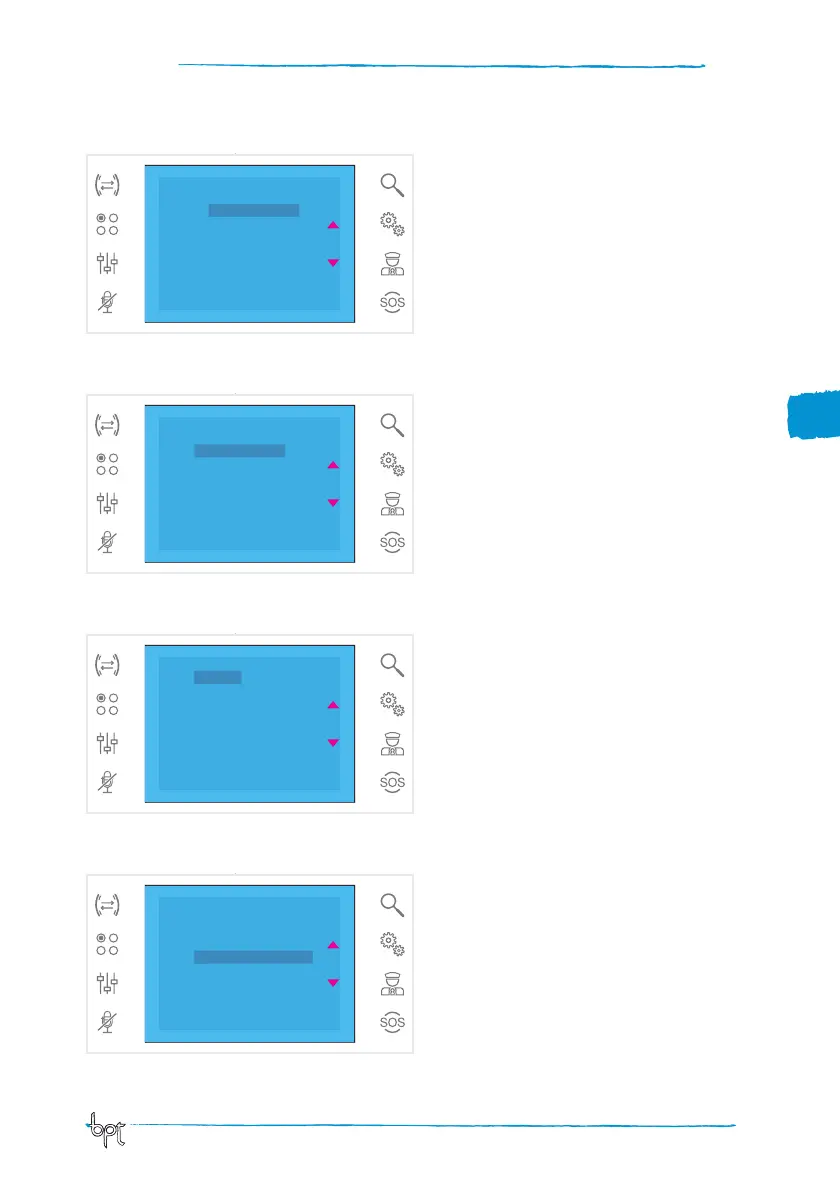
In the list of setup items (fig. 12), select the Lan-
guages
item using buttons ws then press OK.
The language marked with a star is the one cur-
rently selected.
Scroll through the list using buttons ws; press
OK to
choose the selected language.
Press EXIT to return to the previous window.
Technical setup
Access reserved to qualified personnel
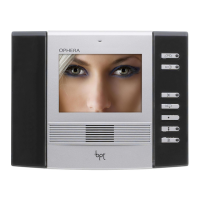
In the list of setup items (fig. 12), select the Techni-
cal
item using buttons ws then press OK.
Select the Send SN item using buttons ws and
press OK to identify the device in a system pro-
grammed from a PCS/300, PCS/XIP software.
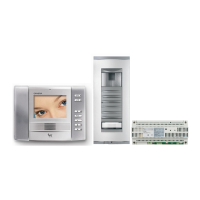
Select item
Man. Prog. using buttons ws and
press OK to programme the device in a X1 and 300
type system.
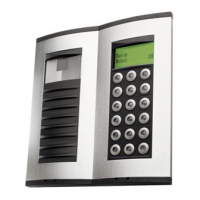
Select the Standard Video item (fig. 17), using the
ws buttons and press OK to access the setup screen.
The standard marked by a star is the one currently in
use. Use the ws buttons to make your selection and
press OK to confirm your choice.
Press EXIT to return to the previous window.
Select the Info item using buttons ws and press
OK to display information about the device firm-
ware version.
Press EXIT to return to the previous window.
19
16
EXIT OK
Italiano
*English
Deutsch
Français
Español
Português
Nederlands
17
EXIT
EXIT
OK
OK
Send SN
Man. Prog.
Standard Video
Info
Send SN
Man. Prog.
Standard Video
Info
18
EXIT OK
*PAL
NTSC



 To Next Page