Operation Manual IQ-BASIC-GPS 28
Bräuniger GmbH
5.1.1 Flight instrument settings
All settings, such as pilot’s name, time zone, battery type and also all units for the display of
altitude, speed, temperature etc. may be set in Main Menu
Instrument settings to the
personal requirements. By use of the PC software Flychart, it is possible to adjust all
characteristics of the instrument simply and comfortably, and to memorise and save them in a file.
The management of several instrument settings is also possible, which may be transmitted
again to the IQ-BASIC-GPS at anytime.
5.1.2 Waypoints and Routes
Within the same Menu it is also possible to transmit in Flychart the Waypoints and Routes to
the instrument. Flychart is also suitable to import Waypoint files from SeeYou or CompeGPS
or Garmin for transmission to the instrument.
6 Transmitting new Software-(Firmware) to the IQ-BASIC-GPS
As is the case with many other present-day instruments, there is also the possibility to up-date the
software (firmware) version. Hereby even future requirements presented by pilots may be rapidly
implemented. The manufacturer Brauniger GmbH shall post from time to time program up-dates of
the
IQ-BASIC-GPS -Firmware on its Internet homepage, which can be downloaded by the user free of
charge for storage and subsequent transmission to the IQ-BASIC-GPS.
In order to be able to write into the IQ-BASIC-GPS flash memory with a PC, the program
„Flasher.exe Vers. 1.5 or higher“ is required, which is available in zipped file format under the
name of “Flasher.zip”. Moreover also the intrinsic firmware to be uploaded needs to be obtained
from the homepage. Its name is e.g. "IQ-BASIC V1_2_05 Eng.moc" (approx. 157 KB) which is
equivalent to the English version 1.2.05.
Tip: we recommend to store all the related files in one single subdirectory (e.g.:\Programs\
BraunigerFlasher\). After decompressing the ZIP file a number of files are created.
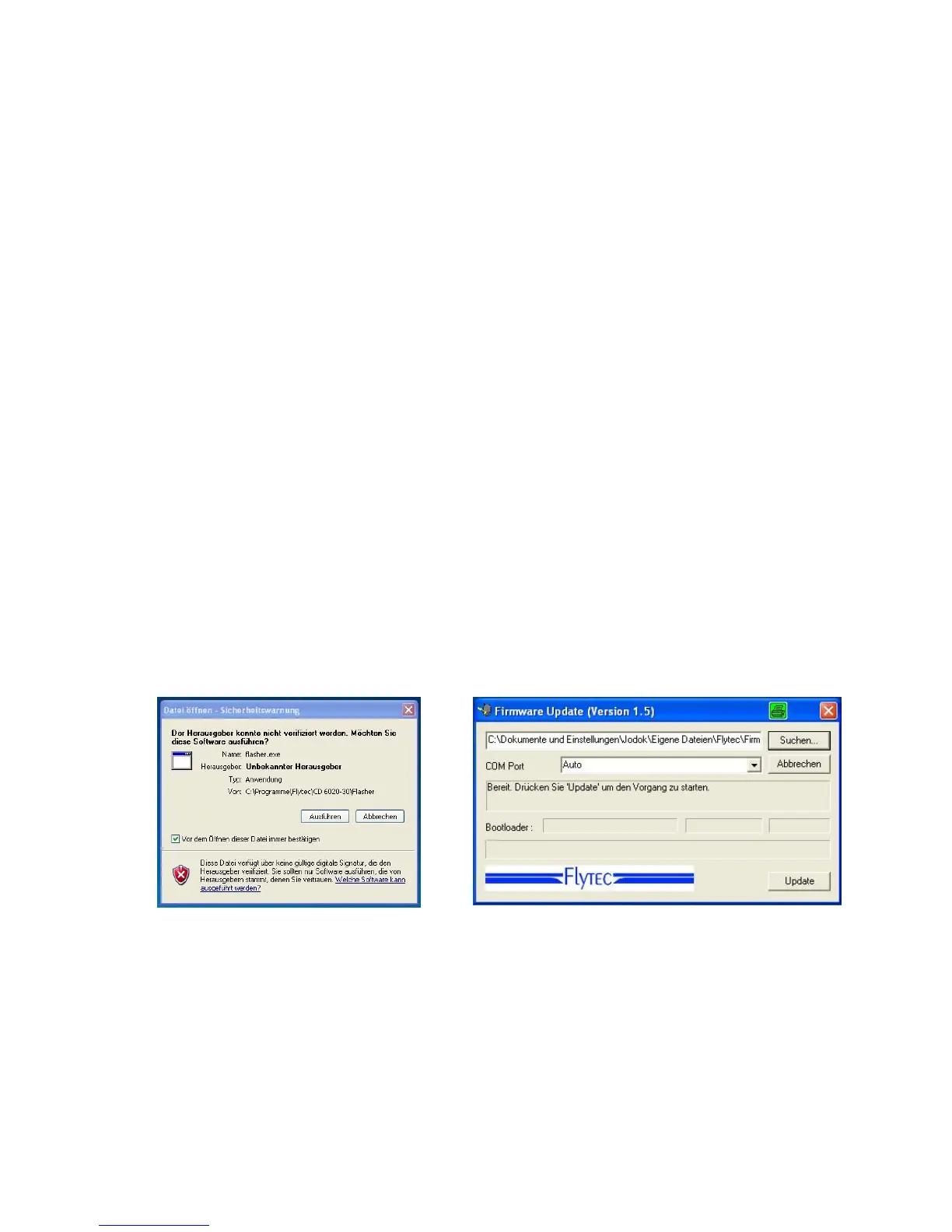
Double click on the file " Flasher.exe" starts the program.
For the safety warning press „execute“ (Ausführen), after this the program will start.
With „Search“ ("Suchen") you select the program to be transferred and ending " *.moc ",
e.g. IQ-BASIC V1_2_05 Eng.moc or or you drag it from the Explorer by „drag & drop“ into the field.
Now connect the USB cable with the instrument. Afterwards you can set the interface in the field
Com Port, or if it is unknown to you, set to Auto and have thereby an automatic search prompted.
The virtual COM interface should be positioned between 1 and 9. Above this value the Flasher
can no longer recognise the interface.
Start the data transfer by clicking on Update. Then the version of the instruments’s Bootloader
shall appear and the relevant bit rate. The numbers appearing in the field on the right are the response
data of the instrument.


 To Next Page