17
CALIBRATION
1. User can input the oset and/or gain values for dierent parameters while current oset and
gain values are shown next to their corresponding blank.
2. Once completed, press
Apply
at the bottom of the SETUP page. The current oset value
will show the previous value that you entered, please input the new value in the blank if any
changes needed, the new value will eective once you press
Apply
icon in SETUP page.
NOTE:
- Calibration of most parameter is not required, with the exception of Relative Pressure, which
must be calibrated to sea-level to account for altitude eects.
- Indoor temperature and humidity calibration values are not applicable for this console.
VIEW YOUR WEATHER DATA IN WUNDERGROUND
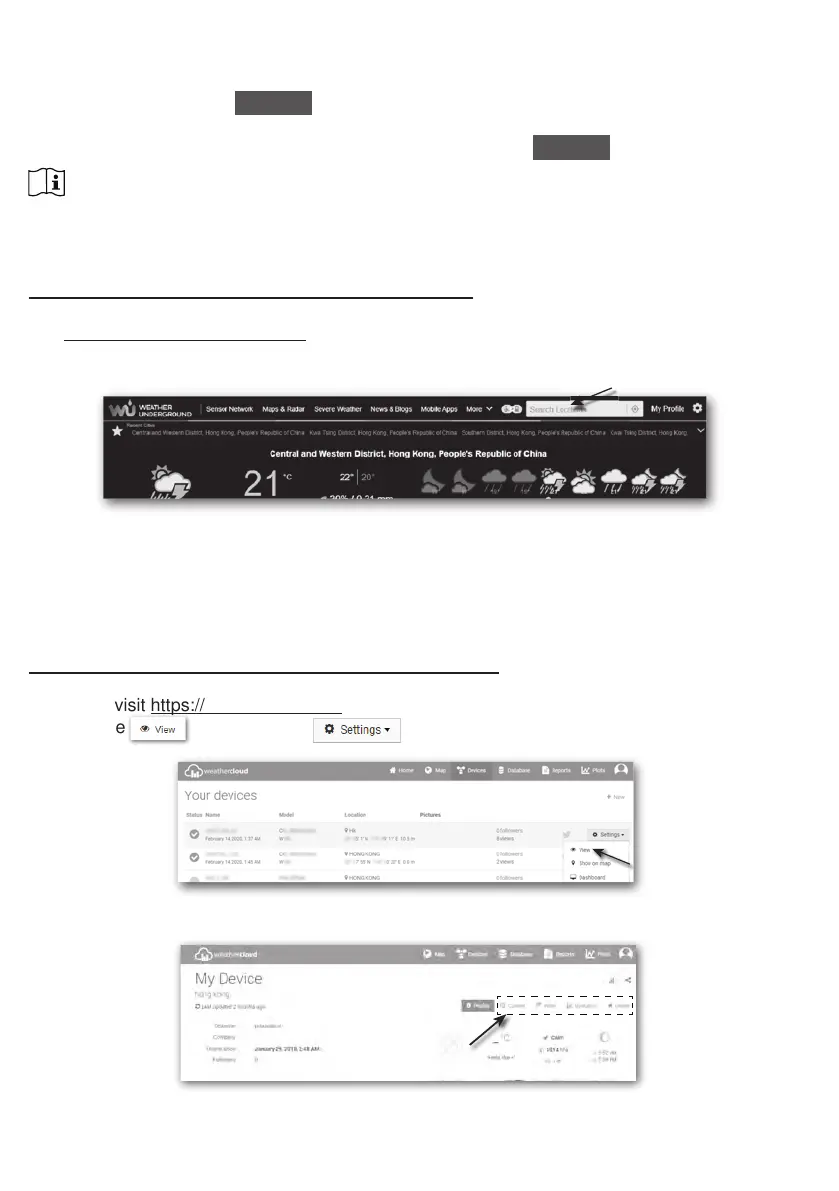
To view your weather station live data in a web browser (PC / Mac or mobile version), please
visit http://www.wunderground.com, and then enter your “Station ID” in the searching box.
Your weather data will show up on the next page. You can also login your account to view and
download the recorded data of your weather station.
Another way to view your station is use the web browser URL bar, type below in the URL bar:
https://www.wunderground.com/dashboard/pws/XXXX
Then replace the XXXX by your Weather underground station ID to view your station live data.
You can also check Weather Underground web site to learn more about their mobile App for
Android and iOS.
VIEWING YOUR WEATHER DATA IN WEATHERCLOUD
1. To view your weather station live data in a web browser (PC / Mac or mobile version),
please visit
https://weathercloud.net and sign in your own account.
2. Click the icon inside the pull down menu of your station.
3. Click "Current", "Wind", "Evolution" or "Inside" icon to view the live data of your weather
station.



 To Next Page