30
8 Installing Calibration Data
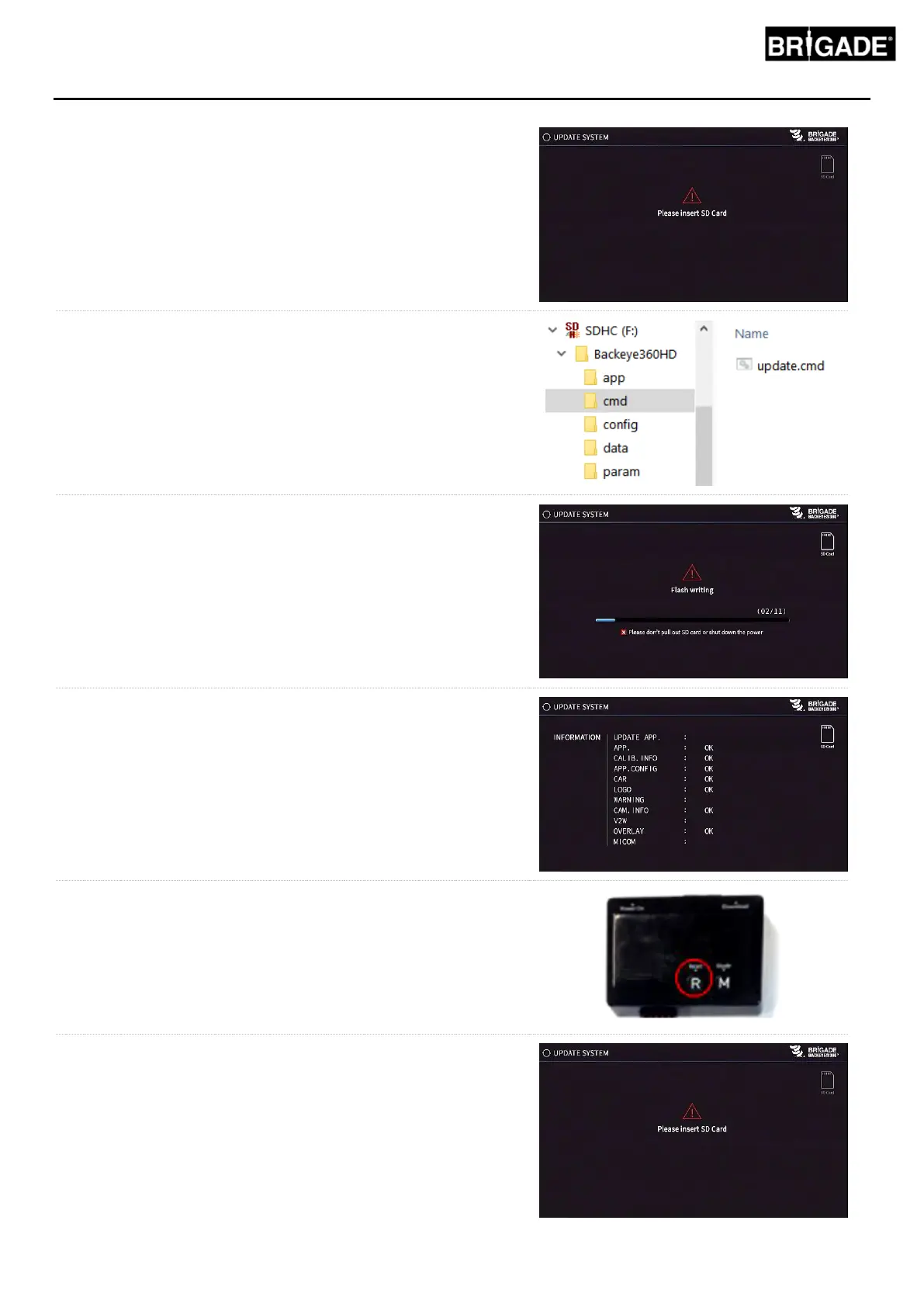
Once the calibration data has been saved to the SD Card as per
section 6, insert the Calibration Tool into the BN360-300-ECU and
apply power to the system. The “UPDATE SYSTEM” screen should
be displayed prompting the user to insert an SD Card.
Ensure the SD Card contents are correct and the “cmd” file has
been renamed to “update.cmd”.
Insert the SD Card, the system will automatically begin the update
process.
WARNING: DO NOT REMOVE THE SD CARD OR CALIBRATION
TOOL DURING THIS PROCESS, DOING SO COULD CAUSE
PERMANENT DAMAGE TO THE SYSTEM.
Once the upload has completed the following screen should show.
All items that have been updated will be displayed as “OK”. Some
items such as “WARNING”, “LOGO” and “MICOM” and “V2W” may
not change so these will be blank.
Updating ECU firmware is a two-stage process that requires a
second upload in order to ensure all files are correctly updated.
When the “INFORMATION” screen shows, do not eject the SD Card,
press the “Reset” button on the Calibration Tool to repeat the
calibration upload and wait for the update to complete a second
time.
When the “INFORMATION” screen is displayed for a second time,
eject the SD Card and wait for the “Please Insert SD Card” screen
to appear before removing the Calibration Tool (the system can be
left powered while the Calibration Tool is removed).
The system will automatically restart and the new calibration data
will be shown on the display.


 To Next Page