6
2.5 Views Modes
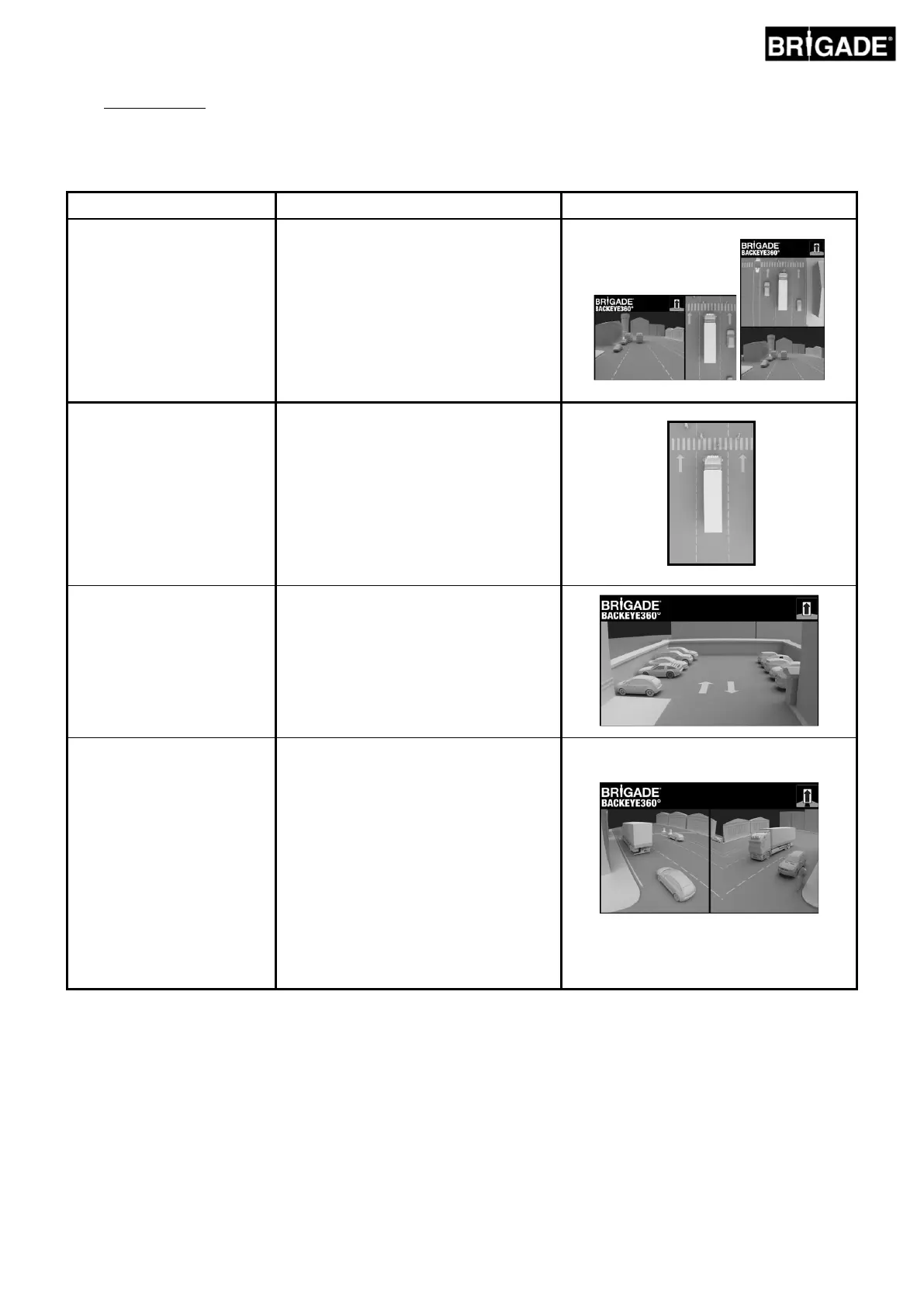
The View Modes are the different views that the system can display in each Display Mode. Examples images of the
view modes listed above are shown in the table below:
Top + rear view
Top + front view
Top + left view
Top + right view
“Top” refers to the 360° birds-eye/surround
view image, the vehicle image is centered
within the 360° image and is placed to the
right (for Landscape configurations) or
above/below (for Portrait configurations) of
the single camera image (i.e. front
camera/rear camera etc.).
Full screen 360° views for Portrait Mode
only.
Front (full)
Rear (full)
Left (full)
Right (full)
Displays the front/rear/left/right single
camera views in full screen only.
Front Crossing Traffic
Rear Crossing Traffic
Simulates cameras placed on the corners
of the vehicle facing down an intersecting
junction. This view gives extra emphasis on
the extreme corners of the front/rear views
where pedestrians or vehicles might be
crossing the path of the vehicle e.g. if the
driving position is set back from the front of
the vehicle.
Note: this View Mode should only be
used for observing corner areas and not
in circumstances where the full
front/rear field of view is required.


 To Next Page