BrightDrop Zevo 600 Owner Manual (GMNA-Localizing-U.S./Canada-
16569273) - 2023 - CRC - 11/3/22
86 Infotainment System
Google applications such as Play Store,
Assistant, and Maps are not available due
to no data plan.
Shortcut Menu
The shortcut menu is along the left edge of
the display. It shows up to five applications.
To change the applications shown on the
shortcut menu, touch and hold an icon and
then drag it from the home page to the
shortcut menu.
Infotainment Display Features
Infotainment display features show on the
display when available. When a feature is
unavailable, it may gray out. When a
feature is touched, it may highlight.
Haptic Feedback
If equipped, haptic feedback is a pulse that
occurs when an icon or option is touched on
the display or when controls on the center
stack are pressed.
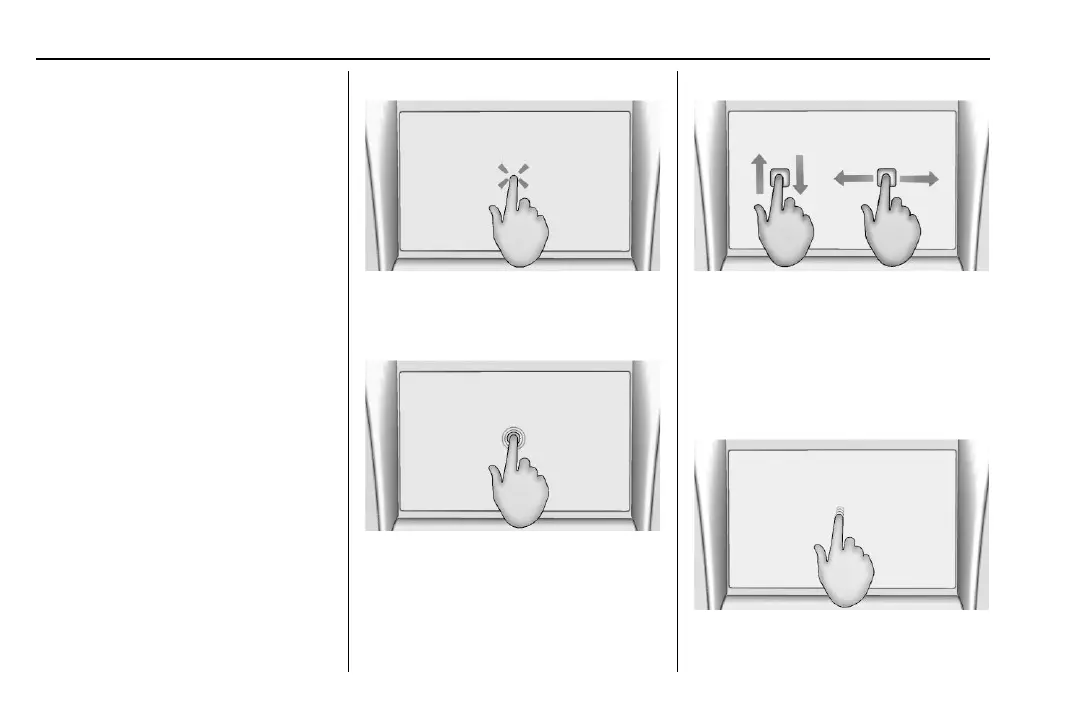
Infotainment Gestures
Use the following finger gestures to control
the infotainment system.
Touch/Tap
Touch/tap is used to select an icon or
option, or activate an application.
Touch and Hold
Touch and hold can be used to start another
gesture, or to move or delete an application.
Drag
Drag is used to move applications on the
Home Page. To drag the item, it must be
held and moved along the display to the
new location. This can be done up, down,
right, or left. This feature is only available
when vehicle is parked and not in motion.
Nudge


 To Next Page