BrightDrop Zevo 600 Owner Manual (GMNA-Localizing-U.S./Canada-
16569273) - 2023 - CRC - 11/3/22
Infotainment System 85
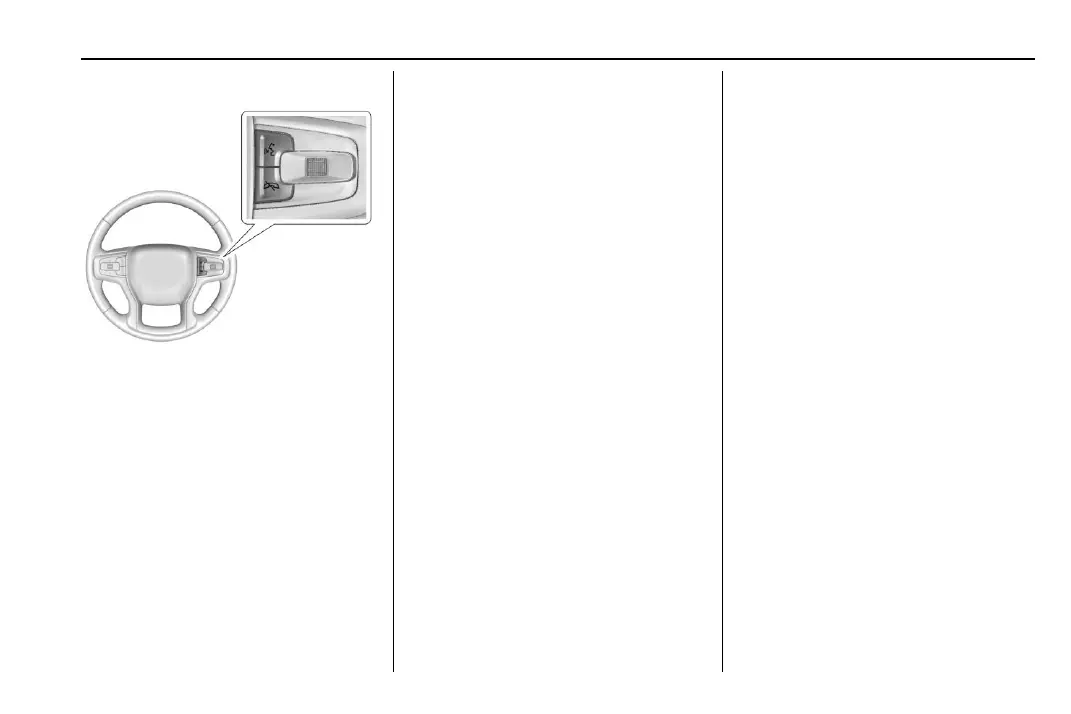
Steering Wheel Controls
If equipped, some audio controls can be
adjusted at the steering wheel.
g : Press to answer an incoming call or
start voice recognition. See Bluetooth
(Pairing and Using a Phone) 0 96 or
Bluetooth (Overview) 0 95.
c : Press to decline an incoming call or
end a current call. Press to mute or unmute
the infotainment system when not on a call.
Using the System
Depending on the vehicle options, the
following Apps may be available:
Phone
Touch the Phone icon to display the Phone
main page. See Bluetooth (Pairing and Using
a Phone) 0 96 or
Bluetooth (Overview) 0 95.
Audio
Touch the Audio icon to display the audio
screen. See AM-FM Radio 0 87 and
Bluetooth Audio 0 89.
Wi-Fi Hotspot
Touch the Wi-Fi Hotspot icon to display the
Wi-Fi Hotspot screen. See “Wi-Fi Hotspot” in
Settings 0 101.
Maps
Touch the Maps icon to display the Google
Maps screen. See Using the Navigation
System 0 90.
Google Assistant
Touch the Google Assistant icon to open the
Google Assistant app. See Voice Recognition
0 93.
Google Play
Touch to download some of your favorite
apps in your vehicle. Downloading apps on
Google Play require you to sign into a
Google Account with an active service plan
with data. Some third-party apps require a
separate account and, in some cases, a paid
subscription for in-vehicle access.
Energy
Touch the Energy icon to open the Enery
app. See Energy Information 0 72.
Settings
Touch the Settings icon to display the
Settings menu. See Settings 0 101.
Apple CarPlay
Touch the Apple CarPlay icon to activate
Apple CarPlay (if equipped) after a
supported device is connected. See Apple
CarPlay and Android Auto 0 99.
Android Auto
Touch the Android Auto icon to activate
Android Auto (if equipped) after a supported
device is connected. See Apple CarPlay and
Android Auto 0 99.


 To Next Page