BrightDrop Zevo 600 Owner Manual (GMNA-Localizing-U.S./Canada-
16569273) - 2023 - CRC - 11/3/22
72 Instruments and Controls
this temperature if Preconditioning is set to
ON in either the Charge Later screen, or in
an active Schedule.
Preferred Charge Times
Allows preferred charge time windows to be
enabled for the Home Charge Location
during both weekday and weekend
scheduled or delayed charging sessions. This
allows for charging at a lower cost by
charging during the electrical provider’s
off-peak period. The vehicle will use these
times to reach the desired Charge Level by
the scheduled time. If the vehicle cannot
reach the desired charge level within these
times, it will charge as needed outside of
this schedule.
Energy Information
Energy Usage
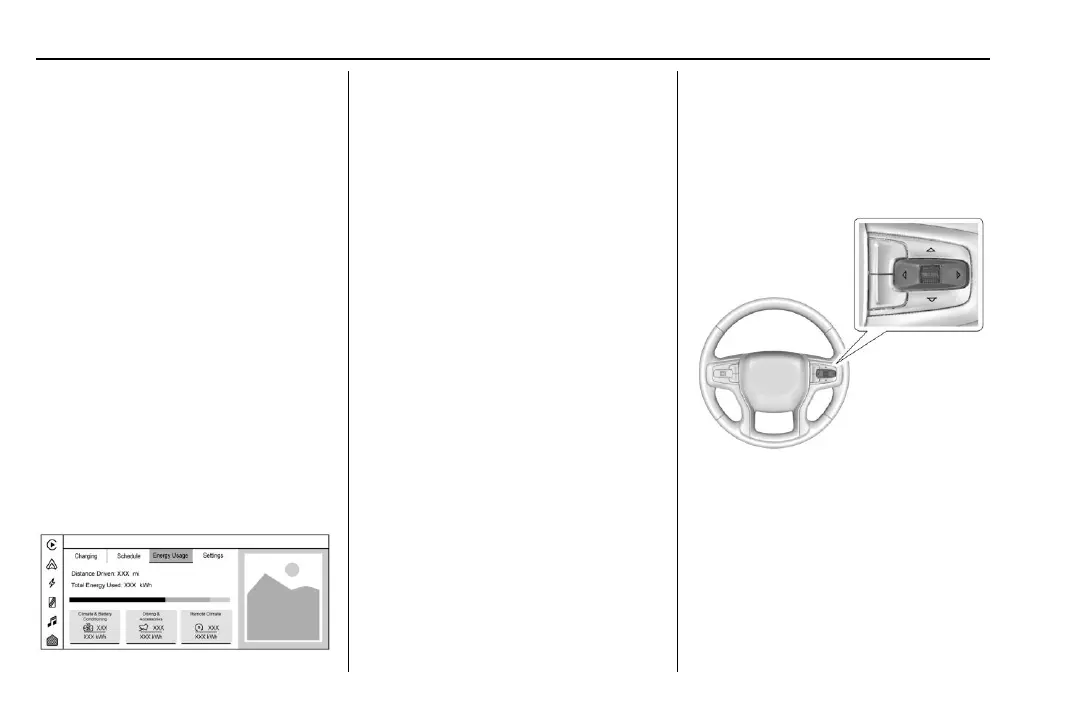
To view Energy Usage, touch Energy Usage
on the infotainment display.
This screen displays how energy is being
used for the current drive since the last time
the vehicle was started.
The Energy Usage screen displays:
Distance Driven : The distance of your
current Trip.
Total Energy Used : The amount of energy
used during your current Trip, shown in
Kilowatt Hours (kWh).
4 : For displaying more information about
your vehicle’s Energy Usage.
Energy Usage Bar Diagram : A visual
representation of the percentage of total
energy being used by each Energy Usage
Category.
Energy Usage Categories : Climate &
Battery Conditioning, Driving & Accessories,
and Remote Climate.
Tap
4 or any Energy Usage Category to
learn more about how your vehicle uses
energy from the battery.
Driver Information Center (DIC)
The DIC is displayed in the instrument
cluster. It shows the status of many vehicle
systems. The controls for the DIC are on the
right steering wheel control. See Instrument
Cluster 0 55.
w or x : Move the thumbwheel up or
down in a list.
o or p : Press to move between the
interactive display zones in the cluster.
Thumbwheel : Press to open a menu or
select a menu item. Press and hold to reset
values on certain screens.


 To Next Page