13 14
The following instructions are based on the PS4 controller. For those using
other controller, please refer to the Corresponding Buttons List.
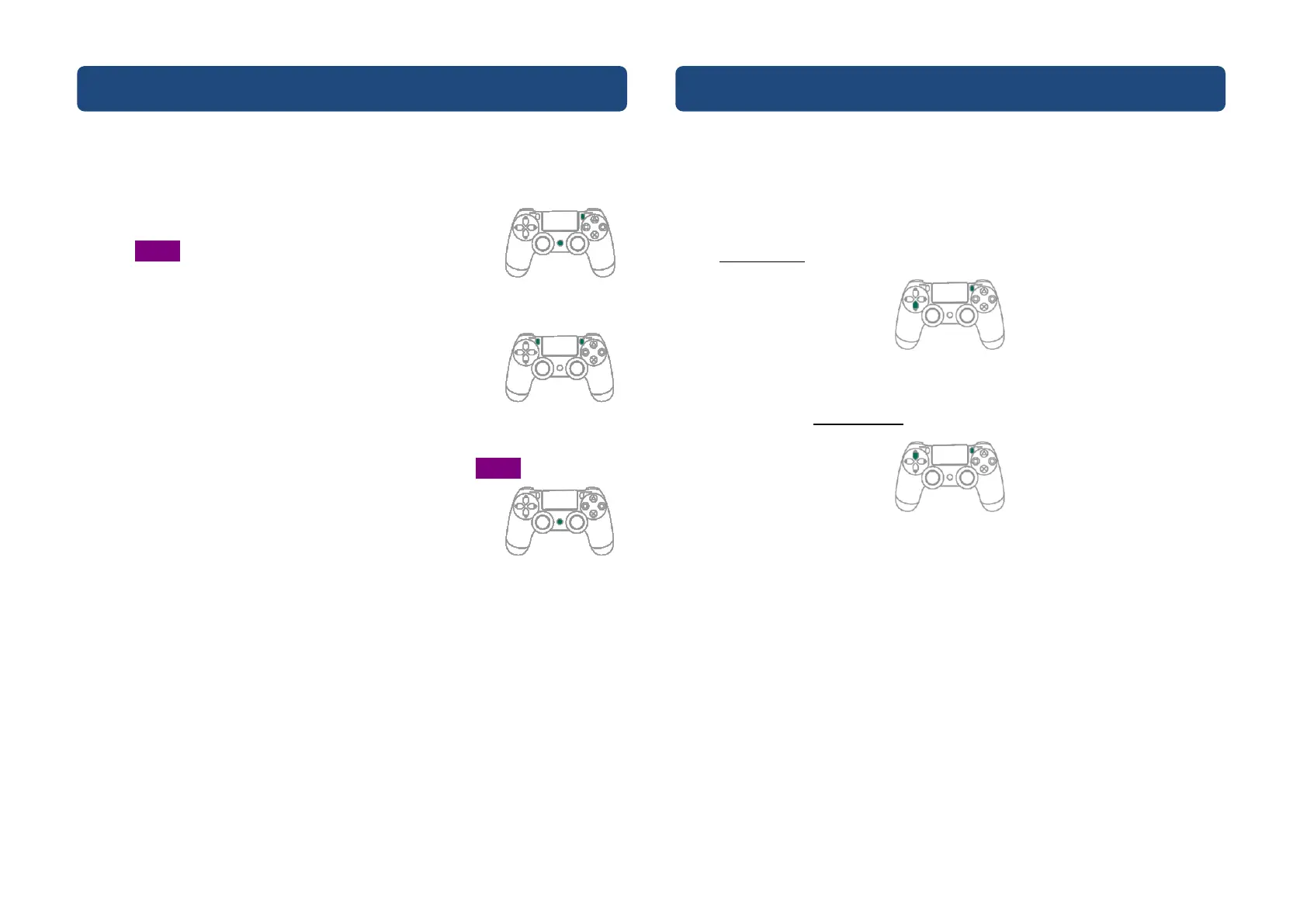
❶ Enter the setting mode
Press both OPTION and PS buttons to enter Remap
setup mode.
The purple indicator means you enter Remap setup
mode.
❷ Erasing all Remap function buttons
Press both SHARE and OPTION buttons to cancel all
Remap mode settings.
❸ Exit
Press the PS button to leave Remap setup mode. The purple indicator will
then turned off.
The following instructions are based on the PS4 controller. For those using
other controller, please refer to the Corresponding Buttons List.
PS classic switch to PC mode (X-Input )
If you are a PC gamer, press and hold OPTION + D pad-Down button for 2
seconds after inserting your Wingman PS2 to the PC USB port. The white
signal flashes once and it enters PC mode (X-input).
X-Input switch to PS classic mode
For switching to console mode, press and hold your OPTIONS + D pad-Up for 2
seconds. The white flashes twice and then you enter default PS Classic mode.


 To Next Page