Chapter 5
42
Print Quality 5
a Press a or b to choose
Print Quality.
Press OK.
b Press a or b to choose Normal or
Photo.
Press OK.
c If you do not want to change additional
settings, press Color Start to print.
Paper options 5
Paper Type 5
a Press a or b to choose Paper Type.
Press OK.
b Press a or b to choose the type of
paper you are using, Plain Paper,
Inkjet Paper, Brother Photo or
Other Photo.
Press OK.
c If you do not want to change additional
settings, press Color Start to print.
Paper and print size 5
a Press a or b to choose Paper Size.
Press OK.
b Press a or b to choose the type of
paper you are using, Letter, 4"× 6",
5"× 7" or A4.
Press OK.
c If you chose Letter or A4, press a or b
to choose the print size.
Press OK.
d If you do not want to change additional
settings, press Color Start to print.
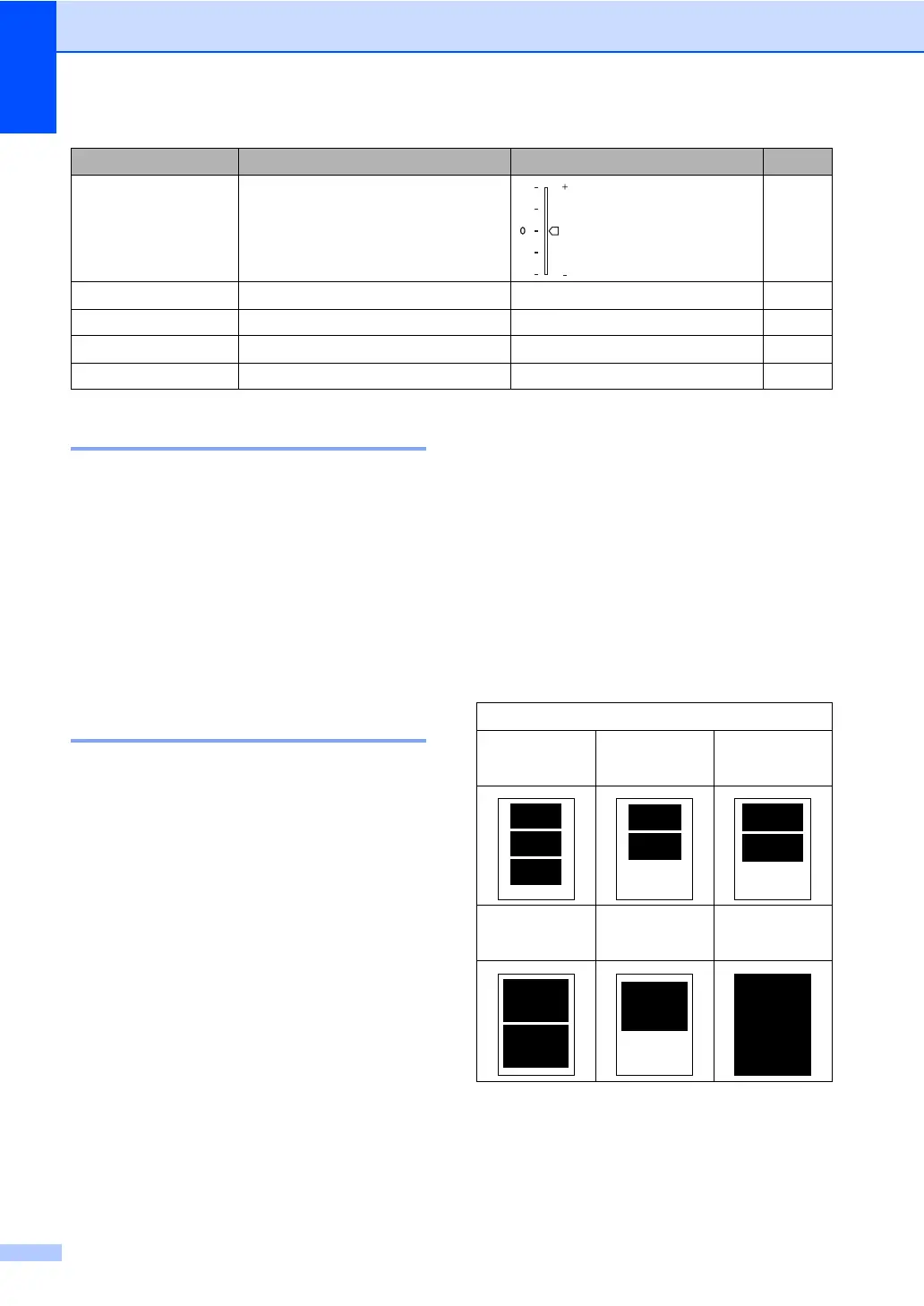
True2Life On/Off
White Balance / Sharpness /
Color Density / Exit
43
Cropping On/Off 44
Borderless On/Off 44
Set New Default Yes/No 44
Factory Reset Yes/No 44
Menu Selections Options1 Options2 Page
Example: Printed Position for Letter paper
1
4"× 3"
2
5"× 3.5"
3
6"× 4"
4
7"× 5"
5
8"× 6"
6
Max. Size





 To Next Page